A customer hands over a small phone photo and asks for a poster the size of a door. The shop prints it, and the result is soft, blocky, and faintly embarrassing, with edges that dissolve the closer you stand. The best ai upscalers for print shops exist for exactly this job, because they rebuild the missing detail instead of simply stretching the pixels that are already there.
The problem is not the printer. A modern wide-format printer can lay down detail far finer than the file it was given, and the file is almost always the weak link. Customers send old scans, social media downloads, and phone photos that were never meant to be printed large. A shop that turns those files away loses the order, while a shop that prints them as they are loses the customer when the poster comes out soft.
This guide compares twelve upscalers on the questions that decide whether a print looks professional. How large can a file go before it breaks down. Does the tool invent detail that looks real, or does it invent detail that looks wrong. Can the shop run it on a hundred files without babysitting each one. The checklist below turns those questions into a test you can run on your own worst files before you pay for any tool.
The 12 Tools at a Glance
Use this table to shortlist fast. The best ai upscalers for print shops differ in maximum size, output quality, and whether they suit one-off jobs or a full production queue, so weigh the Best for column against the largest print you sell.
| Tool | Starting price | Best for | Standout strength |
|---|---|---|---|
| Topaz Gigapixel AI | One-time purchase from about $99 | Professional large prints | Sharp detail at very large sizes |
| Upscayl | Free and open source | Free one-off jobs | Free open-source upscaling with no account |
| Let’s Enhance | Paid plans from about $9 a month | Quick web jobs | Fast online upscaling with simple controls |
| VanceAI | Paid plans from about $4.95 a month | Batch photo work | Batch upscaling with face and detail repair |
| Magnific | Paid plans from about $39 a month | Creative enlargements | High-detail enlargements for art and posters |
| Adobe Super Resolution | Included with Lightroom plans from about $9.99 a month | Photographers | Detail recovery built into a photo workflow |
| ON1 Resize AI | One-time purchase from about $69.99 | Old photo restoration | Enlargement plus restoration for old prints |
| HitPaw Photo Enhancer | Paid plans from about $29.95 a month | Small shops | Simple enlargement for everyday print jobs |
| Remini | Paid plans from about $4.99 a week | Phone photo prints | Face and photo repair for phone images |
| Waifu2x | Free | Free simple jobs | Free upscaling for basic enlargement |
| BigJPG | Free tier available, paid plans on the vendor site | Quick free enlargements | Free tier for small images and tests |
| Icons8 Smart Upscaler | Free tier available, paid plans from about $9 a month | Simple web enlargements | One-click upscaling with no install |
Why the Best AI Upscalers for Print Shops Decide Whether a Large Print Looks Professional
A large print shows every weakness in a file, and the weakness grows with the size. A photo that looks sharp on a phone can fall apart on a poster, because the same number of pixels is spread over a much larger area. The eye forgives a soft photo on a screen, but it does not forgive a soft face on a canvas hanging on a wall. An upscaler that rebuilds edges, texture, and fine detail is the difference between a print a customer frames and a print a customer returns.
The second problem is the kind of detail a tool invents. A weak upscaler sharpens everything equally, which turns skin into plastic, hair into wire, and text into a smear. A strong upscaler understands what it is looking at, so it sharpens an edge, softens a sky, and leaves a face looking like a face. The test is not whether the image is bigger, and it is whether the bigger image still looks like the original, only clearer.
Then there is the production reality, which is volume. A print shop does not upscale one photo a week, and it upscales dozens a day, in different sizes, for different products. A tool that needs hand work on every file will slow the queue to a crawl. A tool with batch processing, presets, and a predictable output lets the operator load a folder, walk away, and come back to files that are ready to print.
Cost is the last piece, and it is measured per file as much as per month. A subscription that looks cheap can turn expensive when every enlargement costs a credit, while a one-time purchase can pay for itself in a month of busy orders. Run the numbers on your real weekly volume before you choose, because the cheapest tool for ten files a week is rarely the cheapest for a hundred.
Checklist before you choose. Take your worst customer file, which is usually an old phone photo or a low-resolution download, and enlarge it to your largest print size in three tools. Stand at the distance a customer would stand and compare the faces, the text, and the edges. Time a batch of twenty files. Check whether the output prints cleanly on your paper. If a tool fails on your worst file, it will fail on the order that matters most.
How We Judged Every Upscaler on This List
The best ai upscalers for print shops were tested on real customer files, not on perfect sample images. Each tool was scored on the same checks, and a tool that made a face look waxy or a sign unreadable lost points fast.
- Large print quality. We enlarged the same photo to poster size in each tool and compared faces, text, and edges at viewing distance.
- Detail honesty. We checked whether the tool rebuilds real detail or invents patterns that were never in the original.
- Face handling. We tested portraits specifically, because a face is where a bad upscale is easiest to spot.
- Text and signs. We enlarged images with text and checked whether the letters stay readable or dissolve into shapes.
- Batch processing. We timed twenty files through each tool and checked whether the queue runs without hand-holding.
- Maximum size. We recorded the largest useful output each tool can produce for a big canvas or banner.
- File handling. We tested common formats, colour profiles, and whether the output prints cleanly on standard shop paper.
- Price honesty. We compared the real cost for a shop doing a hundred enlargements a week against the headline price.
Best Pick by Job
The best ai upscalers for print shops are not interchangeable, so pick by the job. A shop printing fine art posters, a shop fixing phone photos, and a shop running a hundred files a day need different strengths, and the table below pairs each job with the tool that fits it best.
| Job | Best pick | Why it wins |
|---|---|---|
| Professional poster work | Topaz Gigapixel AI | Sharpest large prints with detail that holds up close |
| Free one-off jobs | Upscayl | Free, capable, and good enough for most single jobs |
| Batch production | VanceAI | Batch processing with face repair for busy queues |
| Creative art prints | Magnific | High-detail enlargements for art and illustration |
| Photographer workflow | Adobe Super Resolution | Detail recovery inside the photo tools a studio already uses |
| Phone photo rescue | Remini | Face repair that saves old phone photos for print |
The 12 Tools in Detail
1. Topaz Gigapixel AI
Topaz Gigapixel AI is the upscaler most print professionals reach for when the output has to survive close inspection. The models rebuild edges, texture, and fine detail up to six times the original size, and the result holds up on a large poster in a way that simpler tools cannot match. The face recovery keeps portraits natural, and the text handling keeps signs readable. Topaz Gigapixel AI rewards a shop that prints large, because the quality gap over cheaper tools grows with the print size. The batch mode processes a folder of files with the same settings, and the preview lets an operator check the result before committing to a print.
The best ai upscalers for print shops prove themselves on the worst file in the queue, and Topaz Gigapixel AI handles that file better than any rival here. The one-time price is real money, and the tool needs a decent computer to run at full speed. A shop that only enlarges a few files a week may find the cost hard to justify against free tools. Pick Topaz Gigapixel AI when large prints are the core of the business. It is the sharpest upscaler here for professional work.
Starting price — One-time purchase from about $99.
2. Upscayl
Upscayl is a free, open-source upscaler that runs on your own computer with no account and no credits. The tool offers several AI models for different jobs, from general photos to digital art, and the results are strong enough for most print work. The interface is simple, and the batch mode handles a folder of files at once. Upscayl suits a shop that wants a capable tool without a subscription, because the price is zero and the models keep improving. The local processing keeps customer files on your own machine, which matters for privacy and for shops with slow internet.
Upscayl needs a reasonably modern computer with a graphics card to run fast, and the quality on faces and text is a step behind the paid leaders. The setup takes a little more patience than a web tool. Pick Upscayl when the budget is zero and the jobs are mostly standard enlargements. It is the best free upscaler here for print shops.
Starting price — Free and open source.
3. Let’s Enhance
Let’s Enhance is a web upscaler that enlarges photos, fixes colour and light, and removes noise in one pass. The tool is fast, the interface is simple, and the results are clean enough for posters, canvases, and marketing prints. The batch mode and the API suit shops that want to automate the job. Let’s Enhance is easy to fit into a production flow, because files upload, process, and download without installing anything. The colour and tone correction helps old customer photos that are dull as well as small, which saves a second editing step.
The credit system means heavy weeks cost more, and the maximum output is lower than on desktop leaders. A shop printing very large canvases will hit the ceiling sooner. Pick Let’s Enhance when the jobs come through a browser and the queue is steady. It is the most convenient web upscaler here for small shops.
Starting price — Paid plans from about $9 a month.
4. VanceAI
VanceAI is a suite of image tools with a strong upscaler at its centre, plus face repair, noise removal, and sharpening that suit print work. The batch processing handles a folder of files, and the models cover photos, art, and anime-style images with different settings for each. VanceAI suits a shop with mixed work, because the same account covers enlargement, restoration, and background work. The face repair is genuinely useful for old customer portraits that need to be printed large for a family event.
The credit pricing needs watching, because a busy week can burn through a plan faster than expected. The quality on very large prints is a step behind the desktop leaders. Pick VanceAI when the shop needs one account for enlargement plus repair. It is the most versatile web suite here for mixed print jobs.
Starting price — Paid plans from about $4.95 a month.
5. Magnific
Magnific is built for creative enlargements, producing large, highly detailed images from small originals with a level of texture that suits art prints and posters. The tool gives the operator control over how much detail is added, which matters when the print will be viewed up close. Magnific shines on illustration, artwork, and stylised photos, where the added detail looks intentional rather than invented. The upscaling preserves the character of the original while adding the resolution a large print needs.
The price is high for a print shop, and the tool is slower than simpler upscalers. A shop doing standard photo enlargements will find cheaper tools do the job just as well. Pick Magnific when the work is creative and the print will be examined closely. It is the most detailed upscaler here for art and illustration.
Starting price — Paid plans from about $39 a month.
6. Adobe Super Resolution
Adobe Super Resolution lives inside Lightroom and Camera Raw, doubling the resolution of a photo while recovering detail in a way that fits a photographer workflow. The tool is one click, the result stays in the same catalogue, and the colour and tone remain exactly as the photographer set them. Adobe Super Resolution suits a studio that already lives in Lightroom, because there is no new tool to learn and no file to move. The quality is strong on real photos, with edges and textures that hold up well at double size.
The enlargement is limited to doubling the resolution, which is less than specialist tools offer for very large prints. A shop that needs six times the size will need a second tool. Pick Adobe Super Resolution when the workflow is already Lightroom and the job is doubling a photo for a larger print. It is the most convenient option here for photographers.
Starting price — Included with Lightroom plans from about $9.99 a month.
7. ON1 Resize AI
ON1 Resize AI is a desktop enlarger built for photographers and print shops, with models that rebuild detail for large prints and a workflow that fits a studio. The tool handles batch work, prints directly, and keeps the output sharp at sizes that break simpler tools. ON1 Resize AI suits a shop that prints from a desktop workflow, because the tool integrates with the editing and printing steps rather than sitting apart from them. The tiling and gallery wrap features help with canvas prints, which is a nice extra for a print business.
The one-time price is fair, but the tool is less well known than the leaders, so the community and the tutorials are thinner. The face handling is good but not the best on this list. Pick ON1 Resize AI when the shop wants a desktop enlarger with print features built in. It is the most print-aware desktop tool here.
Starting price — One-time purchase from about $69.99.
8. HitPaw Photo Enhancer
HitPaw Photo Enhancer is a simple desktop tool that enlarges photos, sharpens faces, and removes noise with very little setup. The interface is friendly, the models cover general photos, faces, and old images, and the batch mode handles a folder at once. HitPaw suits a small shop that wants a desktop tool without a learning curve, because the job is import, choose a model, and export. The face model is useful for customer portraits that need to be printed larger than the original allows.
The subscription price is high for what the tool does, and the quality on very large prints trails the leaders. The free version watermarks results, which limits testing. Pick HitPaw Photo Enhancer when the shop wants a simple desktop enlarger for everyday jobs. It is the easiest desktop tool here for beginners.
Starting price — Paid plans from about $29.95 a month.
9. Remini
Remini is the face repair tool that became famous for rescuing old, blurry phone photos, and it works well for print shops that receive exactly those files. The tool sharpens faces, restores old portraits, and enlarges the result, which suits family prints, memorial posters, and anniversary canvases. Remini is at its best on the jobs other tools struggle with, which are the old, soft, low-resolution portraits that customers care about most. The mobile app makes it easy to show a customer a preview on the spot, which helps sell the print.
The subscription is weekly, which adds up fast for a shop, and the tool is a face specialist rather than a general enlarger. A landscape or a product photo will get less from it than a portrait will. Pick Remini when the job is saving a face for a large print. It is the best face rescue tool here for emotional orders.
Starting price — Paid plans from about $4.99 a week.
10. Waifu2x
Waifu2x is a free upscaler that began with anime and illustration and now handles photos as well. The tool doubles or quadruples an image, reduces noise, and runs in a browser or on your own computer with no account and no cost. Waifu2x suits a shop with illustration and art prints, because the models preserve clean lines and flat colour better than most general tools. The price is zero, and the simplicity means any operator can use it without training.
Waifu2x is a specialist that shows its limits on complex photos, where faces and textures can look flat. The maximum enlargement is smaller than on the leaders, and there is no batch workflow worth speaking of. Pick Waifu2x when the work is illustration and the budget is zero. It is the best free tool here for line art and anime-style prints.
Starting price — Free.
11. BigJPG
BigJPG is a simple web upscaler that enlarges images with AI models for photos and artwork. The tool is fast, the interface is minimal, and the free tier covers small jobs without an account. BigJPG suits a quick job, because the file goes in and the enlarged file comes out with no setup. The artwork model handles illustration well, and the photo model is good enough for a standard poster from a decent original.
The free tier limits size and volume, and the quality on faces and fine detail is a step behind the leaders. A shop with steady volume will outgrow the free tier quickly. Pick BigJPG when the job is quick and the budget is zero. It is the simplest free web tool here for one-off enlargements.
Starting price — Free tier available, paid plans on the vendor site.
12. Icons8 Smart Upscaler
Icons8 Smart Upscaler is a web tool that enlarges images up to eight times with a simple upload and download flow. The tool handles photos and graphics, and the free tier covers small tests without an account. Icons8 Smart Upscaler suits a shop that needs a quick web enlargement without installing anything. The interface is clean, the processing is fast, and the results are good enough for standard posters from a reasonable original.
The quality on faces and fine textures is lighter than on the leaders, and the free tier is limited. A shop that prints large or often will need a stronger tool for the demanding jobs. Pick Icons8 Smart Upscaler when the job is a fast web enlargement and the original is decent. It is the most convenient quick tool here for simple jobs.
Starting price — Free tier available, paid plans from about $9 a month.
A Print-Ready Workflow That Stops Soft Posters
The best ai upscalers for print shops still need a steady production routine, because a good tool cannot save a bad file that nobody checked. Run this workflow on every large order, and the soft poster becomes a rare exception instead of a regular complaint.
- Ask the customer for the original file, not a screenshot or a social media download, and explain why the original prints better.
- Check the file size and dimensions before quoting a print size, and warn the customer early if the file cannot support it.
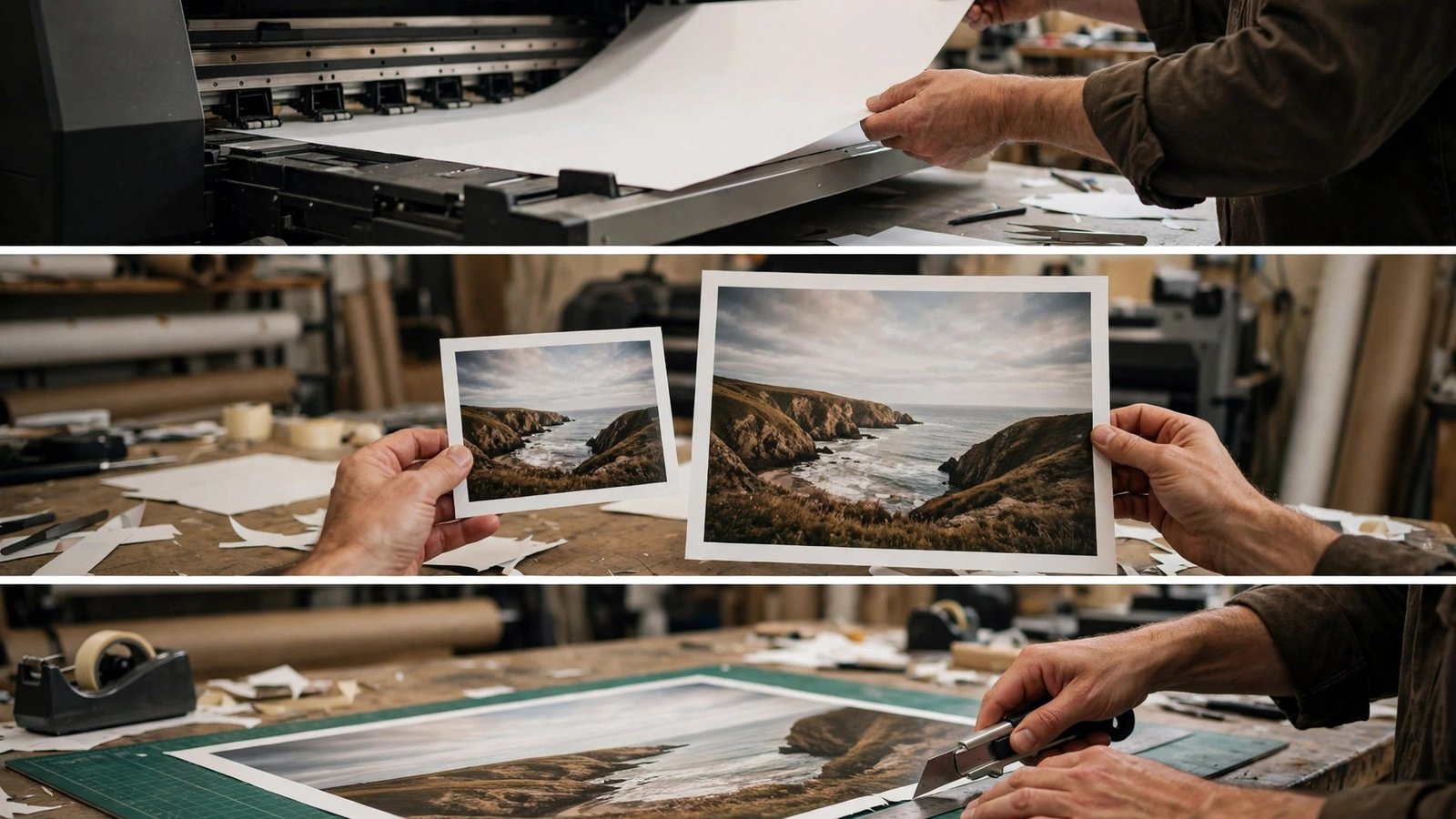
- Upscale a test crop at full print size and inspect the face, the text, and the edges before running the whole file.
- Print a small test strip on the actual paper, because a screen preview hides problems that paper reveals.
- Run the batch with the same settings for the whole order, and spot-check three files before the full run.
- Keep the original and the upscaled file together, named by order, so a reprint never needs the customer to send the file again.
- Show the customer a proof for any portrait larger than a poster, because a face is a promise that needs their approval.
One Print Mistake That Ruins a Good File
The one mistake that ruins more prints than any other is upscaling a file that was already damaged, because an upscaler cannot invent detail that was never in the photo. A small phone picture with heavy compression, a screenshot saved as a low-quality image, or a photo cropped to a tenth of its size will come out of the upscaler larger but no sharper, and the print will show every blocky edge at poster size.
Check the original file first, look at it at full size on screen, and if the edges are already soft or the colours are already banded, ask the customer for a better original before you promise a poster, because a print shop that promises what the file cannot deliver will pay for the reprint and lose the customer in the same week.
Frequently Asked Questions
The best ai upscalers for print shops raise the same questions from every operator, so here are the straight answers before you choose.
How large can I print a phone photo with an upscaler?
A good upscaler can take a modern phone photo to a poster or a small canvas, which is roughly four to six times the original size. The result depends on the original, because a sharp, well-lit phone photo enlarges far better than a dark, compressed one. Test your worst file at your largest size before promising a customer a big print, and stand at the distance they will stand to judge it.
Do upscalers invent fake detail?
They add detail that was not in the original, and the question is whether that detail looks real. A strong tool rebuilds edges and textures in a way that matches the original, while a weak tool invents patterns that look wrong on close inspection. The honest test is a print viewed at normal distance, because a detail that looks fine on screen can look invented on paper.
Can an upscaler fix a blurry photo?
Partly, and the answer depends on the blur. An upscaler can sharpen a slightly soft photo and recover usable detail, but it cannot rescue a photo that is badly out of focus or heavily shaken. The face repair tools can do more with a soft portrait than with a blurred landscape. The rule is simple, which is that a sharp original prints large, and a blurry original prints large and blurry.
Is a free upscaler good enough for a print shop?
For occasional jobs, yes. Upscayl and Waifu2x produce results that are good enough for standard posters, and the price is zero. For a busy shop printing large every day, a paid tool earns its price in quality, batch speed, and the jobs it saves. The honest measure is the weekly volume, because a free tool that costs an hour a day in hand work is not free.
What file format should I ask customers for?
Ask for the original file in the highest quality available, which is usually a JPEG at full size or a PNG for graphics. A screenshot, a social media download, or a photo sent through a messaging app has already lost quality to compression. Explain the difference to the customer in one sentence, because most customers will happily send the original once they know it prints better.
Print Big, Print Sharp, Keep the Customer
The best ai upscalers for print shops share one trait, which is that they make a small file behave like a big one, so the shop can say yes to the order instead of turning it away. Topaz Gigapixel AI leads this list because it holds detail at the largest sizes, handles faces honestly, and runs a batch without babysitting. The right choice for your shop is the one that passes the test on your worst file at your largest size, not the one with the lowest price.
Start with the worst file in the queue, run it through three tools, and print the test strip. A tool that makes that file look good will make every other file in the shop look better too.
Ask for originals, upscale with care, and proof the portraits. Do those three things on every large order, and the large print becomes the product customers recommend, not the one they return.