

A social feed moves fast, and a graphic has less than a second to stop the scroll, because the thumb is already moving to the next post. The best social media graphics tools understand that speed, and they start from templates that put the idea where the eye lands first, the brand where it is recognised, and the text where it can be read on a phone.
Ten tools made this list, and they split into three kinds. All-round tools like Canva cover every platform and size. Fast tools like Snappa and Stencil make a graphic in minutes. Team tools like Easil lock the brand so a hundred people can post without breaking it. The prices below were checked against vendor pages and November 2026 roundups, and where sources disagreed the draft says so rather than picking the friendlier number.
In this article
- One Design, Five Sizes, No Extra Work
- How the Best Social Media Graphics Tools Were Compared
- Social Graphics Compared in One Table
- Ten Tools, One Feed Each
- Templates Save Hours, Until They All Look Alike
- The Feed Test Is the Phone Test
- Best Pick by Job
- Where the Shortlist Lands
- Scheduling Turns Design Into a Habit
- The Brand Kit Is the Team Test
- Questions About Social Media Graphics
- Before You Post the First Graphic
One Design, Five Sizes, No Extra Work
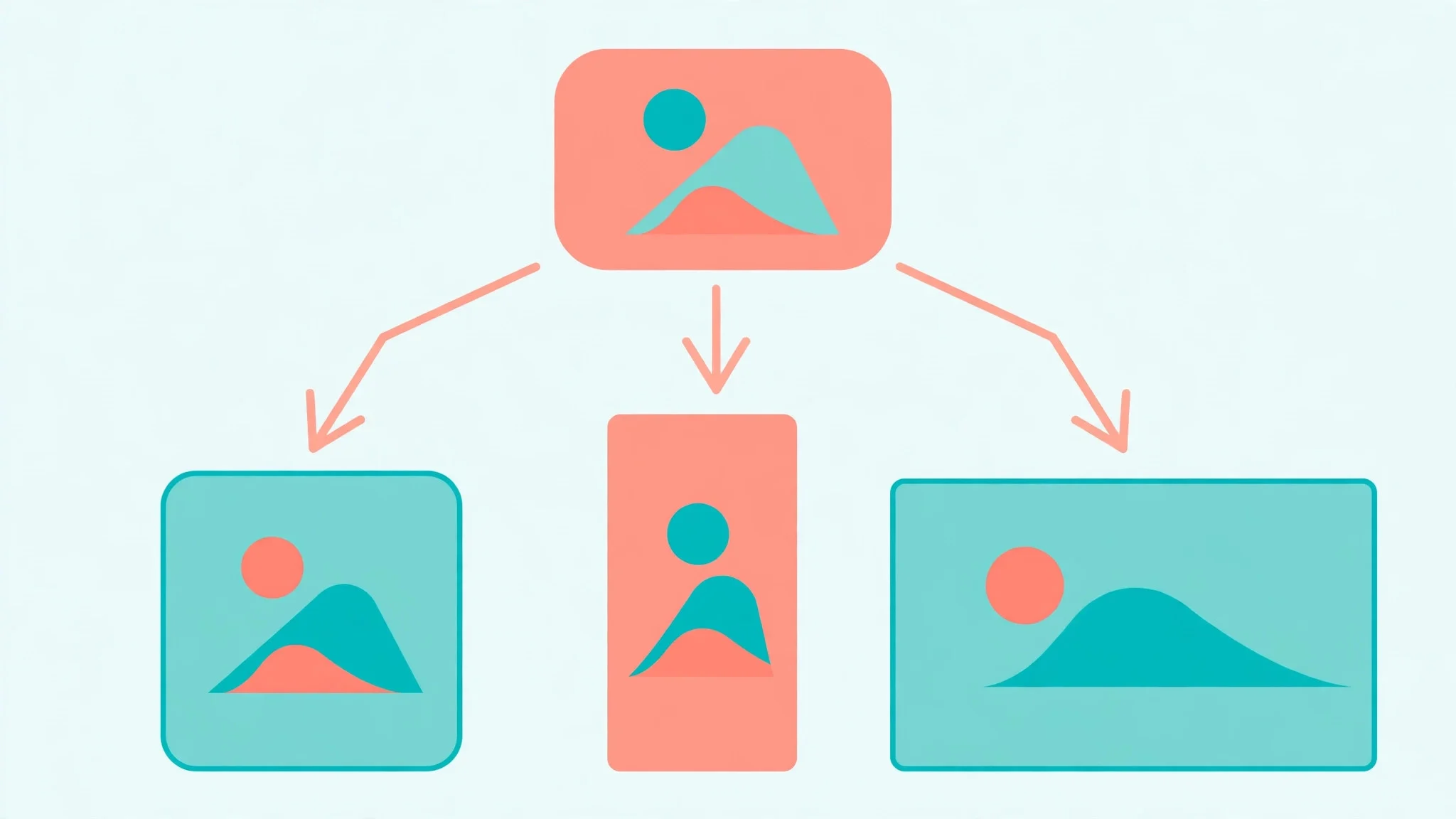
The best social media graphics tools solve the size problem, because a graphic that fits Instagram will not fit LinkedIn, and a graphic that fits a feed will not fit a story. A square post, a tall story, a wide banner and a vertical pin are four different designs, and a tool that resizes one design to all four saves an hour a day. Canva does this with Magic Resize on Pro, RelayThat does it automatically, and the simpler tools do it by hand.
The second problem is the brand, because a feed with fifty graphics in fifty styles looks like fifty brands. A brand kit with locked colours, fonts and logos fixes this, and the tools that carry a brand kit across every design are the ones a team should pay for. A solo creator can manage without one, and a team cannot.
The resize test is the week, because a team that posts on five platforms and resizes by hand will spend an hour a day on sizes alone. A tool with Magic Resize or automatic resizing gives that hour back, and the hour is worth more than the subscription, because an hour a day is five hours a week.
How the Best Social Media Graphics Tools Were Compared
Each tool in this guide was judged on five things that decide whether social graphics get posted daily. Templates are first, because a graphic that starts from the right layout finishes right. Resizing is second, because one design must fit every platform. Brand control is third, because a feed must look like one brand. Price is fourth, measured as the cost for one person and as the cost for a team of ten. Ease is fifth, because a graphic tool that needs a designer will not get used.
The tools in this guide all make real social graphics, and every tool here has a free plan or a free trial except the ones that say otherwise. The comparison below names the limit of each tool plainly, because a tool bought for the wrong half of the job wastes more than its subscription. It wastes the posts it was bought to make.
The stock photo test is the feed, because a feed full of stock photos everyone has seen looks like a stock feed. A real photo from the business, a product shot or a team photo, will do more for engagement than any template, and the tools in this guide all accept uploads, so the real photo is one click away.
Social Graphics Compared in One Table
This table compares the best social media graphics tools on the facts that decide a purchase. Prices are in US dollars and change by country and promotion, so check the vendor page before you buy.
| Tool | Price | Free plan | Best for |
|---|---|---|---|
| Canva | Pro $12 a month billed annually | Free plan | Most readers and small teams |
| VistaCreate | Pro $10 a month billed annually | Free Starter plan | Small teams on a flat price |
| Snappa | Pro $10 a month billed annually | Free Starter plan, 3 downloads a month | Fast graphics for marketers |
| PicMonkey | Pro $12.99 a month | Free plan | Photo-led graphics with editing built in |
| Fotor | Pro $8.99 a month | Free Basic plan | Photo editing plus graphics in one account |
| RelayThat | See website | Free trial | One design resized to every size automatically |
| Stencil | See website | Free plan | Lightweight graphics with stock built in |
| Desygner | Pro+ $4.95 a month billed yearly | Free plan | Cheapest capable premium plan |
| Easil | See website | Free trial | Brand-locked graphics for teams |
| Pablo | Free | Free | Free graphics from a quote in seconds |
The price spread in this list runs from free to about $13 a month, because most social graphics tools have a free plan and a paid plan under $15. The difference is not the price but the template library, the resizing and the brand control, so a buyer who posts daily should pay for the library, while a buyer who posts weekly should use the free plan.
Ten Tools, One Feed Each
1. Canva
Best for Most readers and small teams. Price Pro $12 a month billed annually. Free plan Free plan.
Canva is the default pick for social graphics, with the largest template library, a free plan, and Pro at $12 a month when billed annually, or $144 a year for one person. The templates cover every platform and size, Magic Resize adapts one design to all of them on Pro, and the social content planner schedules posts from the same account.
Pro costs $12 a month billed annually or $18 a month on monthly billing, and the free plan covers templates, stock photos and basic AI tools for daily posts. Pro adds premium templates and stock, background removal, five brand kits, 100 GB of storage and the planner.
Pick it when the team posts daily and needs every size covered, because the library is the largest here. Skip it when the graphics need precise control, because Canva trades depth for speed.
Watch out. The templates are shared with millions of users, so a post built from one will look familiar.
2. VistaCreate
Best for Small teams on a flat price. Price Pro $10 a month billed annually. Free plan Free Starter plan.
VistaCreate is the budget pick for a small team, because Pro costs $10 a month when billed annually, or $120 a year, and covers up to ten seats in one subscription. The template library is wide, the editor is friendly, and the free Starter plan is genuinely usable for occasional posts.
Pro costs $10 a month billed annually or $13 a month on monthly billing, which is the cheapest team price in this list for ten seats. The trade is depth, because VistaCreate is a template tool rather than a precision design tool, and a graphic that needs exact control belongs elsewhere.
Pick it when a small team needs social graphics on a flat price, because ten seats for $10 a month is hard to beat. Skip it when the graphics are a brand piece, because the templates are the product.
Watch out. The per-seat value only holds if the team actually uses all ten seats.
3. Snappa
Best for Fast graphics for marketers. Price Pro $10 a month billed annually. Free plan Free Starter plan, 3 downloads a month.
Snappa is for the marketer who needs a graphic in twenty minutes and has never opened design software. The interface is stripped down, sizes are preset for every platform, and the workflow is template, text swap, export, which is why busy marketers keep coming back to it.
Pro costs $10 a month billed annually, or $120 a year, or $15 a month on monthly billing, and the Team plan costs $20 a month billed annually for up to five users. The free Starter plan includes all templates, five million plus stock photos and graphics, and three downloads a month.
Pick it when speed matters more than depth, because the stripped-down editor is the fastest route. Skip it when the graphic needs layers and fine control, because Snappa trades depth for speed.
Watch out. The free plan caps downloads at three a month, so a busy month needs the paid plan.
4. PicMonkey
Best for Photo-led graphics with editing built in. Price Pro $12.99 a month. Free plan Free plan.
PicMonkey is the photo editor in this list, and it suits a social graphic built around a photograph, such as a product shot, a travel post or a portrait. The editor opens with the photograph, the touch-up and colour tools shape it, and the headline goes on in a large font library with effects the template tools do not offer.
Pro costs $12.99 a month, or $120 a year, and Basic is $7.99 a month or $72 a year. Basic covers full photo editing, effects and templates but no background remover, Smart Resize or brand kit, while Pro adds those plus animation and the premium stock library.
Pick it when the graphic is photo-led, because the editing and text tools are built for exactly that. Skip it when the graphic is type-led, because Canva is faster for that job.
Watch out. A seven-day trial is available, but the free plan is limited, so test the editor before paying.
5. Fotor
Best for Photo editing plus graphics in one account. Price Pro $8.99 a month. Free plan Free Basic plan.
Fotor pairs graphic design with photo editing and AI tools, which suits a social post built around a photograph that needs a quick fix before it goes out. The editor handles touch-ups, filters and text in one place, and the templates cover the common post sizes.
Pro costs $8.99 a month or $39.99 a year, which is among the cheapest paid plans in this list. The free Basic plan covers the essentials, while Pro adds premium templates, the background remover and batch processing.
Pick it when the post needs a photo fix and a graphic in one session, because the combined tools save a round trip. Skip it when the template library must be huge, because Fotor is smaller than Canva.
Watch out. The template library is smaller than the big rivals, so a niche format may need a custom layout.
6. RelayThat
Best for One design resized to every size automatically. Price See website. Free plan Free trial.
RelayThat takes one design and resizes it to every social size automatically, which suits a business that posts the same campaign across five platforms. The smart layouts adapt the headline, the image and the logo to each size, so the work of resizing disappears, and the brand kit keeps every version on brand.
Pricing is shown on the vendor page, with a free trial to test the resizing before paying. The trade is range, because RelayThat is a resizing and layout tool rather than a full design suite, and a graphic that needs original illustration belongs elsewhere.
Pick it when one campaign must appear in every size, because the automatic resizing is the point. Skip it when the graphic is a one-off, because the resizing saves nothing on a single size.
Watch out. The automatic layouts need a check on each size, because a headline can crowd a small format.
7. Stencil
Best for Lightweight graphics with stock built in. Price See website. Free plan Free plan.
Stencil is the lightweight tool in this list, with a fast editor, built-in stock photos and icons, and a focus on social graphics that look good without a learning curve. It suits a blogger or a small business that posts a few times a week and wants the graphic done in minutes.
Pricing is shown on the vendor page, with a free plan for occasional use and paid plans for volume. The trade is depth, because Stencil is a quick tool rather than a suite, and a graphic that needs layers and masks belongs in a bigger editor.
Pick it when the graphic must be done in minutes, because the lightweight editor is the fastest route. Skip it when the graphics are a team job, because Stencil is built for one person.
Watch out. The stock library is smaller than the big rivals, so a niche topic may need an uploaded photo.
8. Desygner
Best for Cheapest capable premium plan. Price Pro+ $4.95 a month billed yearly. Free plan Free plan.
Desygner is the cheapest capable premium plan in this list, with Pro+ at $4.95 a month billed yearly, real PDF editing and a solid template set. It suits a small business that needs social graphics, posters and documents from one account without paying for a big suite.
Pro+ costs $4.95 a month billed yearly, which undercuts every other paid plan here. The free plan covers the basics, while Pro+ adds the full template library, PDF editing and the brand kit.
Pick it when the budget is tight and the graphics still need to look professional, because the price is the lowest here. Skip it when the template library must be huge, because Desygner is smaller than Canva.
Watch out. The smaller template library means a niche format may need a layout built from scratch.
9. Easil
Best for Brand-locked graphics for teams. Price See website. Free plan Free trial.
Easil is built for teams that need every social graphic on brand, with a brand kit that locks the colours, fonts and logos, so a regional office can build its own post without breaking the brand. The templates keep the layout consistent across a hundred locations, and the approval workflow lets a manager check graphics before they go out.
Pricing is shown on the vendor page, with a free trial to test the brand locking before paying. The trade is scope, because Easil is a team tool, and a solo creator gets less from the locking features than a distributed team does.
Pick it when many people make graphics for one brand, because the brand locking is the point. Skip it when one person designs, because Canva is cheaper and faster.
Watch out. The locking features only help if the brand kit is set up properly first, so invest the hour in the setup.
10. Pablo
Best for Free graphics from a quote in seconds. Price Free. Free plan Free.
Pablo, from Buffer, is the smallest tool in this list, and it does one job well, because it turns a quote or a short line into a social graphic in seconds. Pick a background, type the text, and the graphic is ready to post, which suits a person who shares quotes, tips and announcements daily.
It costs nothing, and that is the whole pricing story. The trade is scope, because Pablo makes simple quote graphics and nothing else, and a graphic that needs a layout, a logo and a call to action belongs in Canva or Snappa.
Pick it when the post is a quote and the time is thirty seconds, because nothing here is faster. Skip it when the graphic needs more than text on a photo, because Pablo does not do that.
Watch out. The simplicity is the limit, so a brand that needs consistent templates will outgrow it fast.
Templates Save Hours, Until They All Look Alike
The best social media graphics tools all offer thousands of templates, and the templates are both the value and the trap. A template saves an hour, but a template shared with millions of users produces a feed that looks like every other feed, and the audience notices. The fix is to customise, because a template with a different colour, a different photo and a different headline is a different graphic.
The customisation that matters most is the photo, because a template with a stock photo everyone has seen is a template, while the same layout with a real photo from the business is a brand. A product shot, a team photo or a customer photo will do more for a feed than any layout, and the tools in this guide all accept uploads, so the real photo is one click away.
The colour test is the feed, because a feed with one colour palette looks like a brand, while a feed with a different palette on every post looks like a collection. A brand kit with two colours and one font will do more for recognition than any template, and the tools in this guide that enforce a brand kit are the ones a team should pay for.
The template trap is the feed that looks like everyone else, because a template shared with millions of users produces a graphic that the audience has already seen. The fix is a real photo, a brand colour and a headline in the brand voice, because those three changes turn a template into a brand graphic.
The Feed Test Is the Phone Test
A social graphic is judged on a phone, and the best social media graphics tools design for that screen first. The headline must be large enough to read at arm’s length, the text must be short enough to read in a second, and the image must work at the size of a thumb. A graphic that looks great on a desktop and unreadable on a phone is a graphic that fails where it is seen.
The test is to open the graphic on a phone, hold it at arm’s length, and read it in one second. When the idea lands, the graphic works. When it does not, the headline is too small or the text is too long, and no template will fix a graphic that tries to say everything at once. The tools in this guide all preview on mobile sizes, and the preview is the test that matters.
The caption test is the second, because a graphic that stops the scroll still needs a caption that holds the reader. A graphic with a clear idea and a caption with one question will earn a comment, while a graphic with a paragraph of text will earn a scroll past. The graphic is the hook, and the caption is the conversation.

Best Pick by Job
Different situations need different tools, so the best pick changes with the job. This table matches the common situations to the tool that handles each one best. The best social media graphics tools in this guide cover all of these jobs between them.
| Job | Pick | Why |
|---|---|---|
| Posting daily on every platform | Canva | Largest library, Pro $12 a month billed annually |
| Small team on a flat price | VistaCreate | Pro $10 a month billed annually, up to 10 seats |
| Fastest for a non-designer | Snappa | Stripped-down editor, Pro $10 a month billed annually |
| Photo-led graphics | PicMonkey | Pro $12.99 a month, editing built in |
| Cheapest capable premium plan | Desygner | Pro+ $4.95 a month billed yearly |
| Quote graphics in seconds | Pablo | Free, from Buffer, ready in thirty seconds |
A team that is unsure should build the same graphic in the two tools at the top of its shortlist, post both on different days, and compare the engagement. The graphic that earns saves and shares is the graphic to repeat, and the test costs two posts.
Where the Shortlist Lands
Start with Canva when the team posts daily and needs every size covered, because the library is the largest here. Start with VistaCreate when a small team needs graphics on a flat price, because ten seats for $10 a month is hard to beat. Start with Snappa when speed matters more than depth, and start with Easil when many people make graphics for one brand. The best social media graphics tools in this guide all do the core job, and the difference between them is which second job they do well, so name the second job first and the tool follows.
Scheduling Turns Design Into a Habit
The best social media graphics tools for a busy team include scheduling, because a graphic that is designed and never posted is wasted work. Canva includes a content planner on Pro, and the scheduling tools in this list let a team design a week of posts in one sitting and let them go out on time. A feed that posts daily grows, and a feed that posts when someone remembers does not.
The habit matters more than the tool, because a team that designs on Monday and schedules for the week will post more than a team that designs each morning. The tools in this guide all export fast enough for a weekly batch, and the batch is the difference between a feed that grows and a feed that stalls.
The batch test is Monday, because a team that designs a week of posts in one sitting will post more than a team that designs each morning. The batch needs a tool that exports fast and schedules, and Canva Pro covers both, while the simpler tools cover the export and leave the scheduling to another app.
The analytics test is the month, because a feed that is never measured is a feed that never improves. A graphic that earns saves and shares is a graphic to repeat, and a graphic that earns nothing is a graphic to drop. The tools in this guide do not all include analytics, so check whether the scheduling tool reports back before choosing.
The Brand Kit Is the Team Test
A brand kit is a set of locked colours, fonts and logos, and the best social media graphics tools for a team are the ones that enforce it. Easil locks the brand so a regional office can build its own post without breaking it, Canva carries five brand kits on Pro, and Desygner adds a brand kit on Pro+. A team without a brand kit will drift, because each person will pick their own colours.
The approval test is the team, because a graphic made by one person and posted by another needs a check before it goes out. Easil includes an approval workflow, and the other tools rely on a shared account or a chat message, so a team that needs approval should pick the tool that includes it rather than bolting it on.
The logo test is the corner, because a logo that is too small disappears and a logo that is too large looks like an advertisement. A small logo in the same corner on every graphic builds recognition without shouting, and the brand kit in the tools here keeps the logo in the same place every time.
Questions About Social Media Graphics
Which social media graphics tool is best for beginners?
Canva is the easiest, because the templates cover every platform and size, and the free plan is generous enough that many small businesses never pay. Snappa is the fastest for a person who has never opened design software, because the editor is stripped down to template, text swap and export.
How much does Canva Pro cost?
Pro costs $12 a month when billed annually, which is $144 a year for one person, or $18 a month on monthly billing. The free plan covers templates, stock photos and basic AI tools for daily posts, while Pro adds premium templates and stock, background removal, five brand kits and the content planner.
Do I need a paid plan to make social graphics?
No, and the free plans in this list are genuinely usable. Canva, VistaCreate, Snappa, Fotor, Desygner, Stencil and Pablo all have free plans, and a person who posts a few times a week may never need to pay. The paid plans pay for themselves when the team posts daily or needs brand kits and resizing.
What size should a social media graphic be?
It depends on the platform, because a square post, a tall story, a wide banner and a vertical pin are four different sizes. The tools in this guide all offer preset sizes for each platform, and Canva Pro and RelayThat resize one design to all of them, so design once and export in every size.
Can one tool handle all my social platforms?
Yes, and that is the point of this list. Canva covers every platform and size, VistaCreate and Snappa cover the common ones, and RelayThat resizes one design to every size automatically. A team that posts on five platforms should pick a tool with resizing, because designing each size by hand wastes an hour a day.
Which social media graphics tool is best for a small business?
For a small business, Canva is the strongest pick for most readers, because the library is the largest and the free plan is generous, while VistaCreate is the best value for a team, because Pro covers ten seats for $10 a month. For a small business the tools that cover every size and carry a brand kit are the ones to pick, because a feed must look like one brand.
Before You Post the First Graphic
Design one graphic, open it on a phone, and read it in one second at arm’s length, because the phone is where it will be judged. Check that the headline is legible, that the brand is recognisable, and that the text is short enough to read in a glance. The best social media graphics tools in this guide all preview on mobile sizes, and the preview is the test that matters, because a graphic is judged in the feed, not in the editor.