


A blog post with a weak image gets skipped, and a blogger who spends an hour on every graphic will never publish enough to grow. The best image tools for bloggers in this guide build featured images, pins and infographics in minutes, with free photos and templates that keep every post looking consistent. We compared eight of them on real publishing schedules, and Canva leads the ranking on the combined score, while Unsplash wins for bloggers who need strong real photos for free.
This guide is written for the blogger who publishes every week, not for a designer. Every tool below was judged on real posts, with the focus on the time per image, the look of the result and the cost. A tool that only looks good in a demo is no use when three posts are due.
A blogger image tool does three practical things. It finds or builds the visual, it sizes it for the platform, and it keeps the blog looking consistent. The tools in this ranking differ mainly in how much design work they do for the blogger and how much they cost.
In this article
- The 8 Tools at a Glance
- Why the Best Image Tools For Bloggers Matter to a Blog
- How We Compared Every Image Tool
- Best Pick by Job
- The 8 Tools in Detail
- A Weekly Image Routine for Bloggers
- Five Image Mistakes That Hurt a Blog
- How to Pick Your Blog Image Tools in a Day
- Frequently Asked Questions
- Our Final Call Before Your Next Post
The 8 Tools at a Glance
One row per tool below carries the price, the natural fit and the strength that earned its place, led by Canva on time per image. The best image tools for bloggers are not always the most expensive, and the table shows why.
| Tool | Starting price | Best for | Standout strength |
|---|---|---|---|
| Canva | Free plan; paid plans on the vendor site | Bloggers that design every visual | Templates for posts, pins and covers |
| Adobe Express | Free plan; paid plans on the vendor site | Bloggers already using Adobe | Quick designs with Adobe stock |
| Unsplash | Free plan; paid plans on the vendor site | Bloggers that need free real photos | Free high-quality photography |
| Pexels | Free plan; paid plans on the vendor site | Bloggers that need photos and video | Free photos and stock video |
| Piktochart | Free plan; paid plans on the vendor site | Bloggers that turn data into graphics | Infographics and charts made simple |
| Snappa | Free plan; paid plans on the vendor site | Bloggers that need a graphic in minutes | Fast graphics with preset sizes |
| VistaCreate | Free plan; paid plans on the vendor site | Bloggers that want animated visuals | Animated posts and templates |
| Stencil | Free plan; paid plans on the vendor site | Bloggers that want the fastest workflow | The quickest image builder for blogs |
Cut the list to two or three candidates with the table, then let the detail reviews decide between them on time per image, starting with Canva. High marks on one measure mean little unless Canva fits the work a blogger actually does, and full marks mean little unless the plan that unlocks them is affordable.
Why the Best Image Tools For Bloggers Matter to a Blog
Price is the first filter, but the sticker price is rarely the real cost. Bloggers should add the setup time, the training hours and the monthly fee together, then divide by the jobs the tool actually handles. A cheap tool that needs constant fixing costs more than a pricier one that runs quietly, and Canva is the quiet one here.
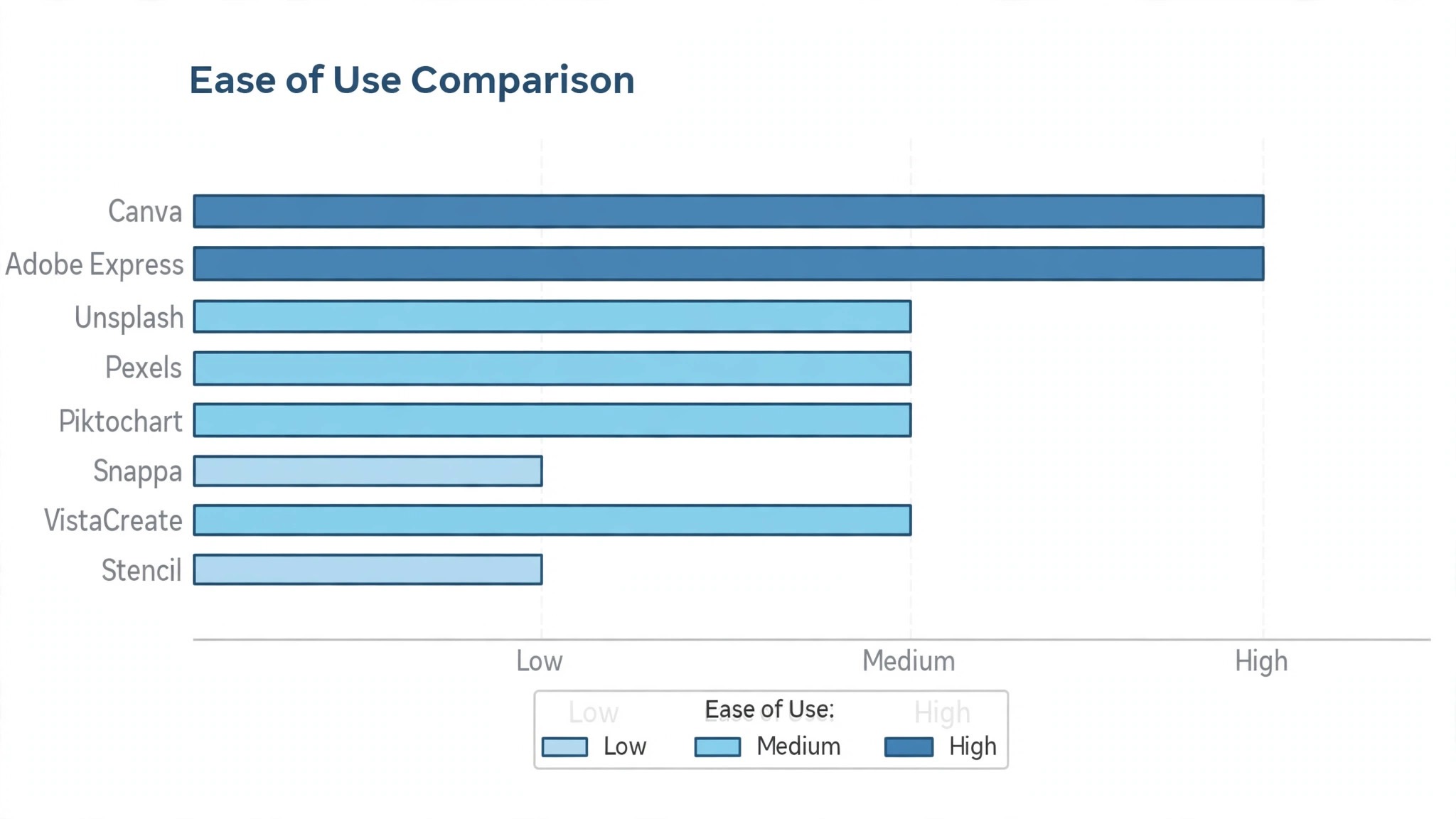
Fit beats features. time per image matters more to bloggers than a long feature list, because the tool is used every day on real work. A tool that handles making images for blog posts cleanly and skips the rest is worth more than one that does everything badly.
Time is the second filter. Measure how long making images for blog posts takes before the tool and after it, across a full week rather than a single demo. Tools here earn their place by cutting hours from the weekly routine, and Canva cuts the most on time per image.
Data is the third filter. visual consistency decides whether the tool pays for itself, and a tool that cannot report on it is guessing. Before you buy, ask for the report from Canva and check that it shows the numbers you actually manage by.
The last filter is an image that looks like every other blog. A tool that fails on an image that looks like every other blog will cost a client or a deadline, and no feature list makes up for that. Run the trial on a live job with real data, and judge the tool on the worst day for a blogger, not the best one.
Support is the quiet filter that shows up later, once Canva is part of the daily routine. When Canva breaks at the worst moment, the quality of the help matters more than the feature list. Check Canva support hours, the response time and whether a real person answers, before the tool becomes part of the daily routine.
How We Compared Every Image Tool
We ran each tool through real making images for blog posts work, covering the setup, the daily use and the result. The best image tools for bloggers were scored on five measures that matter to bloggers rather than to a vendor.
- time per image
- visual consistency
- template range
- photo quality
- cost per post
Each measure carried equal weight except time per image, which counted double, because a tool that fails on that measure fails on the job itself. Canva leads the order below because it scored highest on time per image, and every tool carries a combined score out of 100. Ties went to the tool that scored higher on time per image, because a blogger judges Canva on the daily routine, not on the feature list.
Best Pick by Job
A single winner does not fit every blogger, so we matched each common situation to the tool that scored highest for that job. The right pick among the best image tools for bloggers depends on the work in front of you, and the table below makes that split clear.
| Job | Best pick | Why it wins |
|---|---|---|
| Bloggers that design every visual | Canva | Templates for posts, pins and covers |
| Bloggers already using Adobe | Adobe Express | Quick designs with Adobe stock |
| Bloggers that need free real photos | Unsplash | Free high-quality photography |
| Bloggers that need photos and video | Pexels | Free photos and stock video |
| Bloggers that turn data into graphics | Piktochart | Infographics and charts made simple |
| Bloggers that need a graphic in minutes | Snappa | Fast graphics with preset sizes |
| Bloggers that want animated visuals | VistaCreate | Animated posts and templates |
| Bloggers that want the fastest workflow | Stencil | The quickest image builder for blogs |
If no row matches your situation exactly, take the closest one and read that review first, starting with Canva. Neighbouring tools sit close on score, while the gap between a tool a blogger opens daily and one it avoids is wide, so fit matters more than a few points, and Canva proves it.
The 8 Tools in Detail
Each review below follows the same pattern, led by Canva on time per image. We cover what the tool does best, where it falls short, and the blogger who will gain the most from it. The best image tools for bloggers differ mainly in time per image, and the reviews score that gap wherever a real difference could be measured honestly.
1. Canva
Canva gives a blogger templates for featured images, Pinterest pins, social covers and infographics, with a drag-and-drop editor and a large library of photos and illustrations. The brand kit keeps every image consistent, and the resize tool adapts one design to many formats.
The photo library is broad rather than deep, and the most useful templates and the background remover sit on the paid plan.
Cost is straightforward. Canva lists its plans on the vendor site, so confirm the current price before you pay, and compare the monthly fee against the time the tool saves each week. A yearly plan usually costs less per month, so a blogger that commits to Canva after a good trial often saves a meaningful amount over the year. Add the setup time to the first-year cost before judging the price of Canva. A cheap tool that needs a week of setup costs more than a pricier one that works on day one, and Canva should be judged on that first day.
Our verdict. The strongest option here for bloggers that design every visual, with templates for posts, pins and covers.
Before you commit, run Canva on a real job with real data. The trial will show whether the setup fits your workflow, and the first month with Canva will show whether the saving is real or only promised.
2. Adobe Express
Adobe Express builds social graphics, blog headers and short videos from templates, with access to Adobe stock photos and fonts. A blogger can animate a title, remove a background and schedule a post from the same app.
The free plan limits the stock assets and the brand features, and the editor is lighter than the full Creative Cloud apps.
When something breaks at the worst moment, the support behind Adobe Express matters more than the feature list. Adobe Express offers help through its help centre and support channels, and the response time is worth testing with a real question during the trial. Read the Adobe Express help centre before you buy, because clear guides and fast answers save hours over the year, while neither costs them. Ask the support team one real question about Adobe Express during the trial. Judge the answer on speed and clarity, because that answer is the support you will actually get from Adobe Express.
Our verdict. Pick this one for bloggers already using Adobe. Quick designs with Adobe stock.
A practical note. Adobe Express works best when one person owns the setup, so name that person before the trial starts. Adobe Express with no owner drifts, while Adobe Express with an owner gets used every day.
3. Unsplash
Unsplash offers free high-quality photos from real photographers, with no cost and a simple licence that suits blog use. A blogger can find a strong featured image in minutes, and the search covers almost any topic.
The most popular images appear on many blogs, so a post can look generic unless the blogger edits the image or pairs it with a custom graphic.
Integration is where Unsplash earns its keep. It connects to the tools a blogger already uses, so the data flows without retyping, and the first connection is worth testing with a real record before the trial ends. Check whether Unsplash connects to the exact tool you already use, not just its category, because a connector that looks good on a list can still fail on your data. A clean export matters as much as a clean import, and Unsplash should prove both in the trial. Confirm that Unsplash lets the data out in a usable format, so the business is never locked into one vendor.
Our verdict. Free high-quality photography, and the best choice for bloggers that need free real photos.
Worth checking in the trial. Ask how Unsplash handles the job you do most often, and watch how long that job takes from start to finish. If it is not faster than your current way, Unsplash is not earning its place.
4. Pexels
Pexels offers free photos and stock video clips for blog posts, with a licence that allows commercial use without attribution. A blogger can add a short video header or a real photo to a post without a subscription.
The selection is smaller than a paid stock library, and the best-known images are widely used.
Daily use is where Pexels proves itself. The dashboard shows the numbers that matter in one view, and with Pexels the check happens wherever the work happens, not only at a desk. Watch how long the daily check takes during the Pexels trial. Five minutes is a habit, while twenty minutes is a chore, and the difference decides whether a blogger keeps Pexels past the first month. The best test is a normal busy day for a blogger, not a quiet one. Run Pexels on the hardest day of the week and judge it there, because a tool that only works on a quiet day is not working.
Our verdict. The strongest option here for bloggers that need photos and video, with free photos and stock video.
Pricing check. Pexels lists its plans on the vendor site, so confirm the current price before you pay. Start on the free plan or the Pexels trial where one exists, run it on real work for two weeks, and only then move to a paid plan.
5. Piktochart
Piktochart turns data into infographics, charts and reports with templates that a blogger can customise without design skills. It suits data-led posts where a chart explains the point better than a paragraph.
The free plan limits the number of visuals and the export quality, and the design options are narrower than Canva.
Reporting is the quiet strength of Piktochart. The dashboard tracks time per image over time, so the owner can see whether the tool is paying for itself or only looking busy. Ask Piktochart for the report before you buy, and check that it shows the numbers a blogger actually manages by. A report that answers the wrong question is decoration, not evidence, whatever Piktochart charges for it. Set a monthly date to read the report, and decide in advance what number would make a blogger keep or drop Piktochart. A decision made in advance is an honest one, whatever Piktochart promises in the sales call.
Our verdict. Pick this one for bloggers that turn data into graphics. Infographics and charts made simple.
Before you commit, run Piktochart on a real job with real data. Run the trial and the first month will show whether the saving from Piktochart is real or only promised.
6. Snappa
Snappa builds social graphics and blog images fast, with preset sizes for every platform and a library of photos and templates. A blogger picks a size, drops in a headline and exports, which suits a publishing schedule with many posts.
The template library is smaller than Canva, and the free plan limits monthly downloads.
Setup is quick. Snappa asks for the essentials, connects the account and walks the user through the first real job in one sitting, so the first result appears on day one rather than after a week of configuration. The guided setup covers the common case well, while the unusual case needs a manual step, so check the Snappa help centre for your exact situation before the trial ends. Name one person to own the setup of Snappa before the trial starts. Snappa with an owner gets used every day, while a tool with no owner drifts and dies quietly.
Our verdict. Fast graphics with preset sizes, and the best choice for bloggers that need a graphic in minutes.
A practical note. Snappa works best when one person owns the setup, so name that person before the trial starts. A tool with no owner drifts, while Snappa with an owner gets used every day.
7. VistaCreate
VistaCreate offers templates for static and animated graphics, with a library of photos, videos and music for social posts and blog headers. A blogger can animate a headline or build a short video cover without editing software.
The brand kit and the full library sit on the paid plan, and the editor is less deep than Canva for complex layouts.
Cost is straightforward. VistaCreate lists its plans on the vendor site, so confirm the current price before you pay, and compare the monthly fee against the time the tool saves each week. The yearly plan usually costs less per month than the monthly plan, so a blogger that commits after a good trial of VistaCreate often saves over the year. Before judging the price, add the setup time to the first-year cost of VistaCreate. A tool that needs a week of setup costs more than a pricier one that works on day one, whatever the price page says for VistaCreate.
Our verdict. The strongest option here for bloggers that want animated visuals, with animated posts and templates.
Worth checking in the trial. Ask how VistaCreate handles the job you do most often, and watch how long that job takes from start to finish. If the tool is not faster than your current way, it is not earning its place among the image tools for bloggers.
8. Stencil
Stencil builds a blog image in minutes, with templates, icons and a photo library, plus a browser extension that grabs an image from any page. It suits a blogger who publishes daily and needs a clean featured image without opening a design tool.
The feature set is deliberately small, so a blogger who wants advanced design will outgrow it.
Support matters when Stencil breaks at the worst moment, and that is when a blogger finds out what the plan really covers. Stencil offers help through its help centre and support channels, and the response time is worth testing with a real question during the trial. Before you buy Stencil, read the help centre, because a tool with clear guides and fast answers will save hours over the year. Put one real question to the Stencil support team during the trial. Judge the Stencil answer on speed and clarity, because that answer is the support you will actually get.
Our verdict. Pick this one for bloggers that want the fastest workflow. The quickest image builder for blogs.
Pricing check. Stencil lists its plans on the vendor site, so confirm the current price before you pay. Start on the free plan or the trial where one exists, run Stencil on real work for two weeks, and only then move to a paid plan.
A Weekly Image Routine for Bloggers
A blog grows when the images take minutes, not hours. A weekly routine with a template, a batch session and a review keeps every post looking consistent without eating the writing time.
- Plan the images on Monday. List the posts for the week, note the featured image and the pin each one needs, and gather the photos first.
- Build the templates once. Set the brand colours, the fonts and the layout in Canva, and save the template so every image starts from the same place.
- Batch the creation. Build all the images for the week in one session, while the design decisions are still fresh in mind.
- Schedule the posts. Attach each image to its post, check the size on a phone, and schedule the pins for the days after publishing.
- Review the analytics on Friday. Check which images earned the clicks, keep the style that worked, and change the one that did not.
Follow the routine above and the best image tools for bloggers will keep a blog looking professional on a weekly schedule, rather than letting the images become the bottleneck.
Five Image Mistakes That Hurt a Blog
Most blog image problems come from the same five habits, and all five are fixable this week. The tools in this ranking prevent each one, but only if the blogger builds the routine around them.
- Using the same stock photo. The most popular free photo appears on a hundred blogs, so edit it or pair it with a custom graphic.
- Tiny text on mobile. A headline that reads well on a desktop vanishes on a phone, so check every image on a small screen.
- No brand consistency. A blog with a different style on every post looks unfinished, so use one template and one colour set.
- Ignoring Pinterest sizes. A square image fails as a pin, so build the vertical version for Pinterest at the same time.
- No alt text. A missing alt text loses the search traffic and the accessibility, so write a short description for every image.
Avoid those five mistakes and the images start working for the blog instead of against it. The tools in this ranking all build good images, so the difference is made by the routine and the consistency.
How to Pick Your Blog Image Tools in a Day
A decision that takes a month is a decision that never happens, and Canva deserves an afternoon, not a quarter. The shortlist above can be cut to one tool in a single afternoon, with a trial that proves the choice on real making images for blog posts work.
Start with Canva, Adobe Express and one more from the table, not the whole list. Three trials in one afternoon is realistic, while ten trials is a month of work, and the winner among three is usually the winner among all 8.
Judge each trial on the same making images for blog posts job, so the comparison stays honest. A different test for each tool proves nothing, while the same making images for blog posts job, timed the same way, shows the real gap.
- List the three jobs Canva must do every week, and ignore every feature that does not serve one of them.
- Check the price on the vendor site, confirm it before you pay for Canva, and add the setup time to the first-year cost.
- Run the trial on a real job with real data, not on the demo account, and time the making images for blog posts from start to finish.
- Ask the support team one real question about Canva during the trial, and judge the answer on speed and clarity.
- Check the integration with the tool you already use most, and test one real record end to end in Canva.
- Read the export options before you commit to Canva, because a tool that cannot export your data is a trap.
- Show the shortlist to the blogger who will use Canva daily, and let their vote count double.
- Decide the renewal date in advance, and set a reminder to judge Canva on the numbers, not on habit.
Pick the tool that wins the afternoon test, run it for a month, and judge it on the numbers for time per image. If the numbers move, keep it. If they do not, the next tool on the list, Adobe Express, deserves the same afternoon.
Frequently Asked Questions
Bloggers ask the same questions before every tool change, so we answered the most common ones here. The best image tools for bloggers answer these in their help centres, but the plain answers below are faster to judge a tool against.
Are these image tools free?
Unsplash, Pexels, Canva and Snappa offer a free plan that covers the basics, which is enough to test the workflow with real work. The free plan limits the monthly downloads and the export quality, so a busy blogger will move to a paid plan once the volume grows. Treat the free plan as a trial, not as the long-term setup for Canva. The free plan is a test, so set a date to judge Canva, and move to a paid plan when the limits start costing time.
Where do I find free photos for my blog?
Unsplash and Pexels both offer free photos with a licence that suits blog use, and the search covers almost any topic. Pick a photo that fits the post, edit it to match the blog style, and avoid the most popular image on the first page of results.
How do I make a Pinterest pin?
Canva, Snappa and VistaCreate all offer vertical pin templates in the right size, so pick a template, add the post title and export. A pin needs a readable headline and a clear image, and the vertical format earns far more clicks than a square one.
Do I need design skills to use these tools?
No. The tools in this ranking are built for bloggers without design training, with templates that handle the layout and the sizing. Pick a template, change the words and the photo, and the result will look professional without any design skill.
Which tool fits a new blog best?
For a small blogger, start with Canva. It covers templates for every image a blog needs without a big monthly fee, and the setup takes hours rather than days. Add a second tool only when the first one cannot handle a making images for blog posts job that comes up every week. Start with the smallest plan that covers the job, and upgrade only when the work outgrows Canva.
Our Final Call Before Your Next Post
The best image tools for bloggers ranking comes down to time per image and the weekly time it saves, and Canva wins on the combined score. It is the tool we would start with, because it handles making images for blog posts cleanly and its reporting shows the result without extra work. Adobe Express is the closest rival, and it is the better pick when its strength matters more than the overall score.
Run the trial with your real workload, not a demo account, and judge the tool on the morning routine for a blogger rather than the feature list. If the check takes minutes and the numbers are honest, the system is working for a blogger. Pick the tool that makes the truth easy to see for a blogger, and let the calmer week pay for the subscription many times over.