

A design only becomes real when a client sees it in context. A logo on a blank page looks like homework, while the same logo on a shop sign, a coffee cup, or a phone screen looks like a business. A website screenshot pasted into a slide looks flat, while the same design inside a laptop on a desk looks like a product. The top 10 mockup tools in this guide put finished work into believable scenes, fast enough to use on every project. Figma leads this ranking on the combined score, with Canva close behind for designers who need a mockup in minutes.
We judged each tool on real design work rather than a template gallery. That meant a logo set for a cafe, a website homepage for a startup, and an app screen set for a fitness brand. We tracked how fast a mockup went from artwork to finished scene, how the result looked at full size, and how a designer with a deadline coped when the client asked for three versions by lunch.
Figma earns the top spot on scene realism, Canva on quick placement, and every tool after them on a strength of its own. Some are full design platforms where the mockup is one feature among many. Others are mockup specialists with deep scene libraries and one-click placement. The right pick depends on your work type, your speed needs, and how much of the design happens inside the tool.
Figma leads the combined score, yet a designer who needs one kind of scene should let the best pick by job table near the end carry equal weight. A tool that ranks fourth overall can still be the right answer for a print designer, while the overall winner can be too much for a designer who needs one scene by tomorrow.
In this article
- The 10 Tools at a Glance
- Why the Top 10 Mockup Tools Matter for a Finished Presentation
- How We Put Each Mockup Tool Through Its Paces
- The 10 Tools in Detail
- Device Mockups vs Print Mockups: What Changes
- Five Mockup Mistakes That Make Work Look Cheap
- A Two Week Workflow for Client-Ready Mockups
- Best Pick by Job
- Frequently Asked Questions
- Choosing the Mockup Tool Your Client Work Runs On
The 10 Tools at a Glance
The table below puts one row per tool, with the price shape, the natural fit, and the strength that put Figma first. The top 10 mockup tools are not always the most specialised, and the table shows why. Figma leads on design depth, while Placeit wins for designers who want a finished scene in one click.
| Tool | Starting price | Best for | Standout strength |
|---|---|---|---|
| Figma | Free plan; paid plans on the vendor site | Designers who build mockups from real designs | Full design platform with strong mockup plugins |
| Canva | Free plan; paid plans on the vendor site | Designers who need a mockup in minutes | Easy mockups inside a huge template library |
| Placeit | Pricing on the vendor site | Marketers and designers needing fast scenes | Huge library of device and apparel scenes |
| Smartmockups | Free plan; paid plans on the vendor site | Designers who want clean product scenes | One-click mockups with realistic lighting |
| Mockuuups Studio | Pricing on the vendor site | Designers presenting app and web work | Beautiful device scenes with easy export |
| Adobe Express | Free plan; paid plans on the vendor site | Teams already using Adobe tools | Quick mockups tied to the Adobe suite |
| Penpot | Free plan; paid plans on the vendor site | Teams that want open-source design | Free design platform with mockup support |
| Framer | Free plan; paid plans on the vendor site | Designers who publish live sites | Mockups that become real published pages |
| Sketch | Pricing on the vendor site | Mac-based product design teams | Precise design with strong symbol libraries |
| Shots.so | Free plan; paid plans on the vendor site | Designers sharing work on social media | Beautiful browser mockups in seconds |
Figma and Canva lead the table, so read their reviews and see which mockup habit fits the client work you do most. A tool that scores High on scene count only helps if those scenes match your work, and a tool that scores High on design depth only helps if you design inside it. Fit to your daily routine matters more than a long feature list.
Why the Top 10 Mockup Tools Matter for a Finished Presentation
The top 10 mockup tools matter because the hour nobody budgets for is the hour that decides a client meeting. A designer who spends ninety minutes faking a logo onto a photo in an image editor is losing a full working day every week. A mockup tool that drops the artwork into a scene in seconds hands that day back, and the saving repeats for every project.
The second reason is fewer lost pitches. Most design losses are not dramatic. A client cannot picture the logo on a sign, a website looks flat in a slide, or an app screen looks unfinished without a phone around it. A good mockup catches these gaps because the client sees the work as it will live in the world.
Speed of response is the third reason. When a client asks for the logo on a tote bag, a designer with a mockup library answers in minutes. A designer working from stock photos and manual editing has to build the scene first, and the client is already wondering whether the designer is slow.
The fourth reason is evidence for the work. A mockup that shows the design in a real setting gives a client real confidence to approve it. Guessing that the brand works on packaging is very different from seeing it on the box, and that proof is what turns a draft into a sign-off.
How We Put Each Mockup Tool Through Its Paces
We tested the top 10 mockup tools against the same five measures, using a logo set, a website homepage, and an app screen set. Each tool ran the same workload for two weeks, so Figma and the rest compare like with like.
- Scene realism, judged by how believable the finished mockup looked at full size.
- Placement speed, measured by how fast the artwork landed in a scene and exported cleanly.
- Scene range, scored on whether the library covered devices, print, apparel, and packaging.
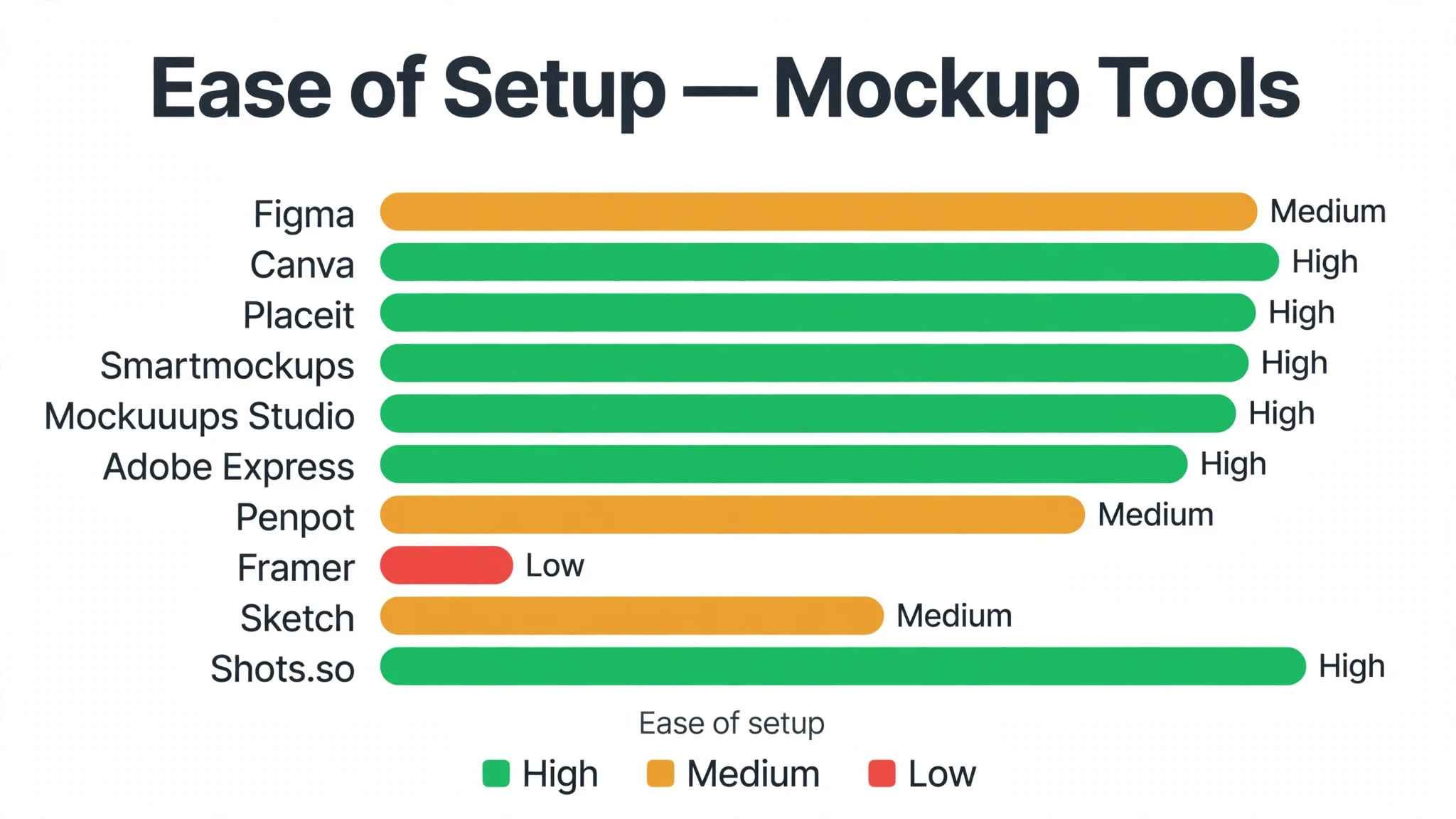
- Setup speed, timed from account creation to a finished mockup ready to send a client.
- Daily usability, judged by how long a three-version request took and how often the designer needed to ask for help.
Each measure carried equal weight except scene realism, which counted double, because a mockup that looks fake is not doing its job. Scores run out of 100, and the order below follows the combined total, led by Figma on scene realism. Where two tools tied, we broke the tie on placement speed, since a fast mockup is what saves a deadline.
We also checked the export quality, because a mockup that looks good on screen and falls apart in print is a trap. The best tools in this ranking export clean high-resolution files, while the weakest need extra work before the client sees them.
The 10 Tools in Detail
Each review below follows the same pattern, and every tool is judged on the same ground as the top 10 mockup tools. We note what each tool does best, where it falls short, and the designer it suits best, with scene realism carrying the most weight.
1. Figma
Figma is the design leader in this ranking, and it leads because the mockup starts from the real design file. The designer builds the work in Figma, then places it into device frames, scenes, and presentations with plugins and built-in tools. The result stays editable, so a client change flows into every mockup at once.
The trade off is learning time. Figma is a full design platform, and a designer who only needs a quick scene may find it more than the job requires. A designer who already works in Figma gets the mockups almost for free, but one who needs a single scene by lunch should start with Placeit first.
In the trial, build one homepage design and place it into three device scenes, then change the headline and check all three. Time how long the update takes, and ask a colleague whether the scenes look real. If both finish fast and the scenes hold up, the platform will survive contact with your deadlines.
Our verdict. The deepest design-to-mockup route here, and the best all rounder for most designers.
2. Canva
Canva is the speed pick, and it earns second place with mockups anyone can finish in minutes. The template library covers devices, print, and social scenes, and the editor lets a designer drop artwork in and export without learning a new tool. For a freelancer with a deadline, that speed shows.
The trade off is realism. Canva is lighter on true perspective and lighting than the specialists, so a mockup can look slightly flat beside a Smartmockups scene. For a social post or a quick client preview, that trade is worth making, because the mockup exists in minutes.
In the trial, take one logo and place it into three scenes, then show them to a client. Check whether the scenes look clean, and whether the export is sharp enough to present. If both hold, the tool fits your workflow.
Our verdict. The fastest mockup here, ideal for designers who need scenes in minutes.
3. Placeit
Placeit is the library pick, and it suits designers who want a finished scene in one click. Thousands of device, apparel, and print scenes cover almost any brief, and the editor places the artwork with realistic perspective and light. The result looks like a photograph, not a template.
The trade off is subscription cost, since the best scenes sit behind the paid plan. The tool is also a mockup specialist, so a designer who needs full design tools should pair it with Figma or Canva. For a designer who presents work daily, the library pays for itself fast.
In the trial, place one logo into five different scenes and export them all. Check whether the perspective holds, and whether the files are sharp enough for a pitch deck. If both hold, the library fits your work.
Our verdict. The biggest scene library here, ideal for designers presenting work daily.
4. Smartmockups
Smartmockups is the realism pick, and it earns its place with clean product scenes and believable lighting. The one-click placement handles perspective and shadows well, so a phone, a laptop, or a book looks photographed rather than pasted. The free tier covers a useful set of scenes for a quick test.
The trade off is range. Smartmockups is lighter on apparel and packaging scenes than Placeit, so a brand designer may need both. For a designer presenting digital products, it is the most convincing tool in this ranking.
In the trial, place one app screen into three device scenes and view them at full size. Check whether the shadows look natural, and whether the screen text stays readable. If both hold, the realism fits your presentations.
Our verdict. The most realistic product scenes here, ideal for digital product presentations.
5. Mockuuups Studio
Mockuuups Studio is the presentation pick, and it suits designers showing app and web work to clients. The device scenes are beautiful, the export options cover every format a pitch needs, and the interface stays focused on one job. A designer can build a full presentation set in an afternoon.
The trade off is scope. Mockuuups Studio is built for device scenes, so a print or packaging designer gets less from it. For a designer whose work lives on screens, that focus is a strength, because nothing about the tool distracts from the job.
In the trial, build a five-scene set from one app design and export it for a pitch deck. Check whether the scenes feel consistent, and whether the files are sharp enough to present. If both hold, the tool fits your work.
Our verdict. The best device presentation set here, ideal for app and web designers.
6. Adobe Express
Adobe Express is the suite pick, and it earns its place by tying quick mockups to the Adobe tools many teams already use. The editor is fast, the templates are plentiful, and assets move cleanly between Express, Photoshop, and Illustrator. A team that already pays for Adobe gets the mockups almost for free in effort terms.
The trade off is depth. Adobe Express is lighter on true mockup realism than the specialists, so a designer who needs photographic scenes should look at Placeit. For a team that needs quick social and marketing mockups inside the Adobe world, it is the most convenient choice here.
In the trial, take one design and place it into three scenes, then share them with the team. Check whether the brand assets carry across, and whether the export is sharp enough to present. If both hold, the suite link fits your work.
Our verdict. The best Adobe-connected mockups here, ideal for teams already on Adobe.
7. Penpot
Penpot is the open-source pick, and it suits teams that want a free design platform without a subscription. The tool covers interface design, prototyping, and mockup placement, and the open format means the team owns its files. For a startup or a community team, the price is hard to beat.
The trade off is maturity. Penpot is newer than Figma, so its plugin library and scene range are smaller. A team that needs the deepest mockup library may find it light. For a team that values open tools and a zero bill, that trade is easy to accept.
In the trial, build one interface design and place it into two device scenes, then export the set. Check whether the scenes look clean, and whether the team can collaborate without friction. If both hold, the open tool fits your work.
Our verdict. The best free open-source design here, ideal for teams avoiding subscriptions.
8. Framer
Framer is the live-site pick, and it earns its place by turning a mockup into a real published page. The designer builds the site visually, previews it as a live page, and publishes it without a developer. The mockup is not a picture of a site, it is the site itself.
The trade off is scope. Framer is built for websites, so a logo or packaging designer gets less from it. For a designer whose work is landing pages and marketing sites, that focus is a strength, because the client sees the real thing.
In the trial, build one landing page and publish a test version, then show it to a client on a phone. Check whether the page feels real, and whether the changes take minutes. If both hold, the live approach fits your work.
Our verdict. The best live-site mockups here, ideal for designers publishing real pages.
9. Sketch
Sketch is the Mac pick, and it suits product design teams that have built their workflow around it. Symbols, libraries, and precise controls keep large design systems consistent, and the mockup plugins place screens into device frames cleanly. Long-time Mac teams know it deeply.
The trade off is platform. Sketch runs on Mac only, so a mixed team cannot share the files natively. A team that has moved to Figma will find little reason to return. For a Mac-based team with years of Sketch libraries, it remains a steady and precise choice.
In the trial, open one existing library and place three screens into device frames. Check whether the symbols stay consistent, and whether the export is sharp enough to present. If both hold, the tool still earns its place.
Our verdict. The most precise Mac design here, ideal for long-time Sketch teams.
10. Shots.so
Shots.so is the social pick, and it rounds out the ranking for designers sharing work online. The tool turns a screenshot into a beautiful browser mockup in seconds, with clean backgrounds and gradients that suit social feeds. A designer can post a project the moment it is finished.
The trade off is range. Shots.so is built for browser mockups, so a designer who needs print, apparel, or packaging scenes should look elsewhere. For a designer whose audience lives on social media, it is the fastest route from finished work to a post that gets noticed.
In the trial, take one homepage screenshot and build three social-ready mockups. Check whether the images look sharp, and whether the backgrounds suit your brand. If both hold, the tool fits your sharing habit.
Our verdict. The fastest social mockups here, ideal for designers sharing work online.
Device Mockups vs Print Mockups: What Changes
Device mockups and print mockups look similar on the surface, but they ask different things of a designer. A device mockup must show the screen clearly, with the interface readable and the device angle honest. A print mockup must show the material, with paper texture, folds, and light that make the piece feel touchable. The top 10 mockup tools handle both, but the best choice differs by job.
For digital work, the screen is the point. Place the design in a device at a natural angle, keep the screen bright, and let the background stay simple. A busy background fights the screen for attention, and the client looks at the room instead of the work.
For print work, the material is the point. Show the paper, the fold, or the box, and let the light fall across it the way it would on a real desk. A flat print mockup with no shadow looks like a picture, while a good one looks like a photograph of the finished piece.
The practical answer is to match the mockup to the deliverable. A website pitch needs device scenes, a brand pitch needs print and packaging scenes, and a full identity pitch needs both. Judge the tool on the scenes your work actually needs, not on the total count in the library.
Five Mockup Mistakes That Make Work Look Cheap
The first mistake is a warped screen. A design stretched to fit a device frame looks amateur at once, and the client notices even if they cannot say why. Place the artwork at the right aspect ratio, and let the tool handle the perspective rather than forcing the fit.
The second mistake is a busy background. A mockup scene with a cluttered desk, a loud wall, or a distracting window pulls the eye away from the work. Choose a plain background, keep the props to one or two, and let the design carry the image.
The third mistake is low-resolution export. A mockup that looks fine on a phone and falls apart on a projector embarrasses the designer in the meeting. Export at the highest resolution the tool allows, and check the file at full size before the client sees it.
The fourth mistake is showing too many versions. A client given twelve mockups cannot decide, and the meeting drifts into taste debates. Show three strong versions, explain the thinking behind each, and let the client choose between clear options.
The fifth mistake is ignoring the brand. A mockup with the wrong colours, a stretched logo, or a mismatched font teaches the client the wrong brand. Check every mockup against the brand guide before it leaves the studio, and fix the small errors first.
A Two Week Workflow for Client-Ready Mockups
Week one is the system, and it should be built once. Pick your tool, set up the brand assets, and build a small library of the scenes you use most. A designer with a ready library answers a client request in minutes, while a designer who builds every scene from scratch answers it tomorrow.
Week two is the habit. For every project, place the work into a mockup before the client review, and export three versions for the meeting. Check the exports at full size, fix the warped screens and busy backgrounds, and keep the best scenes for the portfolio.
After the two weeks, the routine matters more than the tool. A mockup habit that runs on every project builds a portfolio that sells the next project, and the client sees the work as it will live in the world. A designer who shows work in context wins more approvals than one who shows flat files.
The final step is the review. At the end of each month, look at the mockups that won approvals and the ones that did not. A designer who acts on that evidence improves every pitch, and the approval rate is the proof that makes the case for the tool.

Best Pick by Job
A single winner does not fit every designer, so we matched each common situation to the tool that scored highest for that job. The top 10 mockup tools for a print designer look different from the right pick for a web designer, and the table below makes that split clear.
| Job | Best pick | Why it wins |
|---|---|---|
| Builds mockups from real designs | Figma | Full design platform with strong mockup plugins |
| Needs a mockup in minutes | Canva | Easy mockups inside a huge template library |
| Wants a finished scene in one click | Placeit | Huge library of device and apparel scenes |
| Presents digital products | Smartmockups | One-click mockups with realistic lighting |
| Shows app and web work | Mockuuups Studio | Beautiful device scenes with easy export |
| Already runs on Adobe | Adobe Express | Quick mockups tied to the Adobe suite |
| Wants a free open-source tool | Penpot | Free design platform with mockup support |
| Publishes live sites | Framer | Mockups that become real published pages |
| Designs on Mac with libraries | Sketch | Precise design with strong symbol libraries |
| Shares work on social media | Shots.so | Beautiful browser mockups in seconds |
If your situation does not match a row exactly, take the closest one and read that review first, starting with Figma when it fits. The gap between neighbouring tools is smaller than the gap between a mockup your client believes and one they doubt, so realism matters more than a few points on a scorecard.
Frequently Asked Questions
Designers ask the same questions before every mockup tool change, so we answered the most common ones here.
How much does a mockup tool cost for a freelance designer?
Most tools in this ranking offer free plans, so a freelancer can start for nothing. Paid plans cover the best scenes and the highest exports, and the cost rises with the library size. Check the vendor site for current pricing and confirm the total before you pay, because scene limits can change the bill.
Can one tool handle device, print, and packaging mockups together?
It can handle all three, and most designers prefer one library for the whole job. A device scene needs a screen, while a print scene needs material and light, and the leaders cover both well. Some designers still pair a device specialist with a print library, which works fine when the brand stays consistent across both.
How long does it take to build a client-ready mockup?
A focused designer builds a finished mockup in under an hour if the artwork is ready first. The delay usually comes from fixing the artwork and choosing the scene, not from the tool. Finish the design, pick the scene that matches the deliverable, then place and export the same day.
Do these tools work for a designer who does not use Figma?
Yes, and the standalone tools matter more for those designers than for Figma users. A designer who works in Canva or Adobe Express can place mockups without ever opening Figma. Test the standalone flow during the trial, because a tool that only works as a Figma plugin will not fit your workflow.
What happens to our mockup library if we switch tools later?
Every tool in this ranking exports finished mockups to common image formats, so a switch is possible but never painless. Scene setups and brand libraries do not transfer, and the designer must rebuild them in the new tool. Scene setups and brand libraries never carry across, which is why a designer should trial Figma properly now instead of staying with a tool that no longer fits the client work.
Choosing the Mockup Tool Your Client Work Runs On
A designer can settle this in a trial by timing minutes to a finished scene, counting the mockups the client approves, and tracking hours spent faking scenes by hand. The top 10 mockup tools prove themselves on the minutes to a finished scene, the share of mockups the client approves, and the hours spent faking scenes by hand, and a two week trial with your real work will show all three. Figma wins our ranking on the combined score, but the right tool for your work is the one that makes your designs look real without slowing you down.
Run the trial on one real project with your real artwork and your real clients, and judge the tool on the client meeting rather than the demo. If the client sees the work in context and approves it fast, the system is working. If the client stalls and asks for another version, the mockup is fighting you rather than helping you. Pick the tool that makes your work look finished, protect the mockup habit, and let the faster approvals pay for the subscription many times over.