
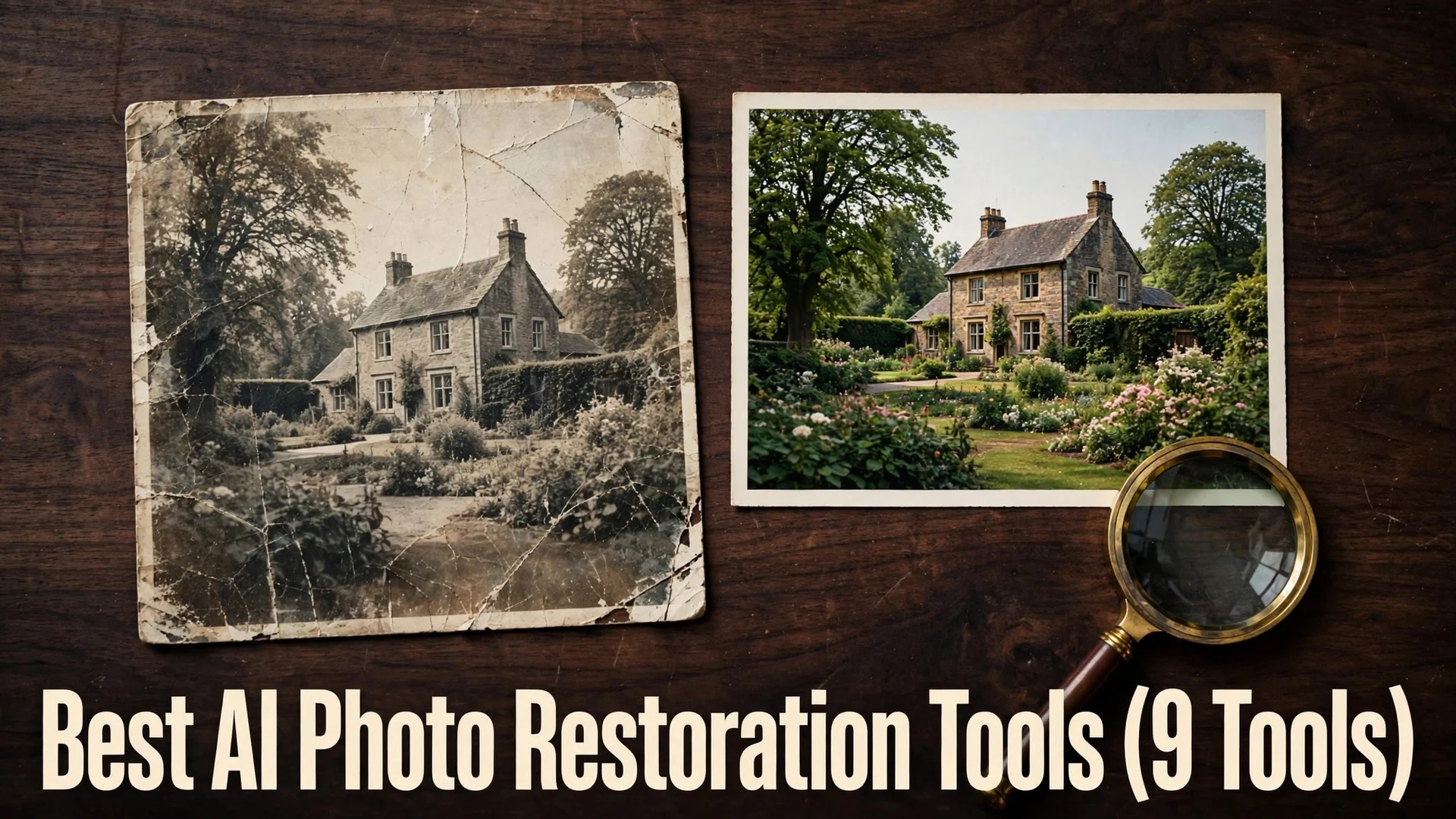

An old photo is a memory with damage, and the damage is usually the same, a scratch across a face, a fade that washed the colour out, or a blur that took the sharpness with it. The best ai photo restoration tools are the ones that repair the damage without inventing a new photo, because a restored face should look like the person, not like a stranger the AI imagined.
Nine tools made the list, and they split into three kinds. One-tap apps fix a single photo on a phone. Batch tools restore a whole archive. Desktop tools give a restorer manual control for print and client work. The prices below were checked against vendor pages and November 2026 roundups, and where sources disagreed the draft says so rather than picking the friendlier number.
In this article
- A Restored Face Should Look Like the Person
- How the Best AI Photo Restoration Tools Were Compared
- The 9 Tools at a Glance
- The 9 Tools in Detail
- When Restoration Goes Too Far
- One Photo or a Whole Box
- Best Pick by Job
- A Simple First Restoration
- Free Restoration Worth Trying
- Frequently Asked Questions
- The Bottom Line
A Restored Face Should Look Like the Person
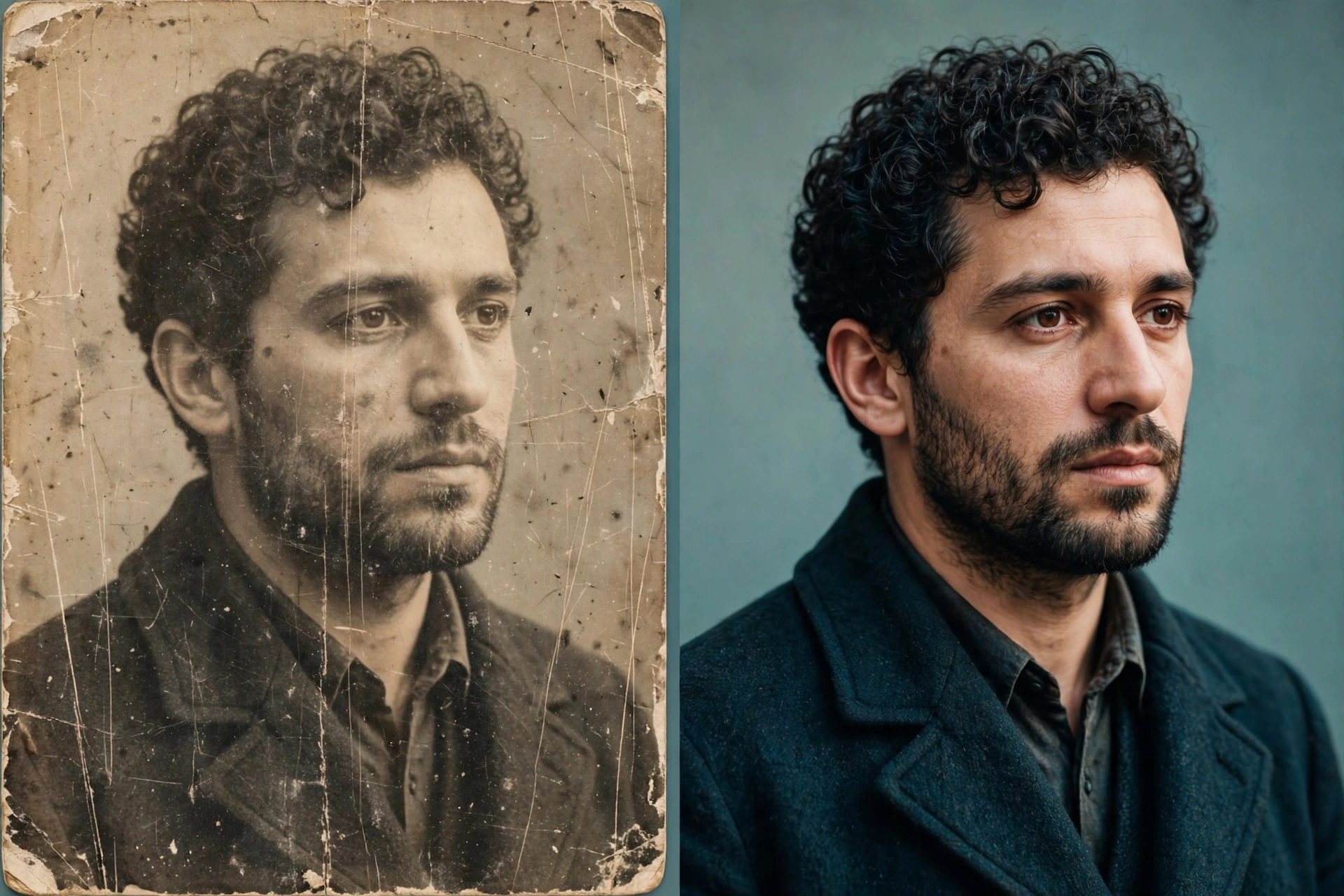
The hardest part of restoration is the face, because a human eye knows a face instantly and forgives nothing. An AI that rebuilds a blurry portrait can invent detail that was never there, a sharper jaw, a different smile, eyes that belong to someone else. The result looks impressive at a glance and wrong on a second look, which is worse than the original blur.
The best ai photo restoration tools let the restorer dial the face recovery back. Topaz Photo gives separate controls for sharpen, denoise and face recovery, so the repair stays honest. Remini is faster but bolder, and the faces it rebuilds can invent detail. A precious photo deserves the careful tool, and a quick share deserves the fast one.
The eyes deserve the closest look, because a human eye knows a face instantly and forgives nothing. A restoration that gets the eyes right will pass, and a restoration that invents them will fail, no matter how sharp the rest of the photo is.
The scan is the raw material, because a restoration cannot invent detail that the scan never captured. A 600 dot-per-inch scan holds far more than a phone photo of the print, and the extra resolution pays on every photo after the first.
The archive is the asset, because a photo scanned once can be restored many times, and a photo scanned badly can only be restored badly. Scan the originals before they fade, store them in two places, and the archive will be safe for the next generation.
How the Best AI Photo Restoration Tools Were Compared
Each of the best ai photo restoration tools was judged on five things that decide whether a photo survives the repair. Face quality is first, because a wrong face ruins the photo. Damage repair is second, because scratches, tears and fading need different fixes. Batch handling is third, because an archive of a hundred prints needs a pipeline, not a single-photo workflow. Price is fourth, measured as the cost of one photo and as the cost of a whole archive. Control is fifth, because a restorer who cannot dial the repair back will overdo it.
The tools in this guide all repair real photos, and every tool here has a free plan or a free trial except the ones that say otherwise. The comparison below names the limit of each tool plainly, because a tool bought for the wrong job wastes more than its subscription. It wastes the photo it was bought to save.
The prices in this guide were checked in November 2026, and several conflict across sources, especially Remini weekly prices and the MyHeritage Complete plan, which listings put anywhere from $149 to $209 a year. Check the vendor page at checkout, because the price varies by platform and region.
The comparison behind this guide weighted face quality first, because a wrong face ruins the photo, and batch handling second, because an archive of a hundred prints needs a pipeline rather than a single-photo workflow.
The comparison behind this guide tested the face first, because a wrong face ruins the photo, and the batch second, because an archive needs a pipeline. A tool that passes both tests is the tool the archive deserves, and the tool that fails the face should not touch the photo.
The 9 Tools at a Glance
The table below lines up the nine tools by entry price and free access, so the shortlist takes a minute to build.
| Tool | Price | Free plan | Best for |
|---|---|---|---|
| VanceAI Photo Restorer | Starter $180 a year | Free plan, 5 credits a month | Batch restoration for whole archives |
| Remini | Pro $9.99 a week | Free with ads | One-tap faces on a phone |
| MyHeritage Photo Enhancer | Complete $189 a year | A few photos free with a logo | Family archive, restored and colourised |
| Topaz Photo AI | $199 a year | Free trial, no free plan | Print and client work |
| Adobe Photoshop | $22.99 a month on annual billing | 7-day free trial, no free plan | Manual control for museum-grade repair |
| Fotor | Pro $8.99 a month | Free plan with limits | Quick restoration with photo editing |
| Lets Enhance | Basic $9 a month | Free plan, 10 credits | Browser upscaling for print |
| GFPGAN | Free | Free, open source | Free open-source face restoration |
| Photomyne | $59.99 a year | Free version with ads | Digitising a box of prints with a phone |
Read the price column against the photo count, because a weekly subscription suits one photo and an annual plan suits an archive.
The 9 Tools in Detail
1. VanceAI Photo Restorer
Best for Batch restoration for whole archives. Price Starter $180 a year. Free plan Free plan, 5 credits a month.
VanceAI is the batch tool in this list, built for a box of scans rather than a single photo. Upload a damaged photo and it repairs scratches, removes noise, enhances faces and upscales in one automated pass, with credits as the meter. A family archive of a hundred prints becomes a weekend project instead of a month of manual work.
Starter is $180 a year for 260 credits a month, and a restoration costs four credits at 1K or 2K resolution and ten at 4K, which caps the plan at about 65 restorations a month. The free plan gives five credits a month. Paid plans also start from $5.94 a month billed annually for 100 credits, so the credit math deserves a check before buying.
Buy it when the archive is large, because the batch workflow is the point. Skip it when the job is one precious photo, because a specialist will treat it better.
Watch out. The 4K option costs two and a half times the credits, so a large archive at 4K burns the allowance fast.
2. Remini
Best for One-tap faces on a phone. Price Pro $9.99 a week. Free plan Free with ads.
Remini is the fastest way to fix a face on a phone. Photograph the print, tap once, and the blurry portrait sharpens into something worth sharing, with face enhancement, colour fixing, unblur and sharpening modes built in. It is the tool for one old photo at a family gathering, not for an archive.
Pro is $9.99 a week, with a Lite plan around $7.99 a week and a one-month plan at $9.99, though prices vary by user, platform and region, so check the store listing. The free app repairs photos with ads and daily limits. The weekly billing adds up fast if the subscription is forgotten, which is the most common complaint.
Buy it when the job is one photo on a phone, because nothing is faster. Skip it when the archive is large, because weekly billing punishes slow work.
Watch out. Rebuilt faces can invent detail, so group shots and glasses are unreliable, and the weekly price adds up fast.
3. MyHeritage Photo Enhancer
Best for Family archive, restored and colourised. Price Complete $189 a year. Free plan A few photos free with a logo.
MyHeritage suits a family archive, because the photo tools sit inside a genealogy service. Enhance a face, repair scratches and tears, colourise a black-and-white portrait with period-plausible tones, and animate it with Deep Nostalgia, all while the family tree holds the context. The enhancement technology is licensed from the makers of Remini, so the face quality is familiar.
The photo tools sit in the Complete plan at $189 a year, or $119 for the first year, alongside the family tree and photo colourising. A few photos are free with a MyHeritage logo added. The subscription maze is the limit, because the photo tools come bundled with genealogy, and a buyer who only wants photos pays for a family tree too.
Buy it when the archive belongs to a family tree, because the tools and the tree work together. Skip it when genealogy means nothing to you, because the bundle costs more than a photo-only tool.
Watch out. The Complete plan price varies across listings from $149 to $209 a year, so check the site before paying.
4. Topaz Photo AI
Best for Print and client work. Price $199 a year. Free plan Free trial, no free plan.
Topaz Photo, formerly Topaz Photo AI, is the desktop specialist for quality work. Autopilot analyses each photo, then sharpen, denoise, face recovery and upscale work as separate controls you can dial back, with RAW support and Lightroom and Photoshop plugins. It renders on your own computer, so the photos never leave it, and the upscale reaches 6x for print.
It costs $199 a year for the Personal plan, or $39 a month with no commitment, and Pro is $599 a year for full commercial use. There is no free plan, though a trial covers the basics. Older listings show a one-time $199 price, which conflicts with the newer subscription, so check the site.
Buy it when the restoration is for print or for a client, because the control is the best here. Skip it when the job is a quick phone fix, because Remini is faster and cheaper.
Watch out. It needs a modern computer, and the quality controls reward a patient hand rather than a single click.
5. Adobe Photoshop
Best for Manual control for museum-grade repair. Price $22.99 a month on annual billing. Free plan 7-day free trial, no free plan.
Photoshop is the manual tool in this list, and a damaged photo that needs surgical repair belongs here. Clone stamp, healing brush, content-aware fill and layers give a restorer control no automatic tool matches, and the AI features, generative fill and neural filters, speed the routine parts without taking over the judgement. A museum-grade repair is a Photoshop job.
It costs $22.99 a month on annual billing, or $34.49 month-to-month, as a single app, with a seven-day trial and no free plan. The trade-off is skill, because Photoshop rewards training and punishes guessing, and a first restoration will take hours rather than minutes.
Buy it when the photo is precious and the damage is complex, because the manual control is unmatched. Skip it when the archive is large, because the manual pace cannot keep up with a hundred prints.
Watch out. The single-app price is the honest one to compare, because the full Creative Cloud bundle costs far more.
6. Fotor
Best for Quick restoration with photo editing. Price Pro $8.99 a month. Free plan Free plan with limits.
Fotor is the photo editor that restores as a side job, with one-click enhancement, background tools and colour grading alongside the repair features. A user who already edits photos in Fotor can restore an old print without opening a second app, and the AI credits that come with the plan cover image generation for backgrounds.
Pro is $8.99 a month on monthly billing, or $39.99 a year, which works out at about $3.33 a month, and Pro Plus is $19.99 a month or $89.99 a year. The free plan covers basic editing with watermarked exports and limited resolution. At $39.99 a year, Pro is the cheapest paid plan in this list.
Buy it when restoration sits inside a wider photo editing workflow, because the editor covers both. Skip it when the damage is severe, because the specialist tools repair more deeply.
Watch out. The free plan watermarks exports, so a finished restoration needs the paid tier.
7. Lets Enhance
Best for Browser upscaling for print. Price Basic $9 a month. Free plan Free plan, 10 credits.
Lets Enhance is a browser upscaler, built for the print half of restoration. Upload a photo, and it enlarges and sharpens it for large prints without installing software, with presets tuned for print sizes. A restorer who needs a small scan printed large will find the upscaling cleaner here than in a general editor.
Basic is $9 a month for 100 credits, with Business at $24 a month for 300 credits. The free plan gives ten credits. The trade-off is scope, because Lets Enhance upscales rather than repairing, so scratches and tears need a different tool first.
Buy it when the goal is a large print from a small scan, because the upscaling is the feature. Skip it when the damage needs repair, because this tool enlarges rather than fixes.
Watch out. Upscaling cannot invent detail that is not there, so a very small source will stay soft at large sizes.
8. GFPGAN
Best for Free open-source face restoration. Price Free. Free plan Free, open source.
GFPGAN is the free open-source face restorer, built by researchers and shared as code. It rebuilds faces from heavily degraded photos with a quality that rivals paid tools, and it runs on your own hardware, so the photos never leave your computer. A developer or a researcher gets full control over the model, the data and the output, with no subscription and no per-photo meter.
It costs nothing, and the code is open source. The trade-off is effort, because GFPGAN needs technical skill to install and run, and the quality depends on the model and the hardware you provide. There is no support team and no polished interface, so the user is the support team.
Buy it when the budget is zero and the skill is there, because the face quality is remarkable for a free tool. Skip it when the restoration needs to happen this week, because a hosted tool is faster.
Watch out. A rented GPU costs a little per photo, so a large archive still needs a budget for compute.
9. Photomyne
Best for Digitising a box of prints with a phone. Price $59.99 a year. Free plan Free version with ads.
Photomyne is built for the box of prints in the cupboard. Photograph several prints at once with the phone camera, and the app detects the edges, crops each one, and saves them as separate digital photos, ready for restoration elsewhere. It turns the scanning step, which is the slowest part of an archive project, into an afternoon.
It costs $19.99 a month, $59.99 a year, or $119.99 for three years. The free version carries ads. The trade-off is that Photomyne digitises rather than restores, so the repair still needs another tool, and the phone-camera quality depends on the light and the steadiness of the hand.
Buy it when the archive is still in prints, because the multi-photo scan is the fastest digitising here. Skip it when the photos are already digital, because the scanning adds nothing.
Watch out. Phone scans need good light and a steady hand, so shoot near a window and brace the phone.
When Restoration Goes Too Far
The best ai photo restoration tools all rebuild detail, and the rebuilding goes too far when the face stops looking like the person. An AI that sharpens a blurry portrait can invent a sharper jaw, a different smile and eyes that belong to someone else, and the result looks impressive at a glance and wrong on a second look. Dial the face recovery back, and keep the original scan alongside the restoration.
The second risk is colour. A colouriser that paints a 1940s portrait in modern saturated tones produces a photo that looks new rather than restored, and the period is lost. MyHeritage In Color aims for period-plausible tones, which is the right instinct, because a restoration should look like the photo, not like a remake.
The third risk is the batch. A tool that restores a hundred prints in a weekend will also make a hundred small mistakes, and the mistakes are invisible until the prints are compared with the originals. Check ten restorations carefully before running the whole archive, because the settings that suit one photo may not suit the next.
The fourth risk is the subscription that renews silently. Remini charges weekly, and a forgotten subscription adds up fast. Set a reminder when the trial starts, and cancel the week the archive is done.
The colour is the hardest call, because an old photo has no colour record and the AI guesses from the tone. A conservative guess looks natural, and a confident guess looks wrong, because the eye knows a skin tone is off even when it cannot name the colour. Choose the conservative setting, and the photo will look like a memory rather than a costume.
One Photo or a Whole Box
A single precious photo and a box of a hundred prints need different tools, and the price tables hide that. One photo needs the careful tool, Topaz Photo or Photoshop, because the time spent is worth it. A hundred prints need the batch tool, VanceAI, because the manual pace cannot keep up, and the phone scans need Photomyne first, because digitising is the slowest step.
The practical rule is simple. One photo means the best quality you can afford. Ten photos means the fastest one-tap tool. A hundred photos means a batch pipeline, with Photomyne to scan, VanceAI to restore, and a careful pass on the ten that matter most.
The scanning step deserves its own tool, because Photomyne photographs several prints at once and saves the weekend that flatbed scanning would take. Shoot near a window, brace the phone, and the digitising will be fast enough to leave time for the restoration itself.
Best Pick by Job
The right pick depends on the photo count, so match the job to the tool rather than buying the biggest name.
| Job | Pick | Why |
|---|---|---|
| Whole archive batch | VanceAI Photo Restorer | 65 restorations a month, $180 a year |
| One photo on a phone | Remini | Fastest face fix, Pro $9.99 a week |
| Family archive | MyHeritage Photo Enhancer | Tree plus colourising, $189 a year |
| Print and client work | Topaz Photo AI | Best control, $199 a year |
| Manual museum repair | Adobe Photoshop | Surgical control, $22.99 a month |
| Quick editing plus repair | Fotor | Cheapest paid plan, $39.99 a year |
| Large prints | Lets Enhance | Browser upscaling, $9 a month |
| Free face restoration | GFPGAN | Open source, remarkable quality |
| Digitising prints | Photomyne | Multi-photo phone scans, $59.99 a year |
When two tools tie, compare the faces, because the eyes are where a restoration succeeds or fails.
The best ai photo restoration tools repair the damage without inventing a new photo, and the pick that fits your photo count is the right one. Topaz Photo leads for print work, VanceAI for archives, and Remini for one quick phone fix.
A Simple First Restoration
The best ai photo restoration tools repay a careful first photo, and the care starts with the scan. Scan at the highest resolution the scanner allows, because a restoration cannot invent detail that the scan never captured, and a 600 dot-per-inch scan holds far more than a phone photo of the print.
Step two is the backup, save the original scan in two places before any tool touches it, because a restoration that goes wrong should never destroy the only copy. Step three is the test, run the photo through two tools and compare the faces, because the difference is visible in the eyes.
Step four is the print, because a restoration that looks good on screen may look soft on paper, and the print is the point of the work. Print one copy at the final size before running the whole archive, and the settings will be right for the rest.
Keep the originals, because the tools will improve and a future restoration will do better. The scan made today is the raw material for the restoration of next year.
A restoration is finished when the photo looks like the person remembered, because a restoration that looks like a new photo has gone too far. Step back, look at the face rather than the pixels, and the answer is usually obvious, because the memory is the standard and the pixels are only the evidence.
Free Restoration Worth Trying
The best ai photo restoration tools include free options that repair a real photo without a subscription. GFPGAN is free and open source, with face quality that rivals paid tools, and Fotor free covers basic editing with watermarked exports. A restorer on a zero budget can still rescue a photo, and the free tools are honest about their limits.
A free restoration follows a simple pattern. Scan at the highest resolution the scanner allows, save the original in two places, and run the photo through GFPGAN for the face and Fotor for the colour. Compare the result with the original scan, because the restoration should look like the person, not like a stranger the AI imagined.
The free limits bite in different places. GFPGAN needs technical skill to install and run, Fotor free watermarks the exports, and VanceAI free gives only five credits a month. A restorer who hits a limit should pay for the tool whose output earned it, because the free test has already proved the quality.
Start free for the first photo, and let the face decide the purchase. The tool whose free tier restored a face that looks like the person is the tool the archive deserves, and the subscription that follows is a decision rather than a guess.
Frequently Asked Questions
Can AI really restore a badly damaged photo?
Partly. AI repairs scratches, fading and blur well, and rebuilds faces convincingly, but it cannot recover detail that is entirely gone. A photo with a missing corner or a destroyed face will come back plausible rather than true, so keep the original scan alongside the restoration.
Will AI restoration invent faces that look wrong?
It can, especially on group shots and glasses, where the AI fills in detail it cannot see. Topaz Photo lets you dial the face recovery back, which keeps the result honest. Remini is bolder and faster, and the faces it rebuilds can look invented on a second look.
How much does photo restoration cost?
From nothing to $199 a year. GFPGAN is free, Fotor Pro is $39.99 a year, VanceAI Starter is $180 a year, and Topaz Photo is $199 a year. Remini charges weekly, at $9.99 a week, which adds up fast if the subscription is forgotten.
What is the best way to digitise old prints?
Photomyne, because it photographs several prints at once with the phone camera, detects the edges and saves each one separately. Shoot near a window for good light, brace the phone, and the scanning step that usually takes a weekend takes an afternoon.
Should I restore photos myself or hire someone?
It depends on the photo. A family archive of a hundred prints suits a batch tool like VanceAI, because the manual pace cannot keep up. A single precious photo with complex damage deserves a professional restorer or a careful pass in Photoshop, because the time spent is worth it.
How do I scan old photos properly?
At the highest resolution the scanner allows, at least 600 dots per inch, on a clean flatbed, with the print face down and the lid closed. A phone photo of a print works in a pinch, near a window with the phone braced, but a flatbed scan holds far more detail, and the restoration can only use what the scan captured.
Should I keep the original photo after restoring it?
Yes, always. Keep the original print and the original scan in two places, because a restoration is a copy and the original is the record. Future tools will restore better, and the original is the raw material they will need.
What resolution should I scan old photos at?
At least 600 dots per inch, because the restoration needs the detail to work with, and a low-resolution scan cannot be sharpened into a high-resolution result. A 1200 dot-per-inch scan is better for small prints, because a small print scanned low has little to restore.
The Bottom Line
The best ai photo restoration tools repair the damage without inventing a new photo, and the restorer who scans well and tests two tools will save the photos that matter. Keep the originals, compare the faces, and let the print decide the settings.