
A bad deck wastes a room. The audience reads the slide instead of listening to the speaker, the speaker reads the slide instead of talking to the room, and twenty minutes later nobody remembers the point. The top 10 presentation software in this guide exists to stop that waste, and the difference between a good tool and a bad one is whether it helps the speaker say less on the slide and more in the room.
The trap is choosing the tool with the most templates. Templates do not fix a deck with no argument, and an AI generator that turns a prompt into thirty slides produces thirty slides nobody wants to sit through. The right tool matches how the deck will be used, which is live in a room, sent as a file, or shared as a link.
This guide compares ten tools on the presenter’s test. How fast a first draft appears, how much control the speaker keeps over design, how well the deck survives being opened on another computer, and what it costs per month. Prices below were checked against vendor pages and current 2026 comparisons.
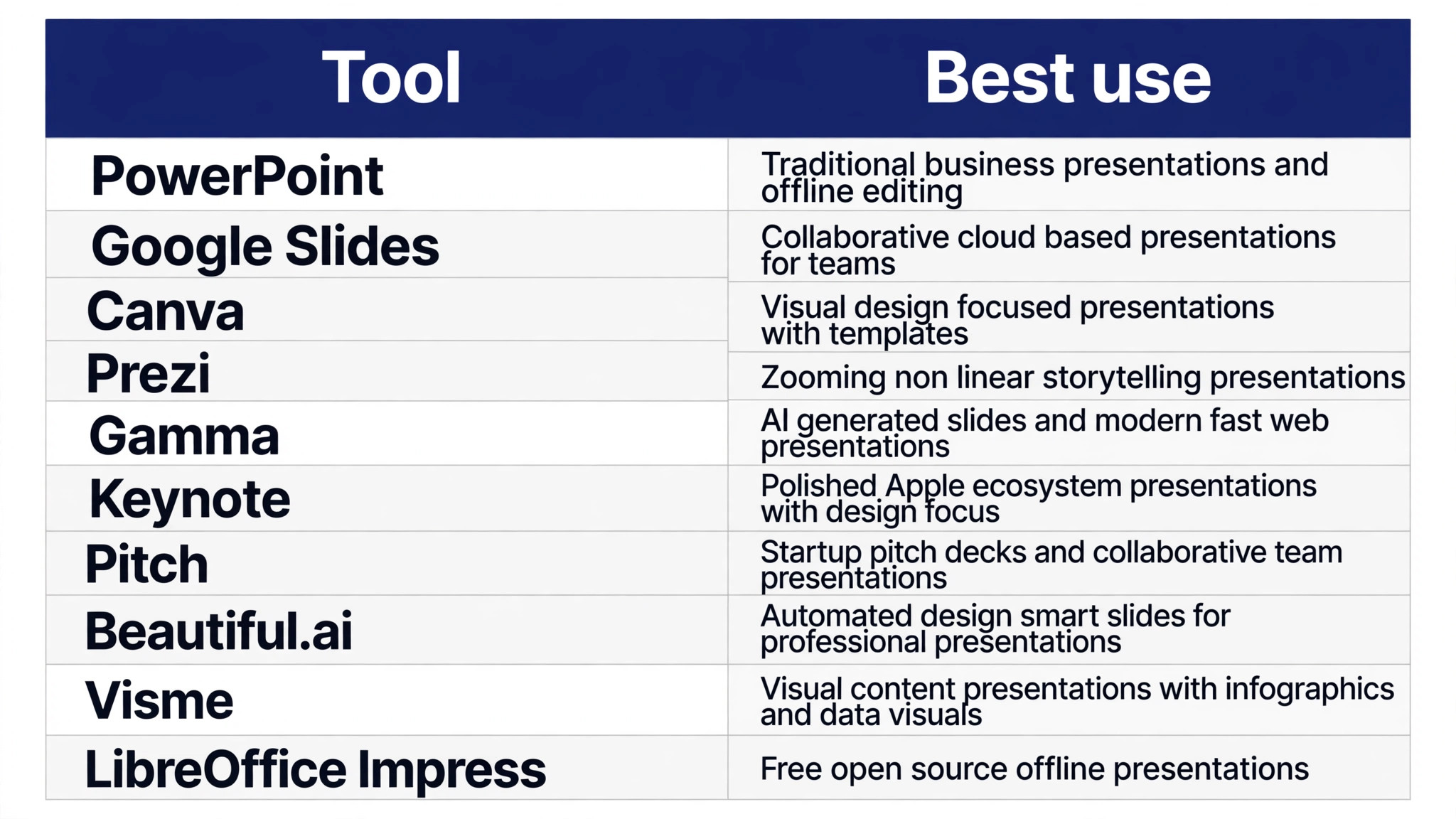
The 10 Tools at a Glance
The table gives the fast answer. Each row shows the starting price, the free option, and the presenter the tool fits best.
| Tool | Best for | Starting price |
|---|---|---|
| Microsoft PowerPoint | Business decks and offline work | About $9.99 a month, Microsoft 365 Personal |
| Google Slides | Free collaboration | Free with a Google account |
| Canva | Templates and fast visual design | About $10 a month on annual billing, $15 monthly |
| Prezi | Nonlinear, zoomable storytelling | From about $7 a month billed annually |
| Gamma | Fast AI decks shared as a link | From about $9 a month, Plus |
| Keynote | Beautiful decks on Apple devices | Free with Apple devices |
| Pitch | Investor decks and team collaboration | Pricing on the vendor site |
| Beautiful.ai | AI decks with smart design rules | About $12 a month |
| Visme | Visual decks with charts and infographics | About $12.25 a month |
| LibreOffice Impress | Free offline decks for any computer | Free and open source |
Best Pick by Job
Presenters are not one audience. A salesperson, a teacher, a founder pitching investors, and a marketer sharing a deck as a link each need a different tool.
| Job | Pick | Why it fits |
|---|---|---|
| The fastest first win | Microsoft PowerPoint | It installs in minutes and covers the most common apps, so the first result arrives on day one. |
| The best value at scale | Google Slides | Its pricing model stays cheap as volume grows, which matters more than the entry price. |
| The technical pick | Canva | It offers the deepest control for teams that can use it, with features the simpler tools lack. |
| The budget pick | LibreOffice Impress | It covers the essentials at the lowest cost, which suits a small team or a solo buyer. |
| The pick for a specific workflow | Prezi | It handles the specialised job better than the general tools, so it earns its place on that one task. |
What the Top 10 Presentation Software Must Do in the Room
The top 10 presentation software in this guide must do one thing well in the room, which is stay out of the speaker’s way. A deck that needs the speaker to read it is a document, not a presentation, and the best tools make it easy to put one idea on a slide and let the speaker carry the rest. That is why design control matters more than template count.
The second test is the file. A deck built in PowerPoint opens everywhere, a deck built in Google Slides needs an account, and a deck built in Gamma lives as a web link that may not open on a conference laptop. A presenter who sends decks to clients should know before building whether the file will open on the client’s machine.
The third test is the first draft. AI tools like Gamma and Beautiful.ai turn a prompt into a structured deck in minutes, which saves hours on a first draft. The draft still needs editing, because an AI deck has the structure of a good presentation and the soul of a generic one, and the speaker must add the argument that makes it theirs.
How We Tested These Tools for Presenters
Every tool on this list was judged against the same presenters test, and the top 10 presentation software were scored on what they do in real work rather than what their marketing pages promise. We checked the published pricing page for each tool, read the free tier limits, and compared the features that decide whether a presenter keeps using it after the first month. When a vendor hides its price behind a sales call, that is noted as a finding rather than guessed, since a buyer cannot budget for a number they cannot see.
Four tests decided the order. The first test is whether the tool does its core job without workarounds. The second is what it costs at realistic volume rather than the entry tier. The third is how quickly a new user reaches a real result. The fourth is what happens when something breaks, because support and a clear way out matter more than a long feature list when the work is urgent. For a presenter, core-job strength matters most, because a deck that cannot carry one clear idea per slide fails in the room.
Read the list with the reader’s own situation in mind. The order reflects overall fit, not a claim that the first tool wins every job. The Best Pick by Job table is the better guide when the situation is known, and the detail sections explain the trade-off behind each placement so the reader can disagree for good reasons. A presenter who knows how the deck will be delivered already knows which row to read first.
The 10 Tools in Detail
Each tool below was judged as a presenter’s purchase. The questions were about the room and the file. How fast does a usable draft appear, how much design control does the speaker keep, and does the deck open wherever it is sent.
1. Microsoft PowerPoint
PowerPoint remains the enterprise standard, with the deepest formatting, chart control, and offline editing of any tool here. Its Copilot AI drafts decks from a prompt, and its file format opens on every client machine.
Copilot costs extra, about $30 a user a month on top of the subscription, and PowerPoint has no free plan. A presenter who sends files to clients should build in PowerPoint, because the file is the standard.
Our verdict on Microsoft PowerPoint: Microsoft PowerPoint earns its place here because it does the about $9.99 a month, microsoft 365 personal job well, and Microsoft PowerPoint is fairly priced for what it delivers. The trial is the real test for Microsoft PowerPoint, so use the free plan or the free trial on a genuine task with Microsoft PowerPoint, check the result the next morning, and only then decide whether the Microsoft PowerPoint subscription stays.
2. Google Slides
Google Slides is free, collaborates in real time, and opens in any browser, making it the best free presentation tool for teams. Its Gemini AI drafts decks on paid Workspace plans, and its sharing is the simplest here.
Its design control is thinner than PowerPoint or Canva, and its offline support needs setup. A team that collaborates and wants to pay nothing should build in Google Slides.
Buy Google Slides when the free with a google account job is the one that matters most, and skip Google Slides when that job is rare in the reader’s week. Judge the cost of Google Slides against the hours Google Slides saves on that single job, not against the whole feature list, because a tool that saves five hours a week on one task pays for itself even if Google Slides does nothing else well.
3. Canva
Canva Pro costs $10 a month on annual billing ($120 a year) or $15 a month monthly, and it offers more than 250,000 templates, a large asset library, and brand kit management. Its Magic Design builds a deck from a prompt, and its free plan is generous.
Every editor is a paid seat, and Canva meters AI use, so team costs grow fast. A non-designer who wants a good-looking deck quickly should start with Canva, and a team should count editors before committing.
Trial check for Canva: run one real job through Canva before paying, using the exact data the team handles every day. If Canva handles that job and Canva still looks fairly priced at twice the volume, Canva earns its place. If the trial exposes a missing integration in Canva or a surprise fee from Canva, that is the answer, and the next tool on the list deserves the same test.
4. Prezi
Prezi replaces the slide-by-slide flow with a zooming canvas, where the presenter moves between topics on a single visual map. It builds live polls, quizzes, and Q and A into the presentation, and its AI starts from a prompt or existing slides.
The motion flattens in PowerPoint exports, and the learning curve is real. A presenter who gives live talks and wants the audience to take part should trial Prezi, while a business deck builder should pick PowerPoint.
Our verdict on Prezi: Prezi earns its place here because it does the from about $7 a month billed annually job well, and Prezi is fairly priced for what it delivers. The trial is the real test for Prezi, so use the free plan or the free trial on a genuine task with Prezi, check the result the next morning, and only then decide whether the Prezi subscription stays.
5. Gamma
Gamma turns a prompt, outline, or document into a structured deck in minutes, with a card-based web format that shares as a link. Plus starts at about $9 a month, and its free tier offers 400 signup credits.
PowerPoint exports need cleanup, and a web deck needs the internet in the room. A presenter who shares decks as links and wants a fast first draft should use Gamma, and export a PDF backup before any live talk.
Buy Gamma when the from about $9 a month, plus job is the one that matters most, and skip Gamma when that job is rare in the reader’s week. Judge the cost of Gamma against the hours Gamma saves on that single job, not against the whole feature list, because a tool that saves five hours a week on one task pays for itself even if Gamma does nothing else well.
6. Keynote
Keynote is free on Apple devices and produces beautiful decks with strong typography and animation. It suits a presenter who works entirely in the Apple ecosystem and wants a polished result without paying.
Its file format needs conversion for Windows clients, and its collaboration is thinner than Google Slides. An Apple-only presenter should use Keynote, and anyone who sends files to Windows users should pick PowerPoint.
Trial check for Keynote: run one real job through Keynote before paying, using the exact data the team handles every day. If Keynote handles that job and Keynote still looks fairly priced at twice the volume, Keynote earns its place. If the trial exposes a missing integration in Keynote or a surprise fee from Keynote, that is the answer, and the next tool on the list deserves the same test.
7. Pitch
Pitch targets investor decks and team collaboration, with templates built for fundraising and a workflow that keeps a team on brand. It suits founders and teams that build many decks for many audiences.
Pricing needs a conversation, which slows a solo presenter. A startup team that pitches often should trial Pitch, while a solo presenter should pick Gamma or Canva for a faster start.
Our verdict on Pitch: Pitch earns its place here because it does the pricing on the vendor site job well, and Pitch is fairly priced for what it delivers. The trial is the real test for Pitch, so use the free plan or the free trial on a genuine task with Pitch, check the result the next morning, and only then decide whether the Pitch subscription stays.
8. Beautiful.ai
Beautiful.ai generates structured decks from a prompt and applies smart design rules automatically, so slides stay clean without manual formatting. It costs about $12 a month and suits a presenter who wants a good-looking deck without design skill.
Its design control is thinner than PowerPoint, and its template range is narrower than Canva. A presenter who wants AI generation with automatic design should trial Beautiful.ai against Gamma.
Buy Beautiful.ai when the about $12 a month job is the one that matters most, and skip Beautiful.ai when that job is rare in the reader’s week. Judge the cost of Beautiful.ai against the hours Beautiful.ai saves on that single job, not against the whole feature list, because a tool that saves five hours a week on one task pays for itself even if Beautiful.ai does nothing else well.
9. Visme
Visme offers presentation tools plus charts, infographics, and data visualisation, which suits a presenter who needs to show numbers clearly. Its free plan covers the basics, and its paid plans start at about $12.25 a month.
Its presentation features are thinner than PowerPoint, and its learning curve is real. A presenter who builds data-heavy decks should trial Visme, while a general business presenter should pick PowerPoint or Canva.
Trial check for Visme: run one real job through Visme before paying, using the exact data the team handles every day. If Visme handles that job and Visme still looks fairly priced at twice the volume, Visme earns its place. If the trial exposes a missing integration in Visme or a surprise fee from Visme, that is the answer, and the next tool on the list deserves the same test.
10. LibreOffice Impress
LibreOffice Impress is free and open source, works offline on any computer, and opens PowerPoint files. It suits a presenter who wants a free desktop tool without an account or a subscription.
Its templates and AI features are thinner than the leaders, and its interface feels dated. A presenter who needs a free offline tool and nothing else should use Impress, and pair it with Canva for templates when needed.
Our verdict on LibreOffice Impress: LibreOffice Impress earns its place here because it does the free and open source job well, and LibreOffice Impress is fairly priced for what it delivers. The trial is the real test for LibreOffice Impress, so use the free plan or the free trial on a genuine task with LibreOffice Impress, check the result the next morning, and only then decide whether the LibreOffice Impress subscription stays.
What a Year of Presentation Software Actually Costs
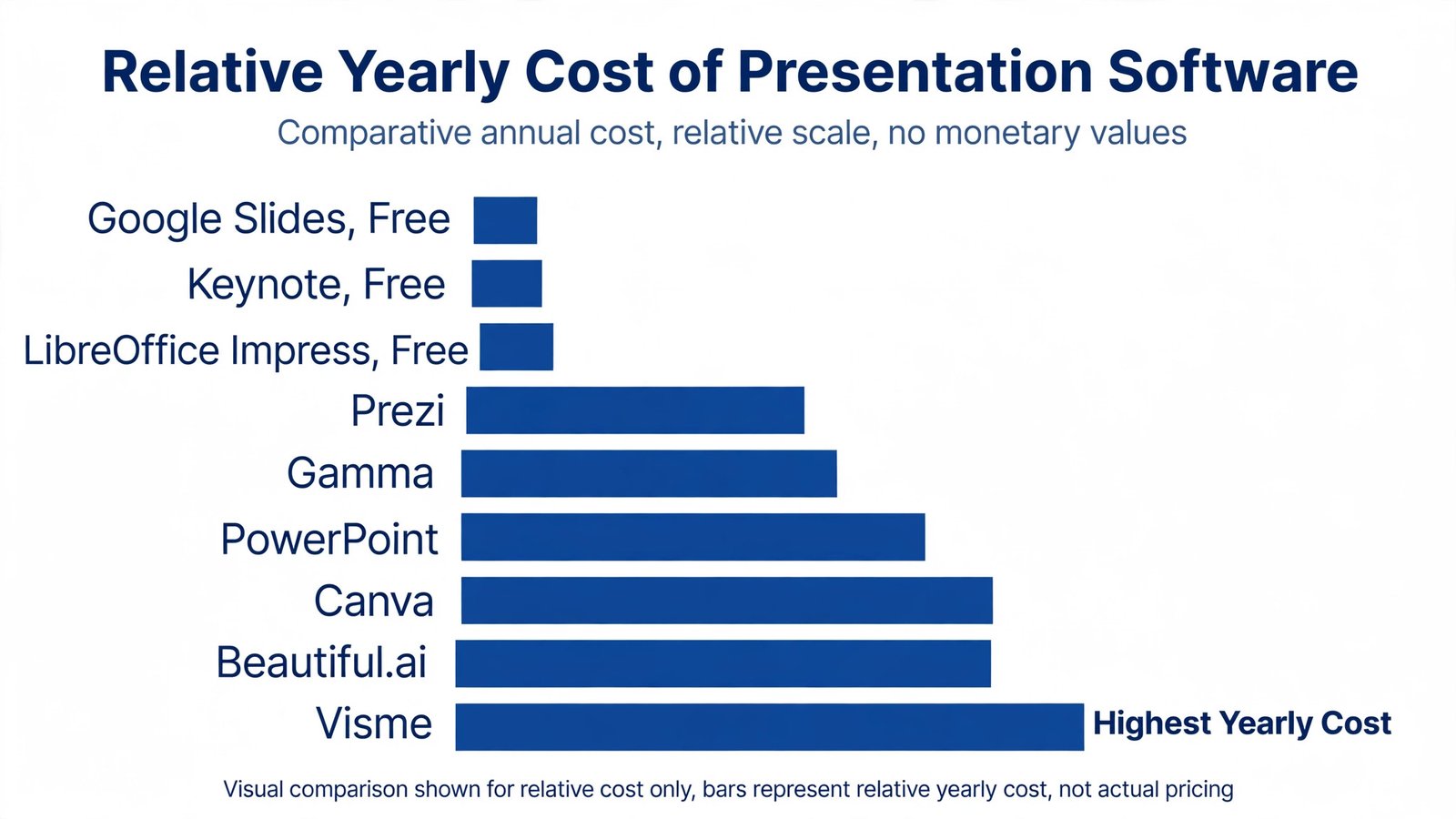
Presentation software looks cheap until every editor needs a paid seat. The table below shows the realistic yearly cost for one user, because the top 10 presentation software stays affordable for a solo presenter, and the ones that do not will show it here.
| Tool | Monthly cost | Yearly cost | Free option |
|---|---|---|---|
| Microsoft PowerPoint | About $9.99 a month, Microsoft 365 Personal | About $120 a year | No, trial available |
| Google Slides | Free with a Google account | $0 a year | Yes, free |
| Canva | About $10 a month on annual billing, $15 monthly | About $120 a year | Yes, free plan |
| Prezi | From about $7 a month billed annually | About $84 a year | Yes, limited free tier |
| Gamma | From about $9 a month, Plus | About $108 a year | Yes, 400 free credits |
| Keynote | Free with Apple devices | $0 a year | Yes, free |
| Pitch | Pricing on the vendor site | Pricing on the vendor site | Free plan |
| Beautiful.ai | About $12 a month | About $144 a year | Free trial |
| Visme | About $12.25 a month | About $147 a year | Free plan |
| LibreOffice Impress | Free and open source | $0 a year | Yes, free |
The cheapest real options are Google Slides, Keynote, and LibreOffice Impress, all free. Canva Pro at about $10 a month on annual billing is the best value paid option for a non-designer, because it covers decks plus every other design job. PowerPoint at about $9.99 a month is the cheapest way to own the industry-standard file format.
Team pricing is where the bill grows. Canva charges per editor, so a team of ten pays ten seats, and Gamma charges about $20 a user a month on its team plan. A solo presenter should pay for one seat, and a team should count editors before committing to a per-seat tool.
Modelled at ten times current volume, the top 10 presentation software split into two groups. One group stays predictable, charging per run, per user, or per account, so the buyer can forecast the cost. The other group punishes growth, charging per step, per resolution, or per site, so the bill rises faster than the business. A buyer who plans to grow should favour the predictable group, even when the other group looks cheaper on day one.
Five Mistakes That Ruin a Presentation Deck
Decks fail for the same reasons every year. The top 10 presentation software cannot fix a deck with no argument, so these five mistakes are worth naming before the first slide is built.
Putting the script on the slide. A slide full of text makes the audience read instead of listen. Put one idea per slide, and let the speaker carry the words.
Trusting an AI first draft without editing. An AI deck has structure but no argument, and it reads like every other AI deck. Edit every slide, cut half the words, and add the one point only the speaker can make.
Using a web-only deck in a room with no wifi. A Gamma link needs the internet, and a conference laptop may not have it. Export a PDF or a PowerPoint file as a backup before every live talk.
Ignoring the file format the client expects. A client who asked for a PowerPoint file does not want a Canva link. Ask what format the deck will be opened in, and build in that tool.
Designing for the laptop screen instead of the back row. Small text and thin charts look fine up close and vanish from ten metres away. Test every slide from the back of the room, or at least from across a desk.
Building a Deck That Works in Eight Steps
A good deck takes a day, not a week. The top 10 presentation software rewards presenters who write the argument first and open the design tool second.
- Write the argument in one paragraph. The point, the evidence, and the ask, before any slide exists.
- List the five slides the argument needs. Title, problem, evidence, solution, and ask, and nothing else to start.
- Pick the tool that matches the delivery. PowerPoint for a file, Google Slides for collaboration, Gamma for a shared link, Prezi for a live talk.
- Build the first draft with AI or a template. Use Gamma or Canva to get a structure in minutes, then edit every slide.
- Cut half the words on every slide. If a sentence can be a phrase, make it a phrase, and if a phrase can be a number, make it a number.
- Add one visual per idea. A chart, a photo, or a diagram, and check that it supports the point rather than decorating it.
- Rehearse the deck out loud twice. Time it, note where the speaker stumbles, and fix the slide that causes the stumble.
- Export a PDF backup and test it on another computer. Open the file on the machine that will run the talk, and check fonts, videos, and links.
Frequently Asked Questions
Presenters ask practical questions about files, AI, and cost. The answers below focus on the format the audience will actually open and the tool that fits the way the deck will be delivered.
Which presentation software is best for a business deck?
Microsoft PowerPoint is best for a business deck, because it is the industry standard, opens everywhere, and offers the deepest formatting and chart control. It costs about $9.99 a month with Microsoft 365 Personal. Google Slides is the best free alternative for teams that collaborate, and Canva is best for non-designers who want templates.
Can Gamma replace PowerPoint for professional presentations?
Gamma can replace PowerPoint for decks shared as a web link, because it turns a prompt into a structured deck in minutes. It cannot replace PowerPoint for a file deliverable, because its PowerPoint exports need cleanup and its web format may not open on a conference laptop. Use Gamma for a first draft and a link, and PowerPoint for a client file.
Is Canva Pro worth it for presentations alone?
Canva Pro at $10 a month on annual billing ($120 a year) or $15 a month monthly is worth it for a presenter who also designs social posts, documents, and marketing visuals, because it covers all of those jobs. For presentations alone, Google Slides is free and PowerPoint is cheaper. Pay for Canva Pro when the whole design workload justifies it.
What is the best free presentation software?
Google Slides is the best free presentation software for most people, because it is free, collaborates in real time, and opens in any browser. Keynote is free on Apple devices and looks excellent, while LibreOffice Impress is free and open source for offline work. A presenter who needs no paid features should start with Google Slides.
How much does Prezi cost and when is it worth it?
Prezi starts at about $7 a month billed annually for Standard, with Plus at about $19 a month. It is worth it for live talks where the presenter wants a zooming canvas instead of a slide-by-slide flow, with live polls and Q and A built in. For a standard business deck, PowerPoint or Google Slides is simpler and cheaper.
Do AI presentation tools produce decks that are ready to present?
No, AI tools produce a first draft, not a finished deck. Gamma, Beautiful.ai, and Canva Magic Design all build a structured deck from a prompt in minutes, but the result needs editing for argument, accuracy, and tone. Budget an hour of editing for every AI draft, and rehearse the deck out loud before presenting it.
From Blank Slide to a Deck That Lands
First, write the argument in one paragraph and list the five slides it needs. Second, pick the tool that matches the delivery, which is PowerPoint for a file, Google Slides for collaboration, or Gamma for a link. Third, build the draft, cut half the words, rehearse out loud twice, and export a PDF backup.
The top 10 presentation software works when the speaker leads and the tool follows. Choose the platform that fits the room, the file, and the audience, and let the slides carry one idea each while the speaker carries the argument.
Rehearsal deserves the same care as the slides. A deck that looks perfect on a laptop can fail in a real room, because the projector washes out colours, the clicker lags, or the video has no sound. Rehearse once in the actual room if possible, or at least once standing up with a timer and no notes. The rehearsal finds the slide that confuses the speaker, the chart that needs a bigger font, and the transition that breaks, and fixing those three things does more for the talk than any template.
Handouts are worth a thought too. A one-page summary with the key numbers and the ask gives the audience something to keep, and it means the deck itself can stay light. Build the handout after the deck, not before, so it reflects the final argument rather than the first draft.
Slide numbers help too, because an audience member who wants to ask about slide twelve needs a number to point at.
A presenter who finishes early should stop talking and take questions, because a short talk that ends on time earns more trust than a long one that runs over.