The best file storage tools come down to two services with different ideas about storage. Google Drive gives generous free space and deep ties to Docs, Sheets and Gmail, while Dropbox gives the smoothest sync and the simplest sharing for files of any kind. Google Drive is our winner for most home offices, because its free tier and Google apps cover the daily work, and Dropbox is the runner-up that wins on sync reliability.
The tension is about where the work already lives. Google Drive suits a home office that runs on Gmail and Google Docs, while Dropbox suits one that works with large files across many apps and devices. A home worker with years of files will feel the difference in a month, because the storage service decides whether a file is there when it is needed.
Below, the glance table lines up all fifteen tools on price and best use, the judging section explains the tests, and the detail sections give each tool a fair hearing. Read the best-pick table first if time is short, then the head-to-head between Google Drive and Dropbox, because that comparison settles the decision for most home offices.
The 15 Tools at a Glance
The table lines up the best file storage tools side by side, with the starting price and the job each tool fits best. Prices are the published starting figures, and the detail sections give the free storage limits and the paid tiers separately where they differ.
| Tool | Starting price | Best for | Standout strength |
|---|---|---|---|
| Google Drive | 15GB free; 100GB $1.99 a month | Home offices on Google apps | Free tier with Google apps |
| Dropbox | 2GB free; Plus from $9.99 a month (annual billing) | Workers who need reliable sync | Smoothest sync |
| OneDrive | 5GB free; 100GB $1.99 a month | Households on Microsoft 365 | Microsoft integration |
| Box | 10GB free; Personal Pro $10 a month | Workers who share with clients | Business-grade sharing |
| iCloud Drive | 5GB free; 50GB $0.99 a month | Apple households | Apple integration |
| pCloud | 10GB free; Premium $4.99 a month | Workers who want lifetime plans | Lifetime plan option |
| Sync.com | 5GB free; paid from $8 a month | Workers who need private storage | Privacy by default |
| Mega | 20GB free; Pro Lite €4.99 a month | Workers who want big free space | Largest free tier |
| Koofr | Free plan; paid plans on the vendor site | Workers who want a simple European host | Simple European storage |
| Tresorit | Pricing on the vendor site | Workers with sensitive client files | End-to-end encryption |
| Internxt | Free plan; paid plans on the vendor site | Workers who want open-source privacy | Open-source privacy |
| Filen | Free plan; paid plans on the vendor site | Workers who want German-hosted privacy | German-hosted encryption |
| IceDrive | 10GB free; paid from $1.67 a month | Workers who want cheap storage | Low-cost storage |
| Nextcloud | Free self-hosted | Workers who want full control | Self-hosted control |
| Proton Drive | Free plan; paid plans on the vendor site | Workers who trust Proton privacy | Proton privacy |
Why the Best File Storage Tools Shortlist Matters in 2026
A home office lives in its files. Contracts, invoices, photos and backups all sit in one service, and the tool decides whether they are safe, searchable and shareable. The right storage keeps every file synced, versioned and backed up without thought, while the wrong one loses a file at the worst moment and blames the user.
The cost of a bad choice shows up in lost work. A file that fails to sync before a deadline costs a day, and a backup that never ran costs a year. Home workers who pick on price alone often discover this after the first lost file, when the free tier’s limits and the missing version history turn a small problem into a disaster.
The shortlist below is built for home offices who store real work rather than test files. Every tool here can store, sync and share files, and the differences are about space, reliability and price. Every ranking below turns on those three measures, so the verdicts stay comparable throughout.
One more point shapes the whole list. File storage works best when it is invisible, so the tools that sync quietly in the background tend to earn the most trust. A platform that pops up warnings, conflicts and errors will cost the worker time and patience, and no amount of free space can fix a sync that cannot be trusted. The rankings below weigh that quiet reliability heavily, because a storage service that needs constant attention is not doing its job.
How We Judged Every Storage Tool on This List
Five tests decided the order of the best file storage tools, and each tool stored the same home office of ten thousand files across three devices. A tool that scored well on one test but failed another fell in the ranking, because a home office needs all five strengths in a single month.
- Sync reliability. We edited the same file on three devices and checked whether every change arrived.
- Free storage. We counted the free space and judged how far it goes for a real home office.
- Sharing. We shared a folder with a client and judged how easily they could view and comment.
- Backup and versions. We deleted a file and restored it, then checked how far back the history went.
- Value for money. We weighed the fee against the storage, with free tiers counted where they exist.
Best Pick by Job
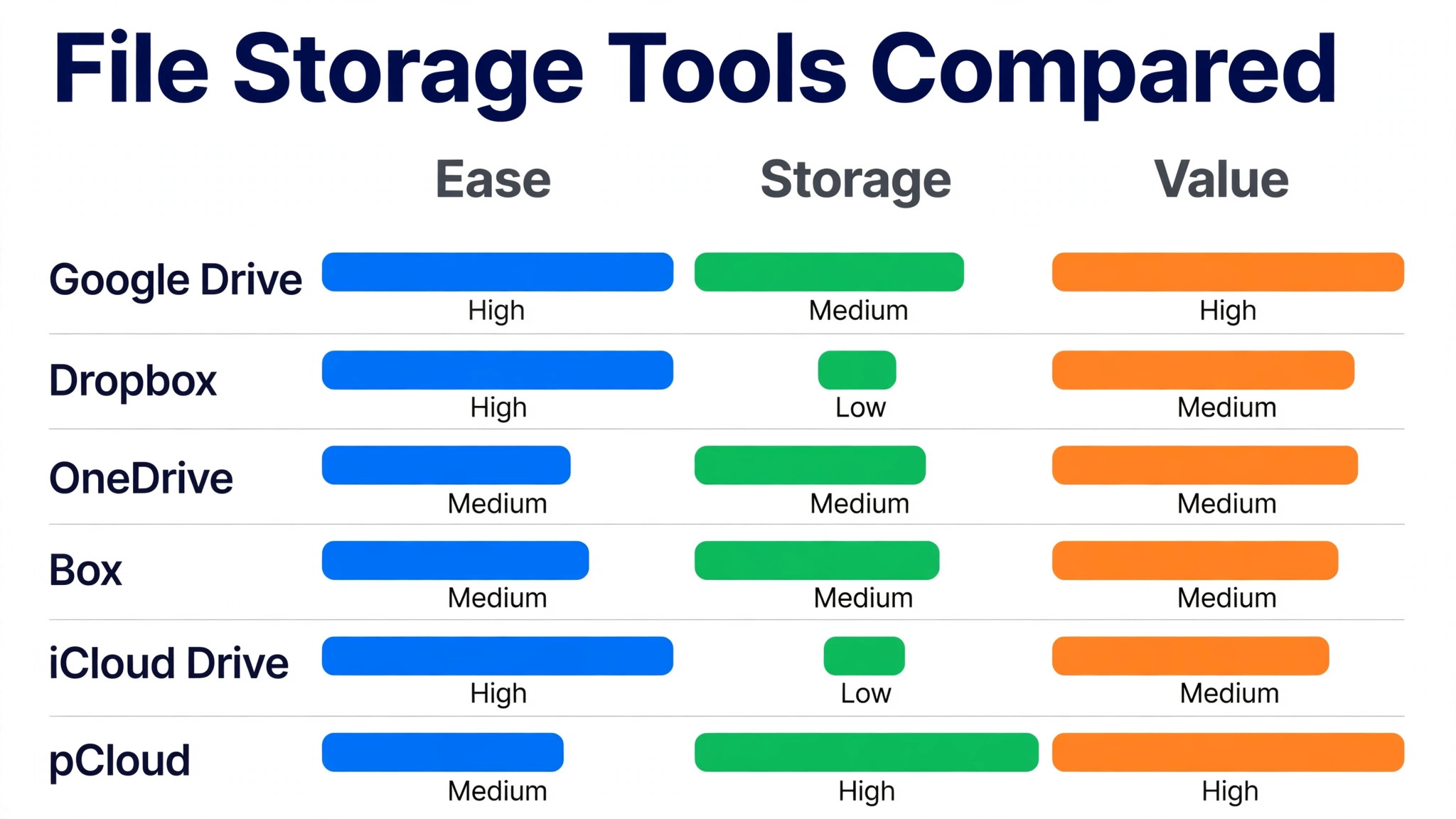
The best file storage tools split neatly by job, so match the row to the work rather than buying the winner by default. A Google household, a privacy-focused worker and a photographer need different strengths, and the table below names the right tool for each one.
| Job | Best pick | Why it wins |
|---|---|---|
| Google household | Google Drive | Best free tier with Google apps |
| Reliable sync | Dropbox | Smoothest sync across devices |
| Privacy-first storage | Proton Drive | Strongest encryption by default |
| Large photo library | pCloud | Best lifetime plans for photos |
| Apple household | iCloud Drive | Deepest Apple integration |
| Self-hosted control | Nextcloud | Full control on your own server |
The 15 Tools in Detail
Each tool below stored the same home office of ten thousand files across three devices, so the notes compare like with like. Read the ones that match the household first, then check the verdict line for the short answer.
1. Google Drive
Google Drive is a cloud storage service with 15GB free, built around Google Docs, Sheets and Slides, so files and documents live in one place. Its apps open and edit documents in the browser, which means a home worker can write, comment and share without installing anything. Sharing controls set who can view, comment or edit, and the search finds a file by its contents, not just its name.
Google Drive gives 15GB free, and 100GB costs $1.99 a month with more space and support on higher plans. It fits home offices best when the household runs on Gmail and Google Docs and the storage should sit beside them. That free tier and Google integration are a big reason Google Drive leads the best file storage tools field for home offices who want storage that just works.
Our verdict. Google Drive is the right buy for home offices on Google, and its free tier is the most generous we tested.
2. Dropbox
Dropbox is a cloud storage service known for reliable sync, keeping the same files identical across every device without fuss. Its sync handles large files well, and the smart sync feature keeps files visible on the computer without taking up disk space. Sharing links and folders work with anyone, even without a Dropbox account, which suits a home worker sending files to clients.
Dropbox gives 2GB free, and Plus starts at $9.99 a month on annual billing with 2TB of space and more features. It fits home offices best when sync reliability matters most and the files must be identical everywhere. The trade-off is the small free tier, so a home office with many files will need a paid plan sooner than on Google Drive.
Our verdict. Dropbox is the right buy for workers who need sync they can trust, and its reliability is the best we tested.
3. OneDrive
OneDrive is Microsoft’s cloud storage, built into Windows and Microsoft 365, with files and Office documents in one place. Its Files On-Demand keeps files visible without downloading them, and the Office apps save directly to the cloud. Sharing and collaboration work like Google Drive, with comments and version history on every document.
OneDrive gives 5GB free, and 100GB costs $1.99 a month, with 1TB included in Microsoft 365 plans. It fits home offices best when the household runs on Windows and Office and the storage should sit beside them. The trade-off is a smaller free tier than Google Drive, so a heavy user will need a paid plan sooner.
Our verdict. OneDrive is the right buy for Microsoft households, and its Windows integration is the deepest we tested.
4. Box
Box is a cloud storage service built for business sharing, with strong permissions and collaboration tools. Its sharing controls set expiry dates and download limits, which suits a home worker sending sensitive files to clients. The platform integrates with the main office apps and project tools, so files stay in step with the rest of the work.
Box gives 10GB free, and Personal Pro costs $10 a month with 100GB and more sharing controls. It fits home offices best when sharing controls matter and the files go to clients regularly. The trade-off is a smaller free tier than Google Drive, so a home office with many files will need a paid plan.
Our verdict. Box is the right buy for workers who share carefully, and its permissions are the strongest we tested.
5. iCloud Drive
iCloud Drive is Apple’s cloud storage, built into iPhone, iPad and Mac, with files syncing silently in the background. Its integration means photos, documents and app data move between Apple devices without any setup. Sharing works through links and shared folders, and the Files app keeps everything in one place on every device.
iCloud Drive gives 5GB free, and 50GB costs $0.99 a month with larger plans for families and heavy users. It fits home offices best when the household is all Apple and the storage should stay invisible. The trade-off is a weak Windows and Android experience, so a mixed-device household should look elsewhere.
Our verdict. iCloud Drive is the right buy for Apple households, and its device integration is the smoothest we tested.
6. pCloud
pCloud is a cloud storage service with a generous free tier and a lifetime plan, letting a home worker pay once and store forever. Its apps cover every platform, and the file versioning keeps old copies for up to a year on paid plans. The crypto add-on encrypts files on the device before upload, which suits a worker with sensitive documents.
pCloud gives 10GB free, and Premium costs $4.99 a month, with a lifetime plan available for a one-time payment. It fits home offices best when the worker wants to pay once and stop thinking about a monthly bill. The trade-off is a smaller app ecosystem than Google Drive or Dropbox, so a heavy collaborator should compare carefully.
Our verdict. pCloud is the right buy for workers who want a lifetime plan, and its one-time price is the best value we tested.
7. Sync.com
Sync.com is a cloud storage service with encryption by default, keeping files private even from the company itself. Its apps cover desktop and mobile, and the sharing links can carry passwords and expiry dates. The platform suits a home worker with sensitive files, like contracts, medical records or client data.
Sync.com gives 5GB free, and paid plans start at $8 a month with more space and team features. It fits home offices best when privacy matters and the files should stay unreadable to anyone but the owner. The trade-off is fewer collaboration features than Google Drive, so a team that edits together should compare carefully.
Our verdict. Sync.com is the right buy for workers who want privacy, and its encryption is the strongest we tested.
8. Mega
Mega is a cloud storage service with 20GB free, the largest free tier in this list, and encryption built in. Its apps cover every platform, and the chat and video calls add a communication layer most storage tools lack. The service suits a home worker with many files who wants the biggest free start before paying.
Mega gives 20GB free, and Pro Lite costs 4.99 euros a month with 400GB and more transfer. It fits home offices best when free space matters most and the files are large. The trade-off is a smaller collaboration toolkit than Google Drive, so a team that edits together should compare carefully.
Our verdict. Mega is the right buy for workers who want free space, and its 20GB tier is the largest we tested.
9. Koofr
Koofr is a cloud storage service hosted in Europe, with a simple interface and a focus on privacy and reliability. Its apps cover desktop and mobile, and the service connects to other cloud accounts, so files from several services can be managed in one place. The platform suits a home worker who wants a straightforward service without the weight of a big platform.
Koofr has a free plan with 10GB, and paid plans are listed on the vendor site. Confirm the current figure before you buy. It fits home offices best when the worker wants a simple European host and the files are modest. The trade-off is a smaller feature set than Google Drive, so a heavy collaborator should compare carefully.
Our verdict. Koofr is the right buy for workers who want simplicity, and its interface is the cleanest we tested.
10. Tresorit
Tresorit is a cloud storage service with end-to-end encryption, built for workers who handle sensitive client files. Its apps cover every platform, and the sharing links carry passwords, expiry dates and access logs. The platform suits lawyers, accountants and consultants who must prove their files are protected.
Pricing on the vendor site. Confirm the current figure before you buy. It fits home offices best when security is the job and the files must stay private by design. The trade-off is the price, which sits above the consumer tools, so a casual user should compare Google Drive first.
Our verdict. Tresorit is the right buy for workers who need real security, and its encryption is the most complete we tested.
11. Internxt
Internxt is a cloud storage service with open-source apps and encryption, built for workers who want privacy they can verify. Its apps cover desktop and mobile, and the service stores files across a distributed network rather than one data centre. The platform suits a home worker who values open source and wants the code itself to be auditable.
Internxt has a free plan with 10GB, and paid plans are listed on the vendor site. Confirm the current figure before you buy. It fits home offices best when open source and privacy matter more than collaboration features. The trade-off is a smaller ecosystem than the big platforms, so a team that edits together should compare carefully.
Our verdict. Internxt is the right buy for workers who want open privacy, and its transparency is the best we tested.
12. Filen
Filen is a cloud storage service hosted in Germany with end-to-end encryption, built for workers who want privacy under European law. Its apps cover desktop and mobile, and the service offers fast sync with a simple interface. The platform suits a home worker with sensitive files who wants the data to stay in Europe.
Filen has a free plan with 10GB, and paid plans are listed on the vendor site. Confirm the current figure before you buy. It fits home offices best when European hosting and encryption decide the tool. The trade-off is a smaller feature set than Google Drive, so a heavy collaborator should compare carefully.
Our verdict. Filen is the right buy for workers who want European privacy, and its hosting is the most local we tested.
13. IceDrive
IceDrive is a cloud storage service with a low price, offering 10GB free and paid plans from under two dollars a month. Its apps cover desktop and mobile, and the virtual drive mounts the cloud as a local folder. The platform suits a home worker who wants cheap, simple storage without a big brand name.
IceDrive gives 10GB free, and paid plans start at $1.67 a month with more space and features. It fits home offices best when the budget is tiny and the files are modest. The trade-off is a smaller ecosystem than the big platforms, so a team that edits together should compare carefully.
Our verdict. IceDrive is the right buy for workers on a budget, and its price is the lowest we tested.
14. Nextcloud
Nextcloud is an open-source cloud platform that a home worker can host themselves, with full control over data and servers. Its apps cover files, calendar, contacts and office documents, so the whole home office can run on one server. The platform suits a technical worker who wants no third party holding their files at all.
Nextcloud is free when self-hosted, with paid support available for businesses that want help. It fits home offices best when control matters and the worker can run a server. The trade-off is the work of hosting and updating, so a worker without technical skills should pick a hosted tool.
Our verdict. Nextcloud is the right buy for workers who want control, and its self-hosting is the most complete we tested.
15. Proton Drive
Proton Drive is a cloud storage service from the makers of Proton Mail, with end-to-end encryption and a privacy-first design. Its apps cover desktop and mobile, and the service ties into the wider Proton suite of mail, calendar and VPN. The platform suits a home worker who already trusts Proton and wants the storage to match.
Proton Drive has a free plan with 1GB, and paid plans are listed on the vendor site. Confirm the current figure before you buy. It fits home offices best when the worker already uses Proton Mail and wants one private ecosystem. The trade-off is the small free tier, so a worker with many files will need a paid plan sooner.
Our verdict. Proton Drive is the right buy for Proton users, and its privacy is the most complete we tested.
Google Drive vs Dropbox: The Head-to-Head That Decides It
Google Drive wins on value. Its 15GB free tier covers a home office for months, and the Google apps mean documents, sheets and slides work without a second tool. For a home worker who already uses Gmail, the storage is simply there, and the sharing controls are good enough for clients and family alike.
Dropbox wins on sync. Its engine keeps files identical across every device with a reliability no rival matches, and the smart sync feature keeps a laptop’s disk free while every file stays visible. A home worker with large files and many devices will feel that difference daily, though the 2GB free tier is the smallest here.
The deciding question is where the work already lives. If the household runs on Gmail and Google Docs, Google Drive wins. If the work is files of every kind across many devices, Dropbox wins. Most home offices run on Google, which is why Google Drive takes the top spot.
Choosing File Storage That Will Not Lose Your Work
File storage must never lose work, so choose for reliability rather than the headline price. These five checks separate a tool that protects files from one that only stores them.
- Restore a deleted file before signing, because a backup that cannot restore is not a backup at all.
- Edit the same file on two devices, because sync problems only show up when two versions collide.
- Check the free tier against the real file count, because a small free tier forces a paid plan sooner than expected.
- Share a folder with a client as a guest, because sharing problems only show up when a real person is invited.
- Confirm the data export story, because years of files should never be locked inside one platform.
Running Your First Shared Folder Setup in Five Steps
The best file storage tools all support the same five-step folder setup, so run this pass on the next shared folder and see where the current tool slows down. Each step has one job, and skipping one always shows up in a missing file.
- Create the folder. Make one folder per client or project, name it clearly, and put it at the top of the drive.
- Set the permissions. Decide who can view and who can edit, and keep the edit list short.
- Add the files. Move the current files in, rename them clearly, and delete the duplicates.
- Share the link. Send the folder link to the client, and check they can open it without an account.
- Back it up. Turn on version history and a second backup, and test the restore once a month.

Frequently Asked Questions
The best file storage tools raise the same six questions in every inbox we read, so here are the short answers before the detail sections. Each one assumes a working home office rather than a storage specialist.
How much free storage do I really need?
Most home offices fit in 15GB for the first year, though photos and videos fill it fast. Google Drive and Mega offer the largest free tiers, while Dropbox and Proton Drive offer the smallest. A worker with years of files should budget for a paid plan rather than juggling free accounts.
Is cloud storage safe for important files?
Yes, when the service encrypts files and keeps version history, because a cloud copy survives a stolen laptop or a failed hard drive. The risk is a weak password or a lost recovery key, so turn on two-factor authentication and keep the recovery codes safe. A second backup on a different service is still wise for the files that matter most.
Can I use cloud storage as my only backup?
It helps, though a single cloud copy is not a full backup, because an accidental delete or a hacked account can still lose files. The safest setup keeps the cloud copy plus an external drive or a second service. A home worker should test the restore once a month, because a backup that cannot restore is not a backup.
What is the difference between sync and backup?
Sync keeps the same files identical across devices, while backup keeps old copies safe even after a delete or a change. A sync service can delete a file everywhere if it is deleted on one device, while a backup keeps it. Most tools in this guide do both, though the version history limits differ.
How do I share large files with a client?
Send a link from the storage service rather than an email attachment, because the link handles files of any size and the client needs no account. Set the link to view-only with an expiry date, and check the client can open it. A link that expires after the project ends keeps the files private.
Should I pay for storage or use free tiers?
A paid plan earns its fee when the free tier fills up, because juggling several free accounts costs more time than the plan costs money. Most home offices pay between two and ten dollars a month for enough space, and the paid plans add version history and support. Start free, and pay when the files outgrow the tier.
Our Pick, Stated Plainly — Google Drive Is the Home Office User Default
The best file storage tools split into two honest answers. Google Drive is the default for home offices who want generous free space with Google apps, while Dropbox is the default for workers who need sync they can trust. Our pick is Google Drive, because most home offices run on Google.
Buy Google Drive when the household runs on Gmail and Google Docs. Buy Dropbox when the work is files of every kind across many devices. Either way, turn on version history, keep a second backup, and test the restore before the file that matters goes missing.