What does a prototype cost in 2026? The answer runs from a free account that covers a solo designer to a team plan that costs more than the design software it replaces, and the tool that matches your workflow decides whether the handoff to developers is smooth or painful. The best prototyping tools in this guide cover that whole range, and Figma leads the list because its browser-based canvas is where most design teams already work. This guide prices every tool before it weighs the features.
A prototype is the product before the product exists. It shows how the screens connect, how the buttons respond, and how the flow feels in the hand, all before a developer writes a line of code. A good prototype answers the questions that a static mockup cannot, while a bad one sends the team back to the drawing board. The twelve tools below were judged on how faithfully they turn an idea into something a team can test.
The price question is really a team question. A solo designer needs a free canvas and a shareable link, while a design team of ten needs shared libraries, version history and developer handoff. The glance table below shows where each tool sits on that scale, so you can skip straight to the ones built for your kind of work.
The 12 Tools at a Glance
Start with the money. The best prototyping tools split into free tiers for solo designers and paid team plans for studios that ship every week, and the table below shows where each of the twelve sits before you read a single review.
| Tool | Starting price | Best for | Standout strength |
|---|---|---|---|
| Figma | Free tier | Design teams | Real-time collaboration |
| Adobe XD | Free tier | Adobe users | Creative Cloud fit |
| Sketch | From $10 a month | Mac designers | Plugin ecosystem |
| InVision | Pricing on the vendor site | Design feedback | Commenting workflow |
| Framer | Free tier | Interactive sites | Publishable prototypes |
| Axure RP | Pricing on the vendor site | Complex logic | Conditional flows |
| Balsamiq | From $9 a month | Quick wireframes | Low-fidelity speed |
| Marvel | Pricing on the vendor site | Simple prototypes | Fast sharing |
| Proto.io | Pricing on the vendor site | Mobile apps | Device preview |
| Justinmind | Pricing on the vendor site | Enterprise apps | Requirements tools |
| Uizard | Pricing on the vendor site | AI-assisted design | Text-to-design |
| Penpot | Free | Open-source teams | Self-hosted option |

Why the Best Prototyping Tools Shortlist Matters in 2026
Design teams now work across time zones, and the prototype is the shared language they use. A designer in one city, a developer in another, and a stakeholder in a third all look at the same link and see the same product. When that link is clear, the team moves fast. When it is confusing, every meeting becomes a debate about what the screens mean.
The cost of a weak prototype shows up in rework. A flow that was never tested sends the developers back to rebuild it, and a screen that the client misunderstood becomes a change request after launch. Each round of rework costs more than the last, and the total can exceed the price of the tool many times over. The tools on this list exist to catch those problems while they are still cheap to fix.
This shortlist exists to bring the gaps between the tools into view. Every tool below was tested on the same five measures, with a real product flow carried through each one. If you are choosing a prototyping tool this year, the gaps on this page will decide how clearly your team sees the product before it is built.
A final shift matters too. AI features now generate screens from a text prompt, and the tools that use them well can cut the first draft of a prototype from days to minutes. The tools below were judged on whether those features help a real designer or simply produce generic screens. Speed matters, yet a fast generic prototype is no better than a slow one.
How We Judged Every Prototyping Tool on This List
We scored every tool on five tests, and the best prototyping tools had to pass all five before earning a place on this list.
- Collaboration. We tested real-time editing, comments and sharing, since a prototype nobody can see together is a file, not a workflow.
- Interaction fidelity. We built the same flow in each tool and scored how real the taps, transitions and animations felt.
- Handoff quality. We checked how clearly the tool passes specs, assets and measurements to developers.
- Learning curve. We gave each tool to a designer who had never used it and scored how long a first prototype took.
- Price against use. We compared the monthly cost with the number of seats a team needs, and scored value rather than sticker price.
Best Pick by Job
No single tool wins every prototyping job, so match the work in front of you to the tool that handles it best. The best prototyping tools differ most in the kind of work they serve, not in their feature list.
| Job | Best pick |
|---|---|
| Design team collaboration | Figma |
| High-fidelity interactive prototype | Framer |
| Quick low-fidelity wireframes | Balsamiq |
| Complex logic and conditions | Axure RP |
| Mobile app prototype | Proto.io |
| Free open-source workflow | Penpot |
The 12 Tools in Detail
1. Figma
Figma is the browser-based design platform that most teams now treat as the default. It covers wireframes, high-fidelity screens, interactive prototypes and developer handoff in one canvas, with real-time collaboration that lets several designers work on the same file at once. The component system keeps a design consistent across hundreds of screens, and the plugin library adds almost any missing feature. A design team that works remotely will feel the difference immediately.
Pricing is where the best prototyping tools separate most clearly. Figma offers a free tier for starters, with Professional plans from $15 a month per editor adding shared libraries and version history. Confirm the current figure before you buy, since the editor pricing and plan limits shift over time, and the site carries the current figures on its pricing page. A solo designer can work free for a long time.
Figma is a design platform first, and a team that only needs quick wireframes may find it heavier than a dedicated wireframing tool. For the full design workflow, nothing matches its breadth. Our verdict. Start here when the team designs together.
The community is the part of Figma that newcomers underestimate. Thousands of free templates, UI kits and plugins sit a click away, and a designer can start from a proven file rather than a blank canvas. That library shortens the first week with the tool more than any tutorial, and it keeps growing while the team works.
2. Adobe XD
Adobe XD is the prototyping tool for teams already inside Adobe’s world. It covers wireframes, interactive prototypes and sharing, with a clean interface and tight integration with Photoshop and Illustrator. The repeat grid and the component states speed up screen design, and the sharing links let stakeholders comment without an account. A designer who lives in Creative Cloud will find the fit natural.
Pricing on the vendor site is the accurate line for Adobe XD, since it offers a free starter plan with paid plans adding more storage and features. Confirm the current figure before you buy, and check whether the plan is bundled with Creative Cloud.
Adobe XD has lost ground to Figma in collaboration, since its real-time features arrived later and feel thinner. For an Adobe shop, the integration still wins. Our verdict. Choose it when the team already pays for Creative Cloud.
The auto-animate feature is the part of Adobe XD that designers praise most. A transition between two screens can be built by duplicating the artboard and moving an element, with the animation generated automatically. That trick turns a static flow into a moving prototype in minutes, and it is the reason many Adobe teams stay with XD despite the competition.
3. Sketch
Sketch is the Mac design tool that defined modern interface design. It covers vector editing, symbols, libraries and prototyping, with a plugin ecosystem that adds almost any feature a team needs. The tool suits Mac-based studios that want a native app rather than a browser tab, and the file format is a standard that many teams still exchange. A designer who learned the craft on Sketch will feel at home.
Pricing on the vendor site is the right line, since Sketch costs from $10 a month per editor. Confirm the current figure before you buy, and check whether the plan includes the cloud workspace.
Sketch runs on Mac only, so a mixed team with Windows users cannot share the editor. For a Mac studio, the native feel is worth it. Our verdict. Pick it when the studio is all Mac and the workflow is established.
The plugin ecosystem is the part of Sketch that keeps it competitive. A team can add a plugin for almost any gap, from data population to developer handoff, and the community keeps the library fresh. That extensibility is why many studios stay with Sketch even as the browser tools grow.
4. InVision
InVision is the feedback platform that grew out of prototyping. It turns static screens into clickable prototypes, with commenting and version control that let a team discuss the design in place. The tool suits teams that need stakeholder approval, since the review flow is built around comments and sign-off. A design lead managing feedback from several people will find the structure useful.
Pricing on the vendor site is the fair answer, since InVision plans depend on seats and features. Confirm the current figure before you buy, and check whether the free tier covers your team size.
InVision is weaker than Figma as a design tool, since it works best with screens made elsewhere. As a feedback layer, it remains strong. Our verdict. Use it when the review process matters more than the drawing.
The version control is the feature design leads mention most after using InVision. Every round of feedback is tied to a version of the screens, so a comment from last week never gets confused with the current design. That history turns a messy review into a record the team can follow.
5. Framer
Framer is the prototyping tool that publishes real websites. It covers design, interaction and publishing in one canvas, so a prototype can become a live site without a rebuild. The tool suits teams that prototype marketing pages and landing sites, since the published result is production quality. The AI features generate a first draft from a prompt, which speeds up the early work.
Pricing on the vendor site is the accurate answer, since Framer offers a free tier with paid plans adding publishing and team features. Confirm the current figure before you buy, and check the site limits on each tier.
Framer is less suited to complex app flows than Figma, since its strength is the published page rather than the prototype. For web work, it is the fastest path from idea to live site. Our verdict. Choose it when the prototype should ship as a website.
6. Axure RP
Axure RP is the heavyweight for complex logic. It covers conditional flows, variables, data-driven content and dynamic panels, so a prototype can behave like the real product. The tool suits enterprise teams that need to test a flow with real rules before development, since the logic can be built and tested without code. A UX researcher testing a banking flow will find the depth essential.
Pricing on the vendor site is the fair line, since Axure RP plans depend on seats. Confirm the current figure before you buy, and check whether the plan includes the cloud sharing.
Axure has the steepest learning curve on this list, and a new user can spend days learning the logic system. A team that invests that time gets a prototype no other tool can match. Our verdict. Buy it when the flow has rules that must be tested.
7. Balsamiq
Balsamiq is the low-fidelity wireframing tool that keeps a team honest. It draws rough, sketch-like screens that focus the conversation on the flow rather than the visual polish, with drag-and-drop components that build a wireframe in minutes. The tool suits early-stage design, since a rough wireframe invites feedback while a polished mockup invites nitpicking. A product manager sketching a feature will get further faster here than anywhere else.
Pricing on the vendor site is the right answer, since Balsamiq costs from $9 a month. Confirm the current figure before you buy, and check whether the plan includes the cloud version.
Balsamiq is deliberately rough, so a team that needs a polished prototype will outgrow it quickly. For the first draft, the roughness is the point. Our verdict. Use it when the idea matters more than the pixels.
8. Marvel
Marvel is the simple prototyping tool for quick sharing. It turns sketches and screens into clickable prototypes in minutes, with a clean sharing link and a mobile app for testing on a device. The tool suits small teams and students who need a prototype today without learning a new system. The interface is the simplest on this list, and the setup takes under an hour.
Pricing on the vendor site is the accurate line, since Marvel plans depend on projects and seats. Confirm the current figure before you buy, and check the free tier limits.
Marvel is lighter on features than the leaders, so a team that needs components and libraries will want more. For a quick prototype, it is the fastest option. Our verdict. Try it when the prototype must exist by the end of the day.
9. Proto.io
Proto.io is the mobile app prototyping tool. It covers high-fidelity screens, gestures, animations and device preview, with a library of mobile patterns that speed up the work. The tool suits teams building iOS and Android apps, since the preview on a real device shows exactly how the app will feel. The interaction editor is deep enough for most app flows.
Pricing on the vendor site is the fair answer, since Proto.io plans depend on projects and seats. Confirm the current figure before you buy, and test the device preview during the trial.
Proto.io is focused on mobile, so a team prototyping a website will find it narrow. For mobile apps, the fit is exact. Our verdict. Pick it when the product lives on a phone.
10. Justinmind
Justinmind is the enterprise prototyping tool with requirements built in. It covers interactive prototypes, scenarios, data and documentation, so a team can link each screen to the requirement it satisfies. The tool suits large organisations that need traceability, since the prototype doubles as a specification. A product team in a regulated industry will find the documentation useful.
Pricing on the vendor site is the right line, since Justinmind plans depend on seats. Confirm the current figure before you buy, and check whether the plan includes the requirements tools.
Justinmind is heavier than the design-first tools, and a small team may find the setup slow. For enterprise work, the structure is the point. Our verdict. Choose it when the prototype must also be the specification.
11. Uizard
Uizard is the AI-assisted design tool that turns text into screens. Describe the product in a sentence and it generates a first draft, which the designer then edits and refines. The tool suits founders and product managers who need a prototype before hiring a designer, since the AI draft is good enough to test. The hand-drawn sketch import is a clever touch, turning a photo of a sketch into an editable screen.
Pricing on the vendor site is the accurate answer, since Uizard plans depend on features and seats. Confirm the current figure before you buy, and test the text-to-design feature on your own product idea.
Uizard is a starting point rather than a finishing tool, and a professional designer will move the work to Figma for the final polish. For the first draft, it saves days. Our verdict. Use it when the idea needs a screen before the designer arrives.
12. Penpot
Penpot is the open-source design and prototyping platform. It covers vector design, components, prototyping and developer handoff, with self-hosting for teams that need full control of their data. The tool suits organisations that cannot use a cloud service for security reasons, and teams that want an open tool without a subscription. The interface is clean, and the feature set grows with each release.
Pricing on the vendor site is the fair line, since Penpot is free to use, with paid hosting and support options. Confirm the current figure before you buy, and check the self-hosting requirements.
Penpot is younger than the leaders, so its plugin library and community are smaller. The core tool is solid, and the price is hard to beat. Our verdict. Start here when the budget is zero and the code must stay open.
Figma vs Adobe XD: The Head-to-Head That Decides It
Figma and Adobe XD both build interactive prototypes, yet they serve different teams. Figma wins on collaboration, since several designers can edit the same file live in a browser, with comments and version history built in. Adobe XD wins on the Creative Cloud fit, since a designer who lives in Photoshop and Illustrator can move assets without leaving Adobe. The choice is between a tool built for teams and a tool built for an ecosystem.
Price is close at the entry level, since both offer a free tier. The difference appears as the team grows, since Figma charges per editor while Adobe XD bundles with Creative Cloud. Count the editors first, then count the Adobe licences, and the cheaper option will show itself.
The design experience tells the same story. Figma feels like a shared workspace, with the file living in the browser and the team always inside it. Adobe XD feels like a desktop app, with a clean canvas and a familiar Adobe interface. A remote team should pick Figma, while an Adobe shop should pick XD.
What finally separates them is the handoff. Figma passes specs, assets and measurements to developers in the browser, with no plugin needed. Adobe XD does the same through its own sharing links, yet the workflow feels thinner. A team that ships weekly will feel the difference in the handoff more than anywhere else.
Time is the last difference worth weighing. Figma opens in a browser and the team is working in minutes, while Adobe XD needs an install and a licence check before the first screen. A team with a deadline will value the instant start, and a team with an Adobe contract will value the bundled licence. Set the deadline first, then pick the tool that fits it.
Choosing a Prototyping Tool That Fits Your Team and Your Handoff
The tool must fit the team that uses it and the developers who receive it, so judge the shortlist by the handoff it produces rather than the canvas it shows.
- Test the handoff with a real developer. If the specs confuse them, the tool is failing where it matters most.
- Check the component system before you commit. A tool without reusable components will cost the team hours on every screen.
- Count the seats the team actually needs. Viewers are often free, and only editors cost money, so count editors.
- Try the real-time collaboration on a slow connection. A tool that lags on a weak network will frustrate a remote team.
- Export a screen and hand it to a developer. If the assets arrive clean and labelled, the tool is doing its job.
Running Your First Prototype in Five Steps
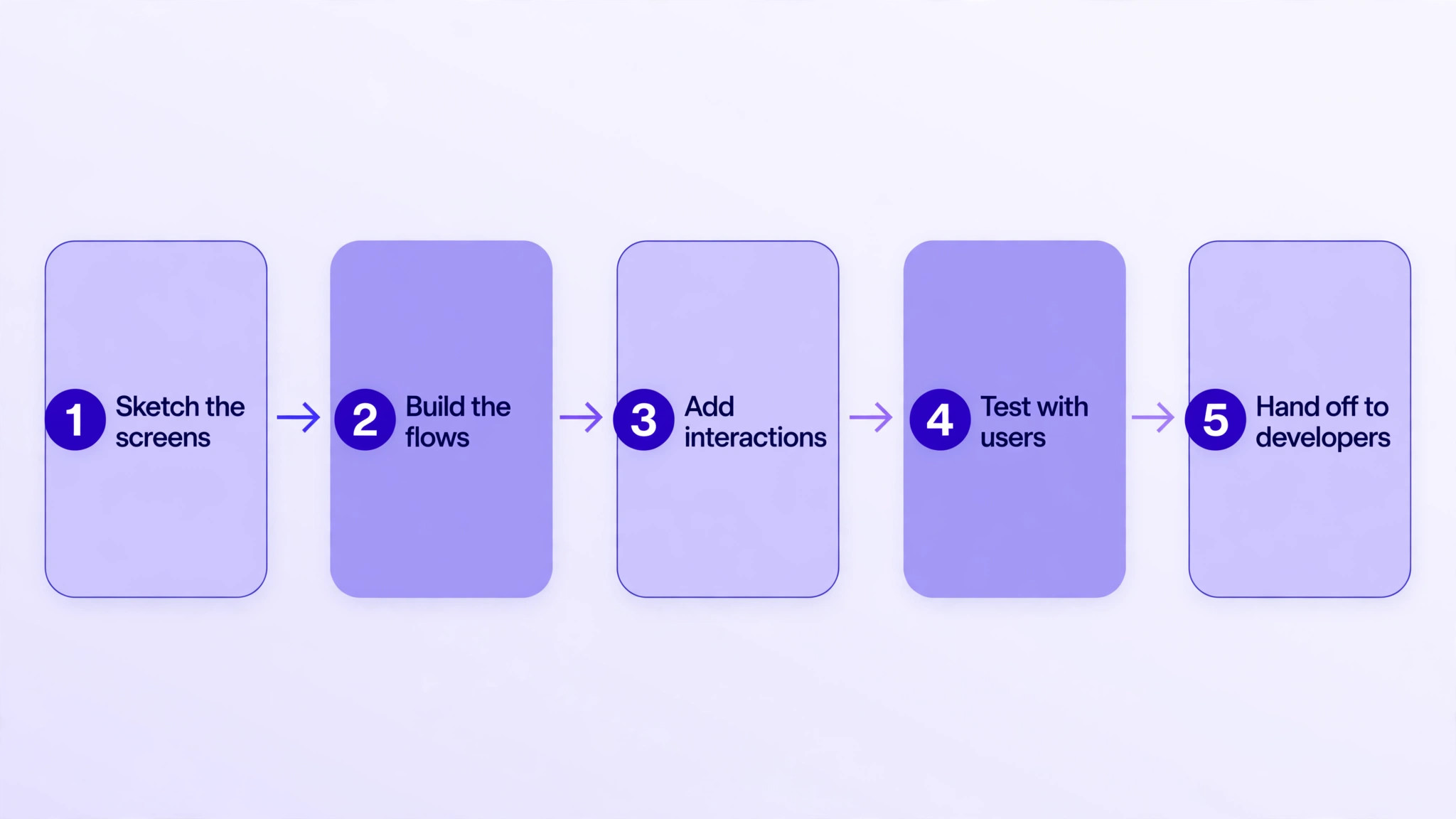
The best prototyping tools only help when the prototyping steps around them are clear, so here is the five-step run we recommend for a first prototype.
- Sketch the screens. Draw the main screens on paper or in a wireframe, since the flow matters more than the pixels at this stage.
- Build the flows. Connect the screens in the tool, linking each button and menu item to its destination.
- Add interactions. Set the transitions, animations and states, so the prototype feels like the real product.
- Test with users. Watch five people use the prototype and note where they hesitate, since hesitation marks the problem.
- Hand off to developers. Export the specs and assets, walk the developers through the flow, and answer their questions before they start.
Frequently Asked Questions
These are the questions designers ask us most about the best prototyping tools, answered in plain terms.
What is the difference between wireframing and prototyping?
A wireframe is a rough sketch of the layout, showing where the elements sit without the visual detail. A prototype is a clickable version of the product, with screens linked and interactions working, so a user can test the flow. Most teams start with a wireframe and build the prototype from it, since the wireframe settles the structure before the detail arrives.
Can I prototype without knowing how to code?
Yes, and every tool on this list is built for designers without code. The interactions are set with menus and drag-and-drop, not with programming, and the published result needs no code either. A designer can build a realistic prototype without writing a line, and the developers handle the code when the design is approved.
How do I share a prototype with a client for feedback?
Send a link, and the client opens the prototype in a browser without an account on most tools. The client clicks through the flow and leaves comments on the screens, which the designer sees in place. Keep the link to the latest version, since an old link will show the old design and confuse the feedback. A short video walkthrough alongside the link helps the client understand the flow.
Do developers need a paid seat to view a prototype?
No, and most tools on this list let developers view the prototype and inspect the specs for free. Only editors pay, so a team can invite the whole development group as viewers without extra cost. Check the viewer permissions during the trial, since some tools limit what a free viewer can see. The handoff should cost nothing extra.
Which prototyping tool is best for mobile apps?
Figma and Proto.io lead for mobile, since both handle gestures, device frames and mobile patterns well. Figma suits a team that designs everything in one place, while Proto.io suits a team that wants a dedicated mobile preview. The choice depends on whether the team needs one tool for all platforms or the best tool for the phone. Test the device preview before deciding.
Can I turn a prototype into a real website?
Yes, with Framer, since it publishes the design as a live website without a rebuild. The other tools on this list produce prototypes for testing, not production sites, so a developer rebuilds the design in code. A team that wants a marketing page live quickly should use Framer, while a team building a product should expect a developer handoff.
Our Pick, Stated Plainly — Figma Is the Design Team Default
If your team designs together, start with Figma. The best prototyping tools all have a place, but Figma pairs the strongest collaboration with the widest plugin library, and that combination is why it leads this guide. Designers work on the same file at once, the handoff to developers is clean, and the free tier covers a solo designer for a long time.
The other entries earn their keep for specialist work. Framer suits a prototype that should ship as a website, Balsamiq suits a quick wireframe, and Axure RP suits a flow with complex logic. Use Figma for the daily work of design, then add the specialist that matches the gap in your workflow. That is the whole strategy, and it works for one designer as well as a full studio.
Test the prototype with five real users before the handoff. A flow that confuses five people will confuse five hundred, and the fix is cheapest while the screens are still in the design tool.
One last pricing note matters. Track what each seat actually costs, from the subscription share to the hours saved in handoff, and keep the numbers in a simple sheet. After a month you will know your true cost per prototype on the tool you chose, and the renewal decision will take minutes instead of a meeting. The tools do not change much. Your data about them is what improves.