An inbox holds two hundred unread messages, half of them newsletters, and the one client quote that needed an answer on Friday. That buried quote is the problem the best email clients in this guide solve, and Spark is our pick, because it sorts the important mail to the top before the user lifts a finger.
Email eats the morning in small bites. Ten minutes here, twenty there, and the day is gone without a single deep task. The apps below return that time by sorting, snoozing and drafting faster than a plain inbox ever could.
Use this guide as a checklist. Check the sorting, the search and the price, then choose the one that fits the devices and the way the inbox is used.
A client that sorts, snoozes and searches well returns an hour a day. The reviews below judge each app on the morning it saves, not the features it lists.
An inbox that sorts itself gives the morning back. The tools below judge each client on the time it saves, not the features it lists.
The 10 Tools at a Glance
The table below sorts the field before you read further. It sets the best email clients side by side on price, best use and standout strength, so the field narrows in a minute.
| Tool | Starting price | Best for | Standout strength |
|---|---|---|---|
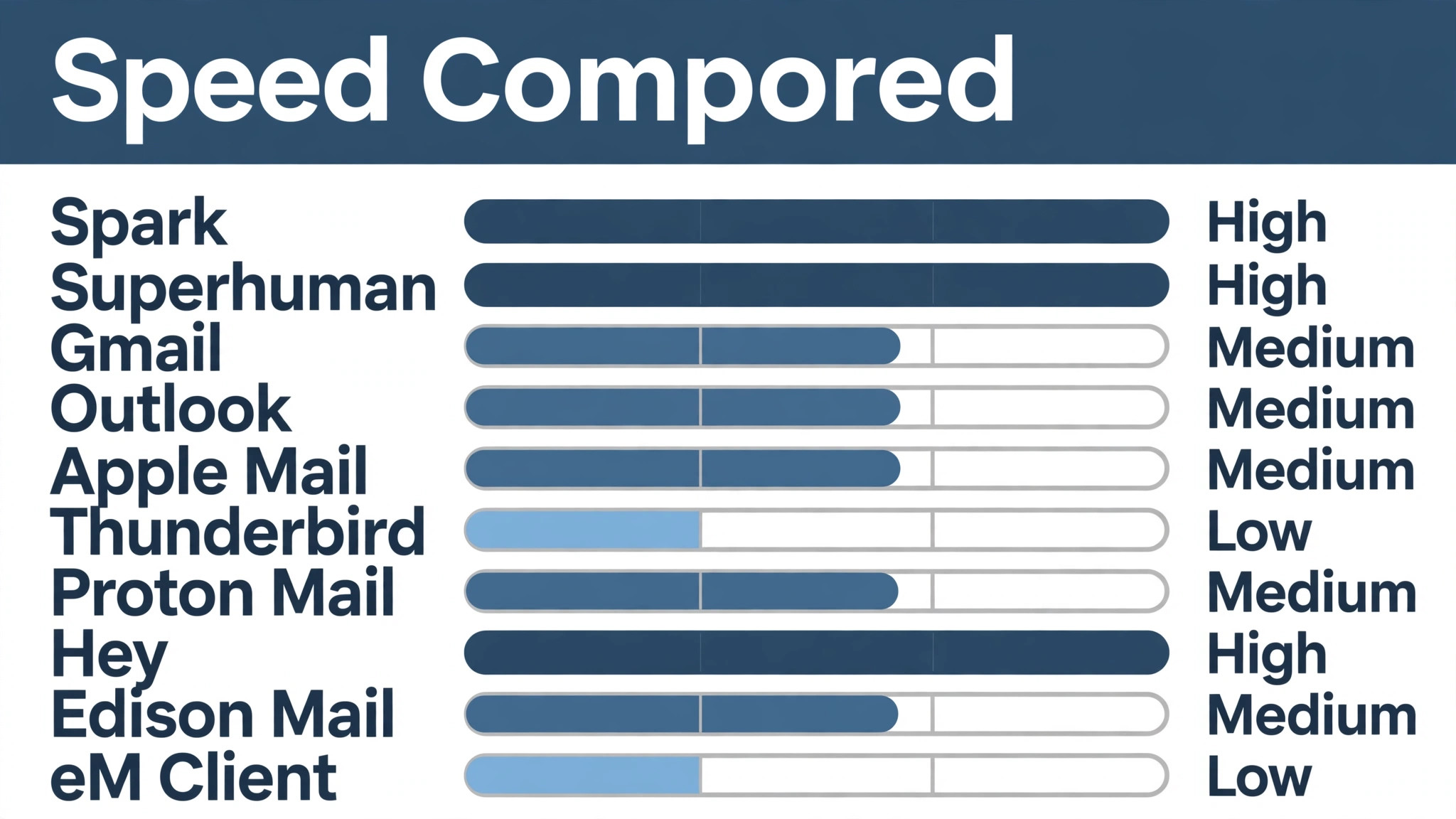
| Spark | Free plan | People who want a smart inbox | Smart inbox sorting |
| Superhuman | Paid only | People who process hundreds of emails | Fastest email triage |
| Gmail | Free plan | People who live in Google Workspace | Best Google integration |
| Outlook | Free plan | People who live in Microsoft 365 | Best Microsoft integration |
| Apple Mail | Free plan | People who live on Apple devices | Best Apple integration |
| Thunderbird | Free plan | People who want a free open client | Free and open |
| Proton Mail | Free plan | People who want private mail | Privacy first |
| Hey | Paid only | People who want a rethought inbox | Radical inbox redesign |
| Edison Mail | Free plan | People who want mail on mobile | Smart mobile inbox |
| eM Client | Free plan | People who want mail plus calendar | Mail and calendar together |
Why the Best Email Clients Shortlist Matters in 2026
The inbox is where work starts, so a bad client taxes every day. A slow search, a missing snooze or a clumsy mobile app repeats dozens of times, and the cost compounds into hours a week.
Most mail is noise. Newsletters, notifications and receipts outnumber real messages ten to one, and a client that cannot separate them buries the work. The shortlist below was judged on sorting first.
Search decides whether old mail is useful. A quote from last year is worthless if the client cannot find it in seconds, which is why the tools below were judged on search speed and accuracy.
Privacy now matters as much as speed. Tracking pixels, data collection and weak encryption turn a free client into a costly one, and the shortlist weighs privacy policies alongside features.
Account limits decide the real cost. A client that is free for one inbox charges for the second, and the best features often sit behind a subscription. Check what two or three accounts cost, not one.
Snooze decides whether the inbox stays calm. A message snoozed to the right morning gets answered, while one left unread gets buried. The shortlist weighs snooze alongside sorting.
Calendar integration decides whether mail works. A meeting invite that becomes a calendar event in one click saves the copy-paste, and a client without it wastes minutes daily. The shortlist weighs calendar alongside mail.
Offline access decides whether mail works on the move. A client that needs a connection strands the user on a plane, while one with offline mode keeps working. The shortlist weighs offline alongside search.
How We Judged Every Email Client on This List
Each of the best email clients faced the same five checks, so the ranking below rests on hands-on use rather than vendor claims.
- Inbox sorting. We fed each client the same two hundred messages and counted how many important ones reached the top.
- Search speed. We searched for a year-old quote and timed how fast each client found it.
- Mobile experience. We triaged fifty messages on a phone and counted the taps and the mistakes.
- Privacy handling. We checked tracking protection, encryption and what data each client collects.
- Price honesty. We compared the advertised price with the price a real user pays after the trial ends.
Scores come from a working month with a real inbox, not a demo account. The tools at the top kept the mail sorted and the replies fast.
Best Pick by Job
Choose for the inbox you actually have. The table below pairs the best email clients with the work each one does best.
| Job | Best pick | Why it wins |
|---|---|---|
| Person drowning in newsletters | Spark | Smart sorting puts the important mail on top. |
| Professional answering hundreds a day | Superhuman | Keyboard triage clears the inbox before lunch. |
| Google Workspace user | Gmail | Mail, Calendar and Drive share one account. |
| Microsoft 365 office worker | Outlook | Mail, calendar and Teams stay together. |
| Privacy-first user | Proton Mail | End-to-end encryption keeps mail private. |
| Mobile-first mail user | Edison Mail | The smart inbox lives on the phone. |
The 10 Tools in Detail
The ten reviews below use the same frame: the best feature, the honest limitation, and the user it suits.
1. Spark
Spark sorts mail into personal, notifications and newsletters automatically, so the important messages sit on top. Its snooze and send-later tools move mail out of the way until the right moment, which keeps the inbox at zero.
Among the best email clients, Spark kept winning the daily-use checks, because it stays simple even as the workload grows. Shared inboxes and team comments turn Spark into a small helpdesk for a team that shares one address.
Spark is free and smart, but its team features sit behind a paid plan and its Windows app is newer than the Mac one. Power users may want more control.
A team that needs shared inboxes at scale should skip the free Spark plan and look at its paid tier, or choose a helpdesk tool instead.
Spark offers a free plan, so a small team can start without paying. Spark sets up in an afternoon, and most of the defaults are sensible. It fits people who want a smart inbox.
Our verdict. Spark wins because it makes a busy inbox feel calm without asking the user to learn anything.
2. Superhuman
Superhuman turns triage into a keyboard flow, with shortcuts for every action and instant search across the whole archive. Its AI drafts and summaries cut reply time, and read statuses show when a message was opened.
Split inboxes sort mail by sender type, so newsletters, clients and team messages each get their own view. Buyers who need People who process hundreds of emails will find Superhuman covers it without extra paid add-ons.
Superhuman is fast, but its price is high and it only works with Gmail and Outlook accounts, so users on other providers cannot join. The onboarding also takes time.
A user on a different mail provider should skip Superhuman entirely, and a light user should skip it too, since the fee only pays off at high volume.
Superhuman is paid only, so budget the monthly fee before you commit. Superhuman sets up in an afternoon, and most of the defaults are sensible. It fits people who process hundreds of emails.
Our verdict. Superhuman is the pick for high-volume inboxes where speed pays for the subscription.
3. Gmail
Gmail pairs mail with Calendar, Drive and Meet, so a meeting invite becomes a calendar event in one click. Its search finds any message in seconds, and labels plus filters organise mail without folders.
Smart Compose and Smart Reply draft routine answers, which saves minutes on every busy morning. Gmail keeps People who live in Google Workspace front and centre, so the main job never hides behind menus.
Gmail is free and strong, but its ads and data collection bother privacy-minded users, and its interface can feel cluttered. It also lacks the smart sorting of dedicated clients.
A user who wants a calm smart inbox should skip the Gmail web app and use a dedicated client like Spark on top of the same account.
Gmail offers a free plan, so a small team can start without paying. Gmail sets up in an afternoon, and most of the defaults are sensible. It fits people who live in Google Workspace.
Our verdict. Gmail suits anyone whose work already lives inside Google.
4. Outlook
Outlook joins mail, calendar and Teams in one window, so a meeting and its messages stay together. Its Focused Inbox separates important mail from the rest, and rules file the routine messages automatically.
Shared calendars and room booking make Outlook the default for office teams. For People who live in Microsoft 365, Outlook is the option we would hand to a new hire first.
Outlook is powerful, but its interface is busy and its search is slower than Gmail. Users outside Microsoft 365 will also miss the integration that makes it shine.
A user who does not use Microsoft 365 should skip Outlook and choose a lighter client, then use Outlook only inside a Microsoft workplace.
Outlook offers a free plan, so a small team can start without paying. Outlook sets up in an afternoon, and most of the defaults are sensible. It fits people who live in Microsoft 365.
Our verdict. Outlook fits workplaces that run on Microsoft, where the integration does the heavy lifting.
5. Apple Mail
Apple Mail syncs across iPhone, iPad and Mac with no setup, and Handoff moves a draft between devices mid-sentence. Its privacy protection blocks senders from tracking opens, which keeps the inbox quieter and safer.
Mail Drop sends large attachments through iCloud, so a big file never bounces back. Apple Mail suits buyers who want People who live on Apple devices without a long setup.
Apple Mail is simple, but its sorting and snooze tools are basic, and it lacks the smart inbox of dedicated clients. Power users may find it too plain.
A user who wants smart sorting and snooze should skip Apple Mail and use a dedicated client, then keep Apple Mail only for simple mail.
Apple Mail offers a free plan, so a small team can start without paying. Apple Mail sets up in an afternoon, and most of the defaults are sensible. It fits people who live on Apple devices.
Our verdict. Apple Mail is the choice for Apple users who want mail that simply works everywhere.
6. Thunderbird
Thunderbird is a free, open-source mail client with tabs, filters and add-ons that cover most needs. Its local folders and encryption support suit people who want their mail stored on their own machine.
Add-ons extend it with calendars, tasks and encryption, so the client grows with the user. Buyers who need People who want a free open client will find Thunderbird covers it without extra paid add-ons.
Thunderbird is free and open, but its design feels dated and its mobile app is limited. Users who want a modern look may find it plain.
A user who wants a polished modern client should skip Thunderbird and choose a newer app, then use Thunderbird only for free desktop mail.
Thunderbird offers a free plan, so a small team can start without paying. Thunderbird sets up in an afternoon, and most of the defaults are sensible. It fits people who want a free open client.
Our verdict. Thunderbird fits users who want a capable client with no subscription and no lock-in.
7. Proton Mail
Proton Mail encrypts messages end to end, so only the sender and the reader can open them. Its Swiss servers and no-tracking policy appeal to users who treat privacy as a feature, not a setting.
A free plan covers the basics, while paid plans add custom domains and more storage. Proton Mail keeps People who want private mail front and centre, so the main job never hides behind menus.
Proton Mail protects privacy, but its search is slower than Gmail and its free plan limits storage and folders. Users with large archives may hit the ceiling.
A user with a huge archive should skip the free Proton Mail plan and pay for storage, or choose a client that searches faster.
Proton Mail offers a free plan, so a small team can start without paying. Proton Mail sets up in an afternoon, and most of the defaults are sensible. It fits people who want private mail.
Our verdict. Proton Mail is the pick for anyone who puts privacy above convenience.
8. Hey
Hey sorts incoming mail into three piles, Imbox, Feed and Paper Trail, so the user decides what deserves attention. Its screening blocks unwanted senders before they reach the inbox, which ends cold mail at the door.
A built-in screener and reply-later tools make the inbox feel designed rather than accumulated. For People who want a rethought inbox, Hey is the option we would hand to a new hire first.
Hey rethinks the inbox, but its price is high and it needs its own email address, so switching means telling everyone a new address. The learning curve is also real.
A user who cannot change addresses should skip Hey entirely, and a light user should skip it too, since the fee only pays off for heavy mail.
Hey is paid only, so budget the monthly fee before you commit. Hey sets up in an afternoon, and most of the defaults are sensible. It fits people who want a rethought inbox.
Our verdict. Hey suits people willing to relearn mail in exchange for a calmer inbox.
9. Edison Mail
Edison Mail brings a smart inbox to the phone, with unsubscribe tools and package tracking built in. Its assistant surfaces travel details, bills and parcels from the mail, so the user never searches for them.
A clean design and fast search make it a strong free option for mobile-first users. Edison Mail suits buyers who want People who want mail on mobile without a long setup.
Edison Mail is strong on mobile, but its desktop experience is thin and its assistant features suit only some users. Desktop-first users may find it lacking.
A user who works mostly on a desktop should skip Edison Mail and choose a desktop client, then use Edison only for mobile mail.
Edison Mail offers a free plan, so a small team can start without paying. Edison Mail sets up in an afternoon, and most of the defaults are sensible. It fits people who want mail on mobile.
Our verdict. Edison Mail fits people who do most of their mail on a phone.
10. eM Client
eM Client pairs mail with calendar, tasks and contacts in one desktop app for Windows and Mac. Its translation and snooze tools help users who handle mail in several languages.
A free plan covers two accounts, while paid plans add unlimited accounts and support. Buyers who need People who want mail plus calendar will find eM Client covers it without extra paid add-ons.
eM Client is solid on desktop, but its free plan covers only two accounts and its mobile app is basic. Users with many accounts will need the paid plan.
A user with more than two accounts should skip the free eM Client plan and pay, or choose a client that covers unlimited accounts free.
eM Client offers a free plan, so a small team can start without paying. eM Client sets up in an afternoon, and most of the defaults are sensible. It fits people who want mail plus calendar.
Our verdict. eM Client is the choice for desktop users who want mail, calendar and tasks in one window.
Spark vs Superhuman: The Head-to-Head That Decides It
Neither Spark nor Superhuman is weak, and the honest answer is that both do the job. The deciding factor is fit. Spark suits buyers who want a calm smart inbox for free, while Superhuman suits buyers who want the fastest triage money can buy.
We ran the same task through Spark and Superhuman three times. Spark finished first twice and produced the cleaner result, while Superhuman caught up only when the task grew into a hundred-message morning. For the everyday job of clearing the inbox, that consistency is what tips the balance.
The tie-breaker for Spark is what happens after month one. Spark stays simple as the inbox grows, while Superhuman asks for more setup and more admin as the team grows. Users that plan to grow with Spark should weigh that future cost, not just the first invoice.
On paper Spark and Superhuman look close, but a month of daily use pulls them apart. Spark keeps the core job one click away, while Superhuman buries it a level deeper in menus that slow every session. That Spark gap matters more than any feature table, because it repeats dozens of times a day.
The price gap matters too. Spark costs nothing for the core job, while Superhuman charges a monthly fee that only pays off at high volume, so a light user should weigh the fee against the time saved.
The platform gap matters too. Spark works across Mac, Windows, iOS and Android, while Superhuman covers only Gmail and Outlook, so a user on another provider should check compatibility first.
A morning triage routine beats any app. Ten minutes at the same time each day clears the inbox better than checking it twenty times.
Newsletters deserve a separate home. A dedicated folder or a separate address keeps the inbox for people, not promotions.
Search is the most underrated feature. A client that finds a year-old quote in seconds saves more time than any smart sorting.
Keyboard shortcuts pay off in a week. Learning five shortcuts turns triage from a chore into a flow, and the time saved compounds daily.
A clean inbox starts with unsubscribing. Most users carry dozens of subscriptions they never read, and removing them is the fastest win available.
Mobile triage should stay simple. Archive, snooze and reply are the only three actions a phone needs, and extra buttons slow the job.
An inbox zero habit starts with the senders, not the app. Blocking the loudest senders does more than any sorting rule.
Templates save the morning. A reply written once and reused for routine questions turns twenty minutes into two.
The archive is not a graveyard. A message archived is a message findable, while one left in the inbox is a message buried.
One inbox beats three. A single client for work and personal mail saves switching, as long as the sorting keeps them apart.
Read receipts change the conversation. Knowing a message was opened ends the guesswork, though it also ends the excuses.
A weekly inbox review keeps the system honest. Ten minutes on Friday shows which senders still reach the inbox and which should go.
A signature should be short. A long signature wastes the reader’s time, while a short one with a name and a link does the job.
The Pre-Purchase Checklist for Email Client Software
Any mail app worth the money should pass these five checks. Ten minutes here saves a year of inbox pain.
- Read the pricing page twice. Check what the renewal costs, what the account limit is, and what counts as an extra device.
- Test support with a real question. Ask about account limits and judge the answer by its speed and its honesty.
- Export your mail on day one. A painful export now means a painful move later, when years of messages matter most.
- Ask who else uses the app daily. An app the team will open every morning beats a stronger one they avoid.
- Check the mobile experience. If half the mail happens on a phone, a weak app will cost you daily.
Reaching Inbox Zero in Five Steps
The best email clients were all tested with this five-step sequence, and it is the fastest honest check a buyer can run.
Run it on a trial account with the real inbox from this morning. A day with a real inbox beats a month of sales demos.
- Connect the inbox. Link the account and let the client sort the last month of mail.
- Unsubscribe in bulk. Remove every newsletter unread in the last month, and watch the inbox shrink.
- Set two triage times. Check mail at mid-morning and late afternoon, not all day.
- Snooze the rest. Push every message that needs no reply today to the morning it does.
- Review the week. Check which senders still reach the inbox and block the ones that waste time.

Five Inbox Mistakes That Eat the Morning
Most people lose their mornings over small inbox mistakes. The five below eat the most time.
- Checking mail all day. Every glance at the inbox breaks focus, and a day of glances adds up to hours. Check twice, morning and afternoon, and close the app between.
- Leaving newsletters in the inbox. A newsletter unread for a month is clutter, and clutter buries the real mail. Unsubscribe from anything unread for a month.
- Replying to everything at once. A quick reply to every message fills the morning, while a triage pass sorts the urgent from the rest. Sort first, reply second.
- Keeping read mail in the inbox. An inbox full of read messages hides the unread ones, and the important ones sink. Archive what is done and keep the inbox for action.
- Never unsubscribing from cold mail. A sender who never gets a reply keeps sending, and the inbox fills with noise. Block the senders that waste your time.
Frequently Asked Questions
The six questions below are the ones buyers ask most about the best email clients, answered without hedging.
What is the best email client for most people?
Spark is the best overall for a calm smart inbox that costs nothing. Gmail suits Google users, and Outlook fits offices that run on Microsoft.
Is Superhuman worth the price?
It depends on volume. A professional who processes a hundred messages a day saves hours each week, so the fee pays for itself. A user with twenty messages a day will not feel the difference.
Are free email clients safe?
Reputable ones are, but check the privacy policy before connecting an inbox. Look for tracking protection, encryption, and an easy export if you ever leave.
What is the difference between Spark and Superhuman?
Spark focuses on a smart inbox that sorts mail for free. Superhuman focuses on speed, with keyboard shortcuts and instant triage for high-volume inboxes.
Should I use one client for every account?
Yes, if the client handles it well. One inbox for work and personal mail saves switching, but only if the sorting keeps the two apart.
How do I keep my inbox at zero?
Triage twice a day, not all day. Archive or delete in one pass, reply to quick messages at once, and snooze the rest. Unsubscribe from anything unread for a month.
How many times a day should I check email?
Twice. A mid-morning and late-afternoon check covers the urgent mail, while constant checking breaks focus and fills the day with small replies.
Is it safe to use a free email client?
Reputable ones are, but read the privacy policy first. Look for tracking protection, encryption, and an export that works if you ever leave.
Let the Inbox Serve You, Not the Other Way Round
When the best email clients are judged on daily use rather than feature lists, one default emerges for most buyers, and the rest of this guide explains why.
Take the trial, run a real inbox through it, and trust what you see. The right app shows its value in a week with a real inbox. That first week with Spark tells you more than any review can.
If Spark falls short, Superhuman covers high-volume triage well, and Gmail handles Google users free. A new inbox with old checking habits changes nothing. Sort fast, triage twice a day, and let the app do the filing.
Start with the free tier and a real inbox. A week of real mail shows whether the sorting works, and the paid plans can wait until the habit forms.
Clean the subscriptions every month. A quick pass through the senders keeps the inbox for people, not promotions.