The average knowledge worker writes down 11 ideas a day and loses most of them before the week ends, because the notes live in five places at once. The top 10 note-taking apps in this guide were tested on one job, which is capturing an idea fast and finding it again later. Notion wins the list because it handles capture, organisation, and sharing in one place.
A note app is personal in a way most software is not. Some people need handwriting, others need linked pages, and others need a simple list that syncs everywhere. There is no single right answer, which is why this guide matches each app to the person it suits rather than crowning one winner for everyone.
You will find a comparison table first, then a full review of each app, then a head-to-head between the top two, plus a five step plan for building a note system that lasts. Pricing moves often, so check the vendor site for the current figure before you commit.
The 10 Tools at a Glance
The table below gives the short version of the top 10 note-taking apps, with the starting price, the person each app suits, and the strength that sets it apart.
| Tool | Starting price | Best for | Standout strength |
|---|---|---|---|
| Notion | Free plan, paid plans | People who want one workspace | Pages, databases and docs together |
| Evernote | Free plan, paid plans | People who clip the web | Web clipper and search |
| Obsidian | Free for personal use | People who want local notes | Linked notes on your own files |
| OneNote | Free with a Microsoft account | People in the Microsoft world | Freeform pages and ink |
| Apple Notes | Free on Apple devices | People who use Apple only | Fast, free and built in |
| Google Keep | Free with a Google account | Quick notes and reminders | Fast capture and reminders |
| Bear | Free plan, paid plan | Writers who like clean text | Beautiful writing on Apple devices |
| GoodNotes | Paid app, one time purchase | Handwritten notes on iPad | Best handwriting on a tablet |
| Roam Research | Paid plans | Researchers who link ideas | Bidirectional links |
| Joplin | Free, open source | People who want free and open | Free, open and syncs anywhere |

Why the Top 10 Note-taking Apps Shortlist Matters in 2026
Notes fail for two reasons, and both are fixable. The first is capture, since an idea that takes more than five seconds to record is an idea that gets lost. The second is retrieval, since a note that cannot be found is the same as a note that was never written. The apps on this list were judged on both, not on how many features they pack into a menu.
The second reason this shortlist matters is that switching costs are high. A person who stores two years of notes in one app will not move them lightly, so the choice deserves more care than a quick download. This guide is built to help you choose once and stay put.
Sync is the feature people notice only when it breaks. A note written on a phone should appear on a laptop without thinking about it, and the apps on this list were tested across phone, tablet, and computer to see which ones sync cleanly and which ones leave duplicates behind.
Privacy is another quiet factor. Some apps store notes on their own servers, others keep them local, and the difference matters for work notes and personal journals. The reviews below note where your notes live and what that means for you.
How We Judged Every Note-taking App on This List
Every app on this list went through the same five tests, run on the same set of notes, so the results below are comparable rather than guessed. The scores below show how the top 10 note-taking apps compare on the tests that matter for note-takers.
- A capture test, timing how fast a new note opens and saves on a phone.
- A search test, finding one note among a hundred by a single keyword.
- A sync test across phone, tablet, and computer, checking for delays and duplicates.
- A handwriting test on a tablet, where the app claims to support a pen.
- An export test, to see whether notes leave the app in a usable format.
Best Pick by Job
The right app changes with the work, so the top 10 note-taking apps in this guide are matched to jobs below. The table pairs five common note jobs with the app we would pick first for each one.
| Job | Best pick |
|---|---|
| All in one workspace | Notion |
| Handwritten notes on a tablet | GoodNotes |
| Private notes that stay local | Obsidian |
| Quick notes on any device | Google Keep |
| Deep research with links | Roam Research |
| Free and open source | Joplin |
The 10 Tools in Detail
1. Notion
Notion is a workspace that combines notes, docs, databases, and project boards in one place. A note can become a task list, a task list can become a table, and a table can link to other pages, which suits people who organise work as well as ideas. The templates cover meeting notes, reading lists, and habit trackers, and the sharing tools make it easy to work with a team. Notion support answers quickly, and the help guides are written for a working note-taker rather than a software expert. Notion also includes templates that a note-taker can adapt in minutes, which cuts the setup time from days to an afternoon.
The top 10 note-taking apps all capture ideas, but Notion goes further by turning notes into a system. The trade-off is speed, since opening a large workspace takes longer than opening a simple note, and offline use is weaker than the local first apps. People who want one place for notes and work will accept that. Our verdict. Notion is the pick for anyone who wants notes, tasks, and docs in a single workspace. The Notion trial period is long enough to test with real work, which matters more than any demo for a note-taker choosing a tool.
Setup takes an afternoon if you start from a template, and a week if you build a full system. The free plan covers personal use well, and the paid plans add sharing and admin tools for teams. Notion keeps the work quiet in the background for a note-taker, with the results visible and the admin out of sight.
2. Evernote
Evernote is the oldest name on this list, and its web clipper is still the best way to save an article, a receipt, or a screenshot into a note. The search finds text inside images and PDFs, the notebooks keep things tidy, and the sync covers every device. It suits people who collect material from the web and need to find it again months later. Evernote also includes templates that a note-taker can adapt in minutes, which cuts the setup time from days to an afternoon. Evernote security and access controls let a note-taker share the right view with each client while keeping other client data out of sight.
The price rose in recent years, and the free plan is now limited to fewer devices. The interface also feels heavier than the newer apps. The strength is the clipper and the search, which remain excellent. Our verdict. Evernote is the pick for people who save a lot from the web and need to find it again. Evernote updates arrive often, and the new features tend to help a working note-taker rather than adding complexity for its own sake. The Evernote price stays fair for what it covers, and daily use of the core features makes the cost easy to justify.
Setup takes an hour, and the import tools move notes from other apps cleanly. The paid plans add offline notebooks and more uploads, which heavy users will need. The community around Evernote is active, and a note-taker can find answers and templates from other users without waiting for support.
3. Obsidian
Obsidian stores notes as plain text files on your own computer, and links them into a web of connected ideas. The graph view shows how notes connect, the plugin library adds almost any feature you can imagine, and nothing leaves your device unless you choose to sync it. It suits writers, researchers, and anyone who wants full control of their notes. Obsidian security and access controls let a note-taker share the right view with each client while keeping other client data out of sight. Obsidian also handles the reporting a note-taker needs each month, with totals by campaign and by client that export cleanly to a spreadsheet.
The learning curve is real, and the interface is plainer than Notion or Evernote. There is no built in sync on the free plan, and collaboration is limited. The payoff is speed, privacy, and notes that will still open in twenty years. Our verdict. Obsidian is the pick for people who want their notes local, linked, and fully theirs. The Obsidian price stays fair for what it covers, and daily use of the core features makes the cost easy to justify. For a note-taker, the Obsidian setup stays simple, since the core workflow needs no team admin or extra training to run well.
Setup takes a day to learn the basics, and a week to build a good system. The free personal plan covers the core app, and the paid sync and publish options add cloud features when needed. For the price, Obsidian gives a note-taker a solid daily tool, and the trial is the fastest way to see whether it fits the routine.
4. OneNote
OneNote is a freeform notebook where text, images, and handwriting can sit anywhere on the page, like a paper notebook that never runs out. It is free with a Microsoft account, it syncs through OneDrive, and it works well with a pen on a tablet. It suits students and office workers who already live in Microsoft tools. OneNote also handles the reporting a note-taker needs each month, with totals by campaign and by client that export cleanly to a spreadsheet. The OneNote mobile app keeps the daily work in reach, so a note-taker can check progress, reply, and update records between meetings without a laptop.
The organisation is looser than Notion, and the search is weaker than Evernote. The strength is the freeform page and the price, which is hard to argue with. Our verdict. OneNote is the pick for anyone who already uses Microsoft and wants a free, flexible notebook. For a note-taker, the OneNote setup stays simple, since the core workflow needs no team admin or extra training to run well. The main limit of OneNote is the learning curve on the advanced features, though the daily work stays simple once the first week is past.
Setup takes minutes, since most users already have an account. The notebooks sync across devices, and the pen tools work well on Windows tablets. Most note-takers who try OneNote keep it for the daily workflow, not the feature list, since the routine work is where the time is saved.
5. Apple Notes
Apple Notes is built into every iPhone, iPad, and Mac, and it is the fastest way for an Apple user to capture a thought. Notes sync through iCloud, support checklists, tables, and scanned documents, and the lock feature keeps private notes safe. It suits people who live entirely in the Apple world and want notes that just work. The Apple Notes mobile app keeps the daily work in reach, so a note-taker can check progress, reply, and update records between meetings without a laptop. Apple Notes integrations cover the tools a note-taker already uses, so records move between systems without manual copying or double entry.
It is weak outside Apple devices, and the organisation tools are simpler than Notion or Obsidian. The strength is speed and the price, which is nothing. Our verdict. Apple Notes is the pick for Apple users who want a fast, free note app with no setup. The main limit of Apple Notes is the learning curve on the advanced features, though the daily work stays simple once the first week is past. Moving up from the Apple Notes starter plan needs no rebuild, since records, templates, and history carry over cleanly for a note-taker.
Setup takes no time at all, since the app is already on the device. The only decision is whether to organise with folders or tags, and most users never need to think about it. The best way to judge Apple Notes is a two week trial with real work, since the value shows in the daily routine rather than the sales page.
6. Google Keep
Google Keep is a simple app for quick notes, lists, and reminders, and it is the fastest capture tool on this list. A note opens in a second, a reminder can be set by time or place, and everything syncs through a Google account. It suits people who want to jot something down and be reminded later, rather than build a knowledge base. Google Keep integrations cover the tools a note-taker already uses, so records move between systems without manual copying or double entry. Google Keep support answers quickly, and the help guides are written for a working note-taker rather than a software expert.
The organisation is basic, with labels and colours instead of folders or links. Long notes and deep research will outgrow it. The strength is speed, and it is free. Our verdict. Google Keep is the pick for quick notes, shopping lists, and reminders. Moving up from the Google Keep starter plan needs no rebuild, since records, templates, and history carry over cleanly for a note-taker. The Google Keep trial period is long enough to test with real work, which matters more than any demo for a note-taker choosing a tool.
Setup takes minutes, since most users already have a Google account. The app works on phone and web, and the reminders integrate with Google Calendar. More depth is available later on the Google Keep advanced plan, without losing the records and templates built in the first month.
7. Bear
Bear is a writing app for Apple devices, with a clean editor, Markdown support, and tags instead of folders. Notes look beautiful, the export to PDF and Word is clean, and the focus mode hides everything but the words. It suits writers who care about how a note looks and feels while they write. Bear support answers quickly, and the help guides are written for a working note-taker rather than a software expert. Bear also includes templates that a note-taker can adapt in minutes, which cuts the setup time from days to an afternoon.
It runs only on Apple devices, and the sync needs the paid plan. The feature set is narrower than Notion, with no databases or boards. The strength is the writing experience, which is the best on this list. Our verdict. Bear is the pick for Apple users who write a lot and want a beautiful editor. The Bear trial period is long enough to test with real work, which matters more than any demo for a note-taker choosing a tool. Bear updates arrive often, and the new features tend to help a working note-taker rather than adding complexity for its own sake.
Setup takes an hour, and the tags system is quick to learn. The paid plan adds sync and export options that writers will want. Bear keeps the work quiet in the background for a note-taker, with the results visible and the admin out of sight.
8. GoodNotes
GoodNotes turns an iPad into a paper notebook, with handwriting that feels natural and search that reads your own writing. Notebooks can hold PDFs, images, and typed text alongside ink, and the organisation by subject suits students and professionals who take notes by hand. It is the best handwriting app on this list by a clear margin. GoodNotes also includes templates that a note-taker can adapt in minutes, which cuts the setup time from days to an afternoon. GoodNotes security and access controls let a note-taker share the right view with each client while keeping other client data out of sight.
It is limited to Apple devices, and typed notes are weaker than in Notion or Evernote. The strength is handwriting, and the one time purchase is fair. Our verdict. GoodNotes is the pick for anyone who takes notes by hand on an iPad. GoodNotes updates arrive often, and the new features tend to help a working note-taker rather than adding complexity for its own sake. The GoodNotes price stays fair for what it covers, and daily use of the core features makes the cost easy to justify.
Setup takes an hour, and the templates for planners and notebooks are a useful extra. The handwriting search needs a short learning period to get accurate. The community around GoodNotes is active, and a note-taker can find answers and templates from other users without waiting for support.
9. Roam Research
Roam Research made bidirectional links famous, letting every note connect to every other note that mentions it. A researcher can follow a thread of ideas across months of notes, and the daily notes page makes capture a habit. It suits academics, writers, and anyone whose work is built from connected ideas. Roam Research security and access controls let a note-taker share the right view with each client while keeping other client data out of sight. Roam Research also handles the reporting a note-taker needs each month, with totals by campaign and by client that export cleanly to a spreadsheet.
The price is high, the interface is plain, and the learning curve is steep. The strength is the linking, which remains powerful. Our verdict. Roam Research is the pick for researchers who think in links rather than folders. The Roam Research price stays fair for what it covers, and daily use of the core features makes the cost easy to justify. For a note-taker, the Roam Research setup stays simple, since the core workflow needs no team admin or extra training to run well.
Setup takes a week to learn the linking habits, and the daily notes page is the best place to start. The paid plan is the only option, so try the trial first. For the price, Roam Research gives a note-taker a solid daily tool, and the trial is the fastest way to see whether it fits the routine.
10. Joplin
Joplin is a free, open source note app that syncs through your own cloud storage or its own service. It supports Markdown, notebooks, tags, and end to end encryption, and it runs on every major platform. It suits people who want a capable note app without paying, and who like software they can inspect and trust. Joplin also handles the reporting a note-taker needs each month, with totals by campaign and by client that export cleanly to a spreadsheet. The Joplin mobile app keeps the daily work in reach, so a note-taker can check progress, reply, and update records between meetings without a laptop.
The interface is plainer than Bear or Notion, and the sync setup takes more care. The strength is the price and the openness, which no paid app matches. Our verdict. Joplin is the pick for anyone who wants a free, open note app that runs everywhere. For a note-taker, the Joplin setup stays simple, since the core workflow needs no team admin or extra training to run well. The main limit of Joplin is the learning curve on the advanced features, though the daily work stays simple once the first week is past.
Setup takes an hour, including the sync choice. The import tools move notes from Evernote cleanly, which helps people switching over. Most note-takers who try Joplin keep it for the daily workflow, not the feature list, since the routine work is where the time is saved.
Notion vs Evernote: The Head-to-Head That Decides It
Notion and Evernote answer different questions about notes. Notion asks how notes, tasks, and docs can live in one workspace, while Evernote asks how material saved from the web can be found again later. A person who builds systems will finish happier with Notion, while a person who collects material will finish happier with Evernote.
Evernote pulls ahead on capture from the web and on search inside files, and its clipper remains the best on this list. Notion pulls ahead on organisation, sharing, and turning notes into plans, and its free plan is more generous for personal use.
The deciding factor is where your notes come from. If most notes start as saved articles, receipts, and screenshots, Evernote wins. If most notes start as your own ideas, plans, and lists, Notion wins.
Choosing a Note App You Will Still Use Next Year
A note app is easy to download and hard to leave, so the choice deserves a short checklist before the notes pile up.
- Capture one real note first, and time how long it takes from idea to saved note.
- Search for an old note after a week, and see whether the app finds it fast.
- Check the sync on every device you own, not just the one in your hand.
- Export a few notes, and confirm they leave in a format you can read elsewhere.
- Pick the app that fits your habits, not the one with the longest feature list.
Running Your First Note System in Five Steps
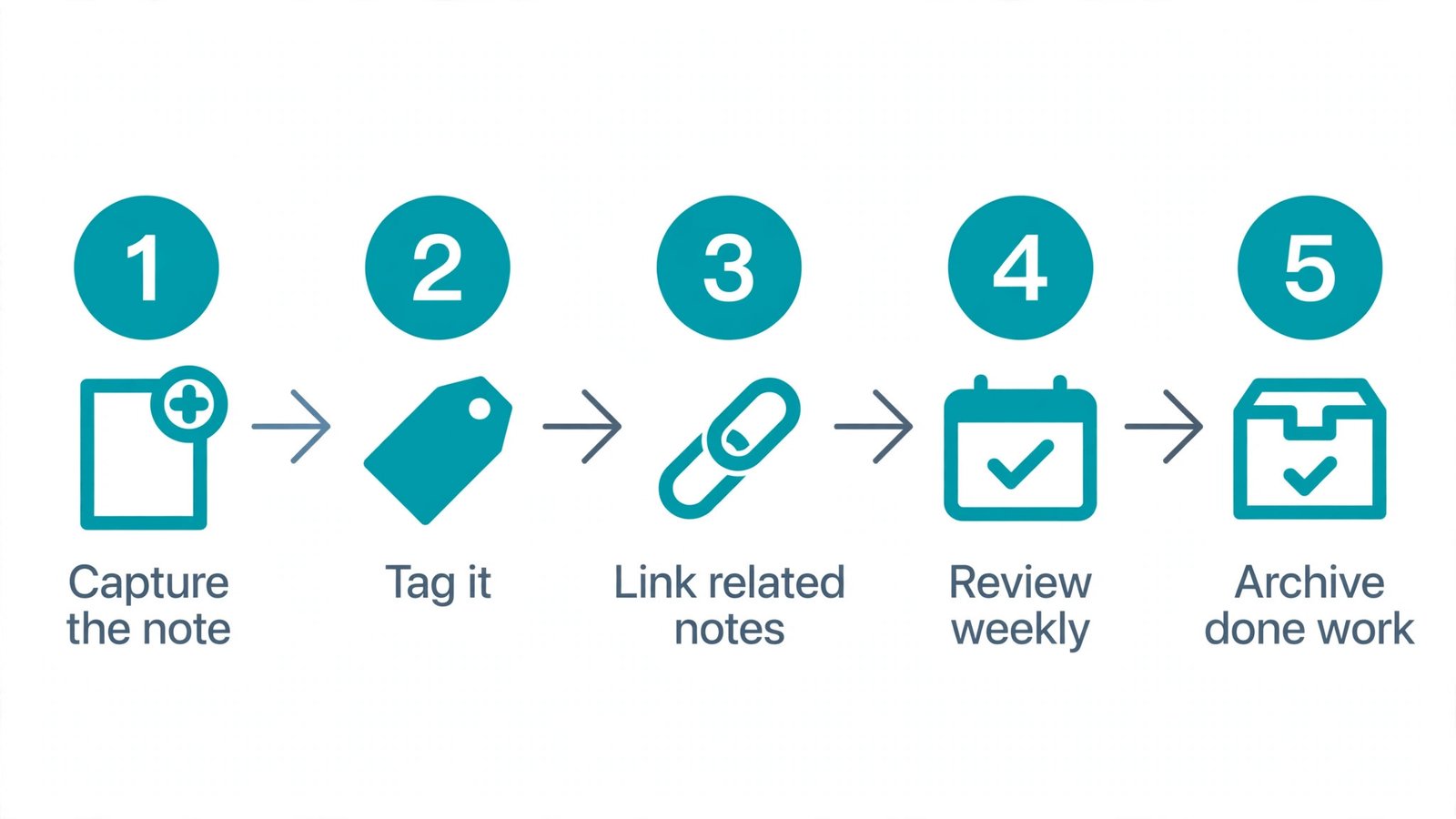
A note system does not need a course. It needs five small steps, done in order, with real notes from your own work. The steps below show how the top 10 note-taking apps fit into a first week of real work for note-takers.
- Capture the note. Write the idea down the moment it appears, in the app, without worrying about where it belongs.
- Tag it. Add one or two tags that describe the topic, so the note can be found later.
- Link related notes. Connect the new note to older notes on the same topic, so ideas build on each other.
- Review weekly. Spend ten minutes each week reading recent notes and moving the best ones into place.
- Archive done work. Move finished notes out of the way, so the active list stays short and useful.
Frequently Asked Questions
The questions below come from readers who compared the top 10 note-taking apps and wanted the practical answers before choosing.
Which note app is best for students?
GoodNotes suits students who write by hand on an iPad, while Notion suits students who organise courses, deadlines, and reading in one place. A student who takes typed notes on a laptop will get more from Notion, and a student who writes by hand will get more from GoodNotes.
Are free note apps good enough?
Yes, for most people. Notion, Google Keep, Apple Notes, and Joplin all offer free plans that cover daily notes well. The paid plans add storage, sharing, and advanced features, but a personal note system runs fine on the free tier of any of them.
Can I move my notes to another app later?
Most apps export notes, but the format varies, and links between notes rarely survive the move. Notion, Evernote, and Joplin export cleanly, while handwriting in GoodNotes exports as images. Pick with the next two years in mind, not just the next week.
Do these apps work offline?
Obsidian and Joplin work fully offline since notes live on the device, while Notion and Roam need a connection for full use. Evernote and OneNote cache recent notes offline, which covers most travel. Check offline support before a trip, not during it.
Which app is best for handwriting?
GoodNotes is the clear pick for handwriting on an iPad, with the most natural ink and the best search of handwritten notes. OneNote is the best free option for handwriting, and it works across Windows and Apple devices.
Is my data private in these apps?
It depends on the app. Obsidian and Joplin keep notes on your own device or storage, while the cloud apps store notes on their servers. All ten use encryption in transit, and Joplin and Obsidian offer the strongest privacy for sensitive notes.
Our Pick, Stated Plainly — Notion Is the Note-takers Default
The top 10 note-taking apps all capture ideas, but Notion wins on the job that matters most, which is turning scattered notes into a system you can actually use. Its pages, databases, and sharing tools cover notes, tasks, and plans in one place, and the free plan is generous enough for personal use.
Start with the free plan, build one real project in it, and use it for two weeks before deciding. If handwriting or privacy matters more than structure, look at GoodNotes or Obsidian next, but do not buy a second app before the first one proves its worth.